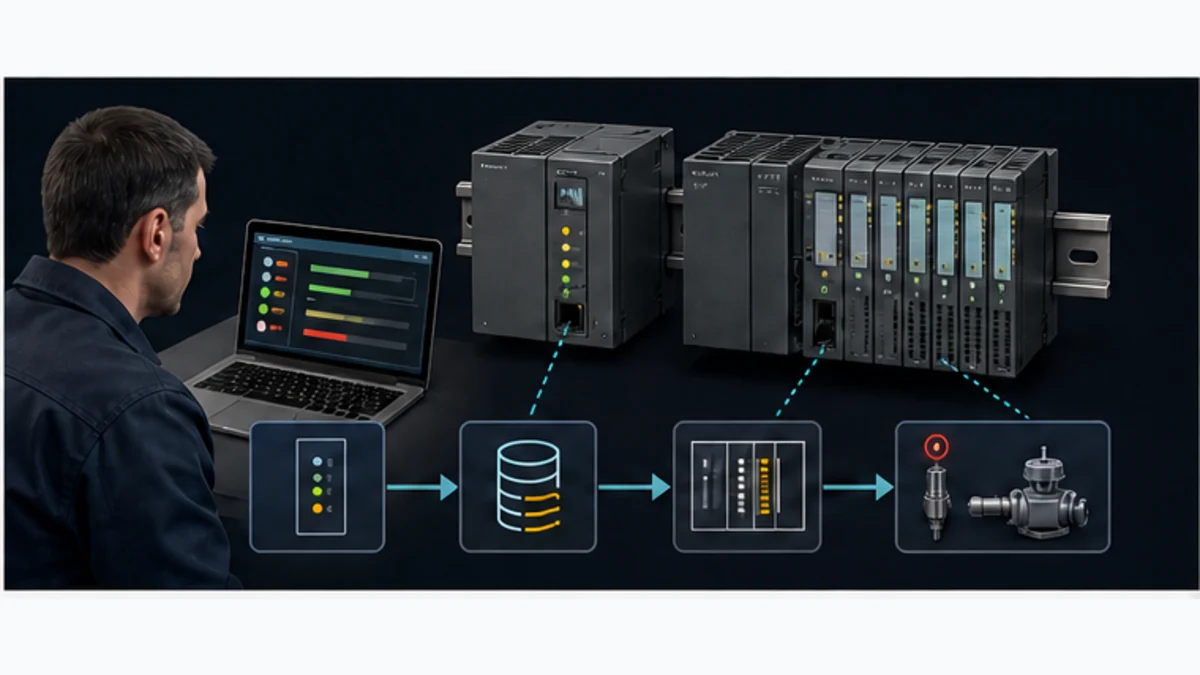
Siemens 6ES7972-0CB20-0XA0 PC Adapter USB: Complete Setup Tutorial
Install, configure, and troubleshoot the Siemens 6ES7972-0CB20-0XA0 PC Adapter USB for S7-200/300/400 programming. Driver setup, PG/PC interface, MPI vs PROFIBUS, and common faults.
The Siemens 6ES7972-0CB20-0XA0 — sold as the PC Adapter USB A2 — is the standard programming cable for connecting a laptop to S7-200, S7-300, S7-400, and C7 controllers over MPI or PROFIBUS DP. It's not the cheapest cable in the catalogue, and on Windows 11 in 2026 the install path has more sharp edges than it used to. This tutorial walks the install, configuration, and troubleshooting end-to-end so a maintenance engineer who has never touched the cable can be online with a legacy S7-300 in under an hour.
What the 6ES7972-0CB20-0XA0 actually is
The PC Adapter USB A2 is a two-headed cable: USB Type-A on the laptop end, 9-pin Sub-D female (PROFIBUS DP / MPI) on the PLC end. Internally it's an MPI/PROFIBUS protocol bridge, not a generic USB-to-serial converter — it speaks Siemens MPI and PROFIBUS DP protocols at up to 12 Mbit/s, and it's recognised by Siemens engineering tools as a first-class PG/PC interface.
Supported networks:
- MPI at 19.2 kbps, 187.5 kbps, 1.5 Mbit/s, 12 Mbit/s
- PROFIBUS DP at all standard baud rates from 9.6 kbps to 12 Mbit/s
Supported PLCs:
- S7-200 (legacy)
- S7-300 (the most common use case in 2026)
- S7-400
- C7 combined CPU / HMI units
Supported software:
- STEP 7 V5.x Classic — fully supported
- TIA Portal V13 SP1 and later — supported with the correct PG/PC interface configuration; there are caveats below
- WinCC Flexible — supported for online HMI work
- WinCC Classic — supported
The cable replaces several earlier devices, including the older PC Adapter MPI (6ES7972-0CA22-0XA0), which used RS-232 and is effectively obsolete.
Driver installation on Windows 10 and 11
Where to get the driver
Siemens hosts the PC Adapter USB driver bundle on its support portal as a download tied to the cable's article number. The current driver as of 2026 supports Windows 10 and Windows 11 in 64-bit. Avoid third-party driver bundles — Siemens' own installer is signed and behaves correctly with Windows 11's driver-signing enforcement.
Install procedure
- Unplug the cable.
- Run the Siemens driver installer with administrator rights.
- Reboot when prompted.
- After reboot, plug the cable into a USB 2.0 or USB 3.0 port. Windows enumerates it; Device Manager shows it under "Siemens A&D Communications" or similar, depending on driver version.
- Verify there is no yellow warning triangle.
If you see a yellow triangle with Code 52 (driver-signing issue), the install failed silently or you have an out-of-date driver bundle. Re-run the latest installer and reboot again. Don't disable driver-signing enforcement unless you have no alternative — signed drivers are the supported path.
TIA Portal version compatibility
The PC Adapter USB A2 works with TIA Portal V13 SP1 and later, but the experience improves significantly on V15.1 and later. On older TIA Portal versions, the driver discovery from the engineering tool side is unreliable. If you can pick the TIA Portal version, V18 or V19 with the latest PC Adapter driver is the smoothest combination.
Configuring the PG/PC Interface
The PG/PC Interface is Windows' equivalent of "which network adapter for industrial protocols". Even with the cable installed, you need to point the engineering tools at it.
- Open Control Panel → Set PG/PC Interface (Classic mode), or in TIA Portal: Online & diagnostics → Online access.
- Application access point: select S7ONLINE (STEP 7) or TIA Portal-specific entry depending on tool.
- Interface Parameter Assignment: choose PC Adapter (MPI) for an MPI network, PC Adapter (PROFIBUS) for a PROFIBUS DP network.
- Click Properties to set:
- MPI tab: Address (typically 0 for the engineering tool), Timeout, Transmission Rate (default 187.5 kbps for MPI), Highest Station Address (HSA — default 31, must match the network's HSA).
- PROFIBUS tab: Address, Profile (DP / Standard / Universal / Custom), Transmission Rate to match the bus.
- Apply. Run a connection test by browsing the bus.
Wrong settings here are the #1 cause of "no connection to module" errors. The MPI baud rate, address, and HSA all have to match the network the cable is plugged into.
Physical wiring and termination
The cable's PLC-side connector is a male 9-pin Sub-D matching the standard PROFIBUS / MPI socket on Siemens CPUs and HMIs. Pinout:
- Pin 3 — RxD/TxD-P (data positive, A line)
- Pin 5 — DGND (ground)
- Pin 6 — VP (5 V supply for terminating resistors)
- Pin 8 — RxD/TxD-N (data negative, B line)
For short MPI connections (laptop directly to a single CPU), termination is generally not required. For PROFIBUS DP at higher baud rates, the bus must be properly terminated at both ends — and the PC Adapter typically connects in the middle of an existing bus, not at an end, so its connector should not be terminated.
Mistermination at high baud rates produces sporadic communication errors that look like driver problems. If you see intermittent timeouts at 1.5 Mbit/s or 12 Mbit/s but the cable works at 187.5 kbps, suspect termination first.
Common faults
Code 52 driver-signing error
Use the latest signed Siemens installer; reboot after install; do not use bundled drivers from third-party "all-in-one" installers.
"No connection to module" on first attempt
In order: check PG/PC Interface points to PC Adapter (MPI/PROFIBUS); check transmission rate matches the network; check the MPI/PROFIBUS station address you're targeting actually exists on the bus; check HSA matches the network's HSA.
USB power problems
The PC Adapter USB A2 draws power from the USB port. On laptops with weak USB-A ports, or through poor-quality unpowered hubs, the cable behaves erratically. Plug it directly into a laptop USB port, ideally USB 2.0 rather than USB 3.0 if both are available.
Conflicting station addresses
Two devices on an MPI bus with the same address cause both to drop. The engineering tool defaults to MPI address 0, but if there's already another tool running at 0, the bus collapses. Change the engineering tool's address to 1 or 2 in the PC Adapter properties.
Timeout errors at high baud rates
If 187.5 kbps works and 1.5 Mbit/s doesn't, suspect cable length and termination. The MPI / PROFIBUS spec has strict cable-length limits at higher rates — and a long whip-cable to a laptop two metres away from the panel is often outside spec at 12 Mbit/s.
TIA Portal V15+ and the "interface not found" error
Some TIA Portal versions fail to discover the cable until you open Set PG/PC Interface from Control Panel and "wake" it once. Open Control Panel → Set PG/PC Interface, confirm PC Adapter shows up, close. Return to TIA Portal and the interface usually appears in Online Access.
Genuine vs clone cable detection
Clone PC Adapter USB cables exist and are sold under various names on online marketplaces. They typically:
- Use a generic FT232 or PL2303 USB-UART chip rather than Siemens' protocol bridge silicon
- Work for MPI but fail or struggle on PROFIBUS DP
- Show up in Windows as a generic USB-Serial device, not a Siemens device
- Cost a fraction of the genuine cable
The real difference: the genuine cable is an MPI/PROFIBUS protocol bridge — it speaks the protocols natively and integrates with STEP 7 / TIA Portal as a first-class interface. Clones are usually USB-to-RS-485 adapters relying on older STEP 7 software-emulation paths that newer TIA Portal versions don't fully support.
For maintenance work on a laptop you'll lose if it gets damaged, a clone may be acceptable. For commissioning new panels, factory acceptance testing, and any work where reliability matters, buy the genuine cable.
Comparison with other Siemens cables
6ES7972-0CA23-0XA0 (TS Adapter)
This is a different beast — a teleservice adapter for remote diagnostics over modem or Ethernet, not a programming cable.
6GK1571-0BA00-0AA0 (CP 5611 / 5711 USB)
Higher-end PROFIBUS DP communication processor, supports more advanced features (DP master functions, isochronous mode). Overkill for routine programming work but the right choice for engineering setups doing bus diagnostics.
Built-in PROFINET on S7-1200 / S7-1500
Modern Siemens CPUs ship with built-in PROFINET. For new projects, you'll use a regular Ethernet patch cable from laptop to CPU, no PC Adapter required. The 6ES7972-0CB20-0XA0 is a legacy-MPI / PROFIBUS-DP tool — once you're on S7-1500 with PROFINET, you don't need it anymore.
When this cable is still the right tool
Despite its age and Windows-11 install friction, the PC Adapter USB A2 remains the right cable when:
- You're maintaining S7-300 / S7-400 panels with no Ethernet retrofit
- You need to walk a PROFIBUS DP segment with full diagnostic capability
- You're commissioning legacy hardware from inventory
- You're working in a plant with mixed S7-300 and S7-1500 and need one cable that handles both legacy MPI work
For broader Siemens context see the Siemens LOGO! complete guide for entry-level programming and the TIA Portal tutorial for modern S7-1500 work.
Summary
The 6ES7972-0CB20-0XA0 PC Adapter USB A2 is a legacy-but-essential tool for any engineer working with S7-200/300/400. Use the latest signed Siemens driver, configure the PG/PC Interface for MPI or PROFIBUS DP, set the right baud rate and station address for the network, and watch for termination issues at high baud rates. Genuine cable is worth the price for production work; clone cable is acceptable for hobby and educational use only. When something fails, work the checklist — driver, COM enumeration, PG/PC Interface, transmission rate, station address, termination — rather than guessing.