KUKA Robot Programming Tutorial: KRL Basics and Your First Program
Learn KUKA robot programming — the KRL language, the smartPAD, motion commands (PTP/LIN/CIRC), I/O and variables, and an annotated first KRL program.
KUKA Robot Programming: What You Will Learn
KUKA is one of the largest industrial robot manufacturers in the world, with robots deployed in automotive bodyshops, foundries, electronics assembly, and palletizing cells across every major manufacturing market. If your plant runs a KUKA KR AGILUS, KR QUANTEC, or any other KUKA robot arm, the programming environment is the same: KUKA Robot Language (KRL), executed on a KRC4 or KRC5 controller and written using the smartPAD teach pendant or KUKA.Sim offline software.
This tutorial covers the complete foundation: what KRL is, how the smartPAD works, coordinate systems, motion commands, variables and I/O, and a fully annotated first program with a KRL syntax cheat-sheet you can keep at your workstation. It closes with a bridge section specifically for PLC engineers making the transition to robot programming.
For a broader picture of how robot controllers fit alongside PLCs and SCADA systems on the plant floor, see the industrial robot programming complete guide. If you also work with other robot platforms, the FANUC robot programming tutorial and ABB robot programming tutorial cover parallel concepts in their respective languages.
What Language Do KUKA Robots Use?
KUKA robots are programmed in KRL — KUKA Robot Language. KRL is a Pascal-derived, imperative, structured language with syntax that will feel familiar to anyone who has worked with Pascal, Delphi, or even structured text (ST) IEC 61131-3 PLC programming. It is not a graphical or block-based language: KRL programs are plain text files that you read, write, and edit like source code.
KRL Architecture: SRC and DAT Files
Every KRL module consists of two paired files:
ProgramName.src— the source file. Contains DEF/END blocks (procedure declarations), motion instructions, variable assignments, I/O commands, and all program logic.ProgramName.dat— the data file. Contains position data (coordinates for each taught point), persistent variable declarations, and tool/base data references.
This separation is intentional. The .dat file lets you re-teach positions (by jogging the robot) without touching the program logic in the .src file. When you teach a new position on the smartPAD, the controller writes the Cartesian or axis-angle values into the .dat file automatically.
KRL vs WorkVisual
WorkVisual is KUKA's offline engineering software for system configuration — bus topology, safety, I/O mapping, and option package management. It is not a robot programming environment in the same sense as KRL. You write motion programs in KRL; you configure the system in WorkVisual. Think of it as the equivalent of the difference between writing a PLC program and configuring the hardware configuration in TIA Portal or Studio 5000.
For offline path simulation and program development without a physical robot, KUKA provides KUKA.Sim (formerly KUKA.Sim Pro). KUKA.Sim includes a virtual KRC controller, so KRL programs written there run identically on a real robot.
The smartPAD Teach Pendant
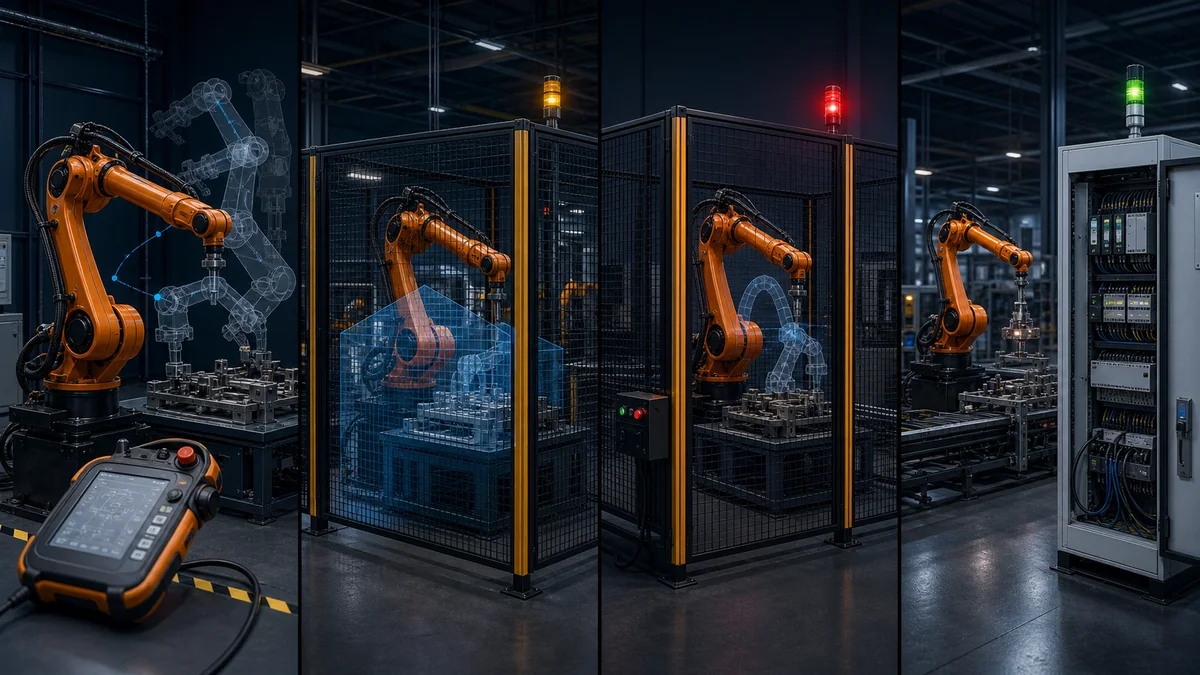
The smartPAD is KUKA's handheld teach pendant. It connects to the KRC controller via a hot-plug cable and provides the primary interface for jogging, teaching positions, writing programs, and running programs in manual mode.
Key Controls
- Enabling switch (deadman switch) — A three-position switch on the back. The middle (depressed) position enables robot motion in T1/T2 mode. Fully released or fully squeezed, motion stops. This is a core safety device — do not defeat it or tape it down.
- Mode selector key switch — Rotates between T1 (manual, slow), T2 (manual, full speed), AUT (automatic, external control optional), and AUT EXT (automatic, external start signal from PLC). Always begin new programs in T1.
- 6D mouse (Space Mouse) — The six-degree-of-freedom joystick in the center of the pendant. Push it along X/Y/Z to move the TCP in Cartesian space; twist it to rotate the TCP orientation. The coordinate frame it operates in (World, Base, Tool, or Joints) is selected by the active frame display on screen.
- Softkeys — Six keys along the bottom edge of the touchscreen. Their function changes with context; the current label is displayed on screen directly above each key.
- Keyboard icon — Opens the on-screen keyboard for entering program names, comments, and variable values.
- Start / Stop — Green forward-run and red stop keys for program execution in T1 mode (hold Start to run; release to pause).
Operating Modes
| Mode | Description | When to Use |
|---|---|---|
| T1 | Manual, maximum 250 mm/s TCP speed | Writing and testing new programs |
| T2 | Manual, programmed speed | Verifying full-speed behavior before auto |
| AUT | Automatic, no external signal required | Running cell in isolation |
| AUT EXT | Automatic with external start (PLC/PROFINET) | Production — PLC controls start/stop |
Always test new or modified programs in T1 before switching to AUT. A collision at 2,000 mm/s causes dramatically more damage than a collision at 250 mm/s.
Coordinate Systems in KUKA Robotics
Understanding coordinate frames is non-negotiable before you teach a single position. Teaching in the wrong frame is the most common source of rework during commissioning.
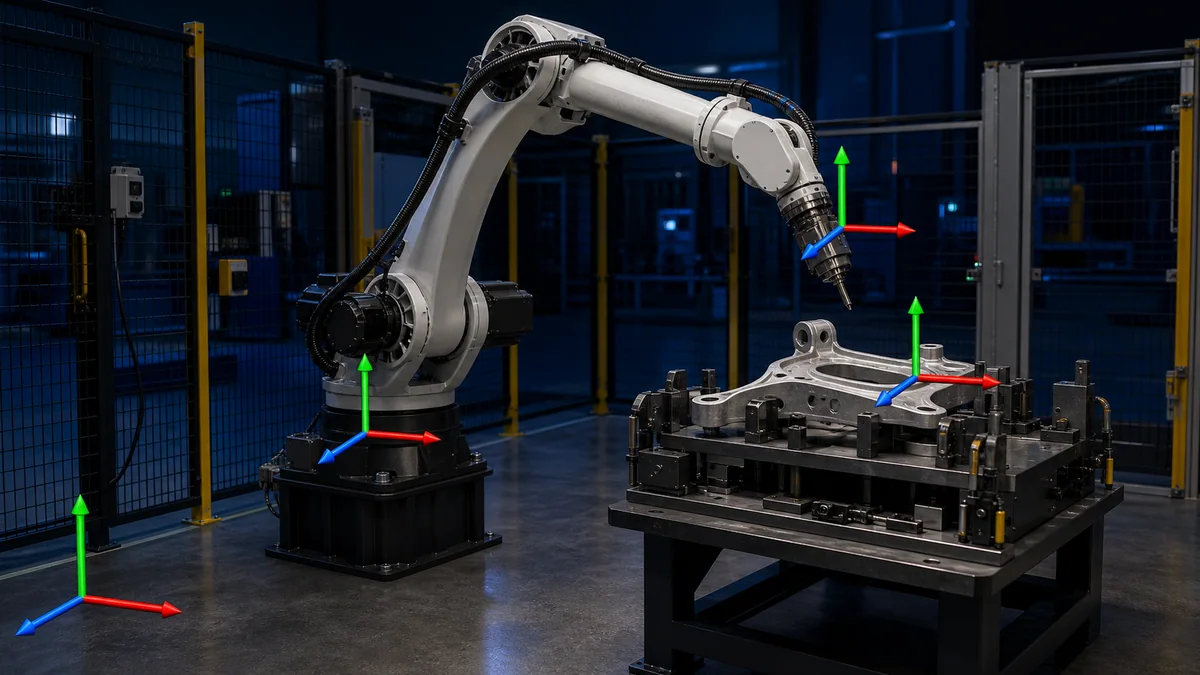
World Coordinate System (WORLD)
The global fixed frame, aligned with the robot base by default (origin at the center of the robot mounting flange face, on the floor). When you jog in WORLD, the TCP moves along fixed X, Y, Z axes regardless of where the robot arm is pointing.
Robot Coordinate System (ROBROOT)
ROBROOT is identical to WORLD unless the robot is mounted on a linear track or elevated — in those cases, ROBROOT moves with the robot's physical base. For floor-mounted robots, WORLD and ROBROOT are the same.
Base Coordinate System (BASE)
A user-defined frame you declare relative to WORLD. You assign BASE to a fixture, a conveyor pallet position, or a table surface. When you define a program that references a particular BASE, you can re-teach the entire program to a new fixture location by updating just the BASE frame — not re-teaching every point individually. This is one of the most important productivity tools in robot programming.
Tool Coordinate System (TOOL)
Defines the tool center point (TCP) — the functional tip of your end-effector — and its orientation relative to the robot flange. A correctly defined TOOL frame means motion commands move the actual gripping point, not the flange. It also means TCP speed limits apply to the correct physical point.
Jog Frame Selection
On the smartPAD, the active jog frame is shown in the status bar. Cycle through frames to select the one appropriate for your current task. For approach/retract moves during teaching, TOOL frame is usually most intuitive — the TCP moves straight in and out of the workpiece along the tool Z axis.
Motion Commands: PTP, LIN, and CIRC
KRL has three primary motion instructions. Every robot move you write will be one of these three.
PTP — Point-to-Point Motion
PTP P1
PTP P1 WITH $VEL_AXIS[1] = 50
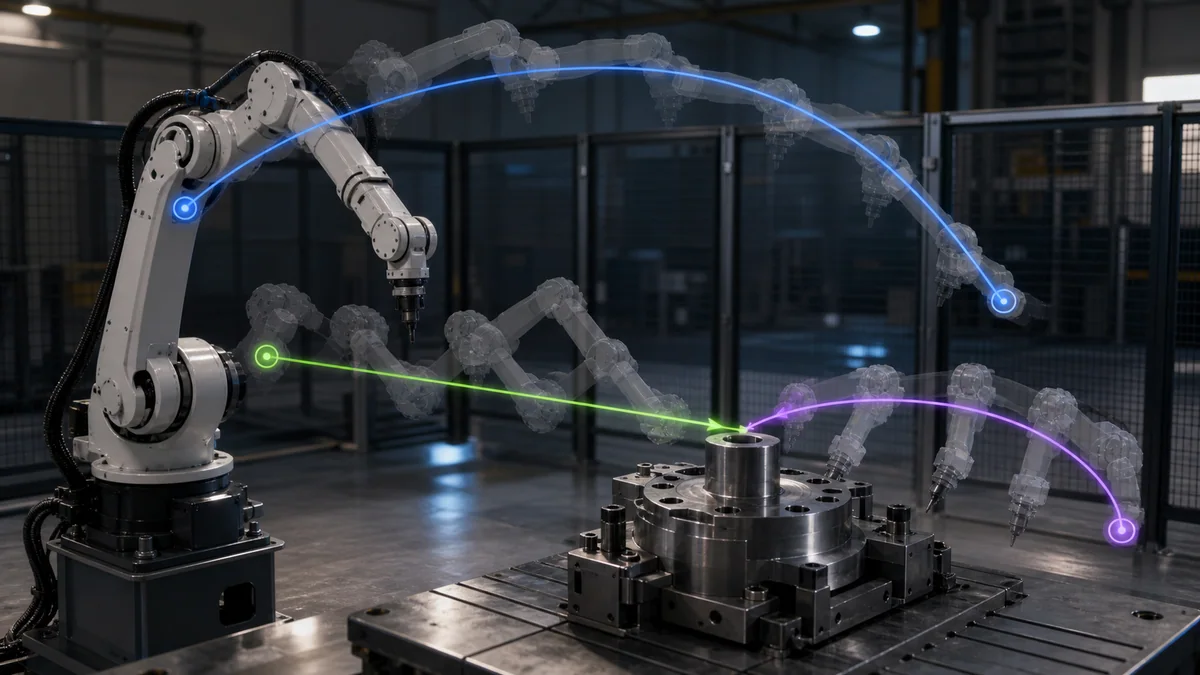
PTP moves all axes simultaneously to reach the target position. The controller plans the fastest path by interpolating in joint space, which means the TCP path through Cartesian space is curved and not directly predictable. Use PTP for:
- Moving to and from the home position
- Large repositioning moves where the path does not matter
- Approach moves where there are no obstacles along the joint-space path
PTP is the fastest motion type. The system variable $VEL_AXIS[n] sets the speed of axis n as a percentage of its rated maximum (1–100). A global override $OV_PRO (programmed velocity override, 0–100%) scales all programmed speeds — useful for initial slow testing.
LIN — Linear Interpolation
LIN P2
LIN P2 WITH $VEL.CP = 300
LIN moves the TCP in a straight Cartesian line from the current position to the target. The path is geometrically exact. Use LIN for:
- Approach and retract moves perpendicular to a workpiece surface
- Welding seams, adhesive dispensing, or laser cutting paths
- Assembly insertions where the tool must approach along a known vector
- Any move where obstacles exist along the Cartesian path
$VEL.CP sets the TCP speed in mm/s for Cartesian-interpolated motions (LIN and CIRC). A reasonable starting value for testing is 100–200 mm/s.
CIRC — Circular Motion
CIRC Aux_Point, P3
CIRC Aux_Point, P3 WITH $VEL.CP = 150
CIRC moves the TCP along a circular arc defined by three points: the current position (arc start), an auxiliary point (a point on the arc used to define the circle geometry), and the target point (arc end). CIRC is used for:
- Circular weld seams
- Routing or dispensing around a cylindrical feature
- Any continuous arc path where LIN segments would leave visible facets
Velocity and Approximation
Approximation (blending) prevents the robot from coming to a full stop at each point — instead it begins the next motion before fully reaching the target, rounding the corner. KRL uses the CONT keyword to activate approximation:
PTP P1 C_PTP         ; approximate corner for PTP
LIN P2 C_DIS         ; approximate by distance for LIN
Without approximation, the robot decelerates to zero at every point. For a 20-point welding path, that means 20 stops — dramatically slower cycle time and unnecessary mechanical stress. Use approximation on all intermediate waypoints; use exact positioning (no CONT) only at the final target of a sequence.
Variables, I/O, and Logic in KRL
Variable Declaration
KRL variables are declared at the top of the .src file (local) or in a system data list for global access. Basic types:
DECL INT counter       ; integer
DECL REAL distance     ; floating-point number
DECL BOOL part_present ; TRUE/FALSE
DECL E6POS pick_pos    ; 6-DOF Cartesian position (X,Y,Z,A,B,C + S,T)
DECL AXIS home_joints  ; axis-angle position (A1..A6)
E6POS is the standard position type: X, Y, Z (Cartesian coordinates in mm), A, B, C (orientation Euler angles in degrees), plus S (status) and T (turn disambiguation flags). Positions stored in the .dat file are always declared as E6POS or E6AXIS.
Digital I/O: $IN and $OUT
KUKA exposes digital I/O as system arrays $IN[n] (inputs) and $OUT[n] (outputs), where n is the I/O channel number.
$OUT[1] = TRUE          ; set output 1 high (e.g., actuate gripper)
$OUT[1] = FALSE         ; set output 1 low (release gripper)

IF $IN[3] == TRUE THEN  ; check if part sensor is active
  ; part present — proceed
ENDIF
You can also define symbolic names for I/O channels using signal declarations — recommended for maintainability:
SIGNAL gripper_close $OUT[1]
SIGNAL part_sensor   $IN[3]

; Then use the names instead of array indices:
gripper_close = TRUE
IF part_sensor == TRUE THEN ...
WAIT Instruction
WAIT pauses program execution:
WAIT SEC 0.5            ; wait 500 ms (unconditional time delay)
WAIT FOR $IN[5] == TRUE ; wait until input 5 goes high (indefinite)
WAIT FOR $IN[5] == TRUE TIMEOUT 3 ; wait max 3 seconds, then fault
WAIT FOR with a TIMEOUT clause is essential for production code — an unconditional wait on an I/O signal will hang the program indefinitely if the signal never arrives.
IF / ELSE / ENDIF
IF part_sensor == TRUE THEN
  LIN pick_pos
  $OUT[1] = TRUE         ; close gripper
  WAIT SEC 0.3
ELSE
  ; no part — go back to home
  PTP home_joints
ENDIF
LOOP / ENDLOOP and FOR / ENDFOR
LOOP                     ; infinite loop — runs until BREAK or E-stop
  PTP pick_pos
  PTP place_pos
ENDLOOP

FOR counter = 1 TO 5    ; iterate five times
  LIN P[counter]
ENDFOR
Creating Your First KRL Program: Step by Step
Step 1: Power On and Select T1
Power on the KRC controller. When the system is ready, use the mode selector key on the smartPAD to select T1. In T1, the robot is limited to a safe low speed regardless of programmed velocity.
Step 2: Create a New Program Module
On the smartPAD navigator, locate the program folder (typically under your project name in the navigator tree). Use the softkey menu to create a new program module. Give it a short, descriptive name without spaces — for example PICK_DEMO. The controller creates a paired .src and .dat file.
Step 3: Open the SRC File and Add a DEF Block
Open the .src file. The editor shows an empty module. Every KRL program starts with a DEF statement and ends with END:
DEF PICK_DEMO()

  ; Your program logic goes here

END
Step 4: Jog to Positions and Teach Them
Teaching a position records the robot's current joint angles and TCP coordinates into the .dat file.
- Hold the enabling switch (middle position).
- Use the 6D mouse to jog the TCP to the desired location.
- In the program editor, place the cursor on the line where you want the position instruction.
- Insert a motion instruction using the motion softkey (the controller prompts for motion type and creates a placeholder point name such as
P1). - Press the Teach softkey (or equivalent) to record the current position into
P1in the.datfile. - Repeat for each position in the sequence.
Step 5: Add Logic, I/O, and Timing
Between motion lines, insert WAIT, IF/ENDIF, and $OUT assignments using the instruction insertion menu or by typing directly in the editor.
Step 6: Test Step-by-Step in T1
With the program selected, hold the enabling switch and press Start once to execute one program line at a time. Verify each motion visually. Increase testing pace only when confident the paths are correct.
Annotated First KRL Program
Below is a complete, annotated KRL program for a simple pick-and-place cell: the robot starts at home, moves to a pick position, closes a gripper, carries the part to a place position, opens the gripper, and loops.
DEF PICK_PLACE_DEMO()
  ;----------------------------------------------------------------
  ; Signal declarations — maps symbolic names to I/O channel numbers
  ;----------------------------------------------------------------
  SIGNAL gripper_close $OUT[1]   ; digital output 1 → gripper actuator
  SIGNAL part_ready    $IN[3]    ; digital input 3 → part-present sensor

  ;----------------------------------------------------------------
  ; Variable declarations
  ;----------------------------------------------------------------
  DECL INT cycle_count
  cycle_count = 0

  ;----------------------------------------------------------------
  ; Move to calibrated home position using joint interpolation.
  ; HOME is a pre-defined AXIS position stored in the DAT file.
  ; PTP to a joint-space home avoids singularities on startup.
  ;----------------------------------------------------------------
  PTP HOME

  ;----------------------------------------------------------------
  ; Main production loop — runs indefinitely until E-stop
  ;----------------------------------------------------------------
  LOOP
    ;-- Wait for part-present signal from upstream conveyor --------
    WAIT FOR part_ready == TRUE TIMEOUT 10
    ; TIMEOUT 10 faults after 10 s if no part arrives — prevents
    ; the program hanging silently if the conveyor stops

    ;-- Approach pick position (above the part) via LIN ------------
    ; P_PICK_APPROACH is ~100 mm directly above the pick point,
    ; ensuring a clean vertical descent to the part
    LIN P_PICK_APPROACH WITH $VEL.CP = 400

    ;-- Descend to pick position (exact stop required) -------------
    LIN P_PICK WITH $VEL.CP = 100
    ; Slow approach speed protects the gripper and workpiece

    ;-- Close gripper and wait for mechanical dwell ----------------
    gripper_close = TRUE
    WAIT SEC 0.4
    ; 400 ms dwell ensures gripper fully closes before liftoff

    ;-- Retract vertically back to approach height -----------------
    LIN P_PICK_APPROACH WITH $VEL.CP = 200

    ;-- Fast PTP transit to place-side approach position -----------
    ; Path through joint space — no obstacles between these points
    PTP P_PLACE_APPROACH C_PTP
    ; C_PTP = approximate (blend) the corner — no full stop needed

    ;-- Descend to place position ----------------------------------
    LIN P_PLACE WITH $VEL.CP = 100

    ;-- Open gripper to release part ------------------------------
    gripper_close = FALSE
    WAIT SEC 0.3

    ;-- Retract from place position -------------------------------
    LIN P_PLACE_APPROACH WITH $VEL.CP = 200

    ;-- Return to home for next cycle -----------------------------
    PTP HOME

    ;-- Increment cycle counter (could be written to HMI via $OUT) -
    cycle_count = cycle_count + 1

  ENDLOOP

END
What the Program Demonstrates
| Concept | Where in Program |
|---|---|
| DEF/END block structure | First and last lines |
| SIGNAL symbolic I/O names | Lines 4–5 |
| DECL variable declaration | Line 8 |
| PTP to a joint-space home | Line 16 |
| WAIT FOR with TIMEOUT | Line 22 |
| LIN approach/retract pattern | Lines 26–30, 39–43 |
| $VEL.CP speed control | Every LIN instruction |
| $OUT via SIGNAL name | Lines 34, 47 |
| WAIT SEC dwell | Lines 35, 48 |
| PTP with C_PTP approximation | Line 38 |
| LOOP/ENDLOOP infinite cycle | Lines 19–56 |
| Integer counter increment | Line 52 |
KRL Syntax Cheat-Sheet
| Element | Syntax |
|---|---|
| Program block | DEF Name() ... END |
| Comment | ; comment text |
| Integer variable | DECL INT var_name |
| Real variable | DECL REAL var_name |
| Boolean variable | DECL BOOL var_name |
| Cartesian position | DECL E6POS pos_name |
| I/O symbolic name | SIGNAL sig_name $OUT[n] or $IN[n] |
| Set output high | $OUT[n] = TRUE or sig_name = TRUE |
| Read input | IF $IN[n] == TRUE THEN ... |
| Wait fixed time | WAIT SEC 0.5 |
| Wait for signal | WAIT FOR $IN[n] == TRUE TIMEOUT 5 |
| PTP motion | PTP point_name |
| LIN motion | LIN point_name WITH $VEL.CP = 300 |
| CIRC motion | CIRC aux_point, target_point |
| TCP speed | $VEL.CP = value (mm/s) |
| Axis speed | $VEL_AXIS[n] = percent (1–100) |
| Approximate corner | C_PTP (for PTP) or C_DIS (for LIN) |
| IF logic | IF condition THEN ... ELSE ... ENDIF |
| FOR loop | FOR i = 1 TO n ... ENDFOR |
| Infinite loop | LOOP ... ENDLOOP |
| Break from loop | EXIT |
| Call subroutine | SubroutineName() |
Online (Teach) vs Offline Programming
Online Programming with the smartPAD
Online programming — writing and testing directly on the physical robot — is the traditional method and is still the primary approach for:
- Teaching precise positions tied to real fixtures (dimensions always have manufacturing tolerances)
- Commissioning and fine-tuning programs already drafted offline
- Quick modifications to existing production programs
The limitation is that the robot is unavailable for production while you are teaching and testing. In a high-utilization cell, this is expensive.
Offline Programming with KUKA.Sim
KUKA.Sim is KUKA's official offline simulation environment. It includes:
- A library of KUKA robot models with accurate kinematic models
- A virtual KRC controller that executes real KRL code
- CAD import for cell layout and fixture geometry
- Cycle time analysis and reach verification
- KRL code export that transfers directly to a physical controller
The practical workflow in most professional integrations is: develop and simulate 80–90% of the program offline in KUKA.Sim, then commission and fine-tune the final 10–20% on the physical robot to account for real fixture tolerances. This minimizes robot downtime and catches reach and collision issues before the hardware is involved.
For PLC Programmers: Ladder Logic vs KRL Motion
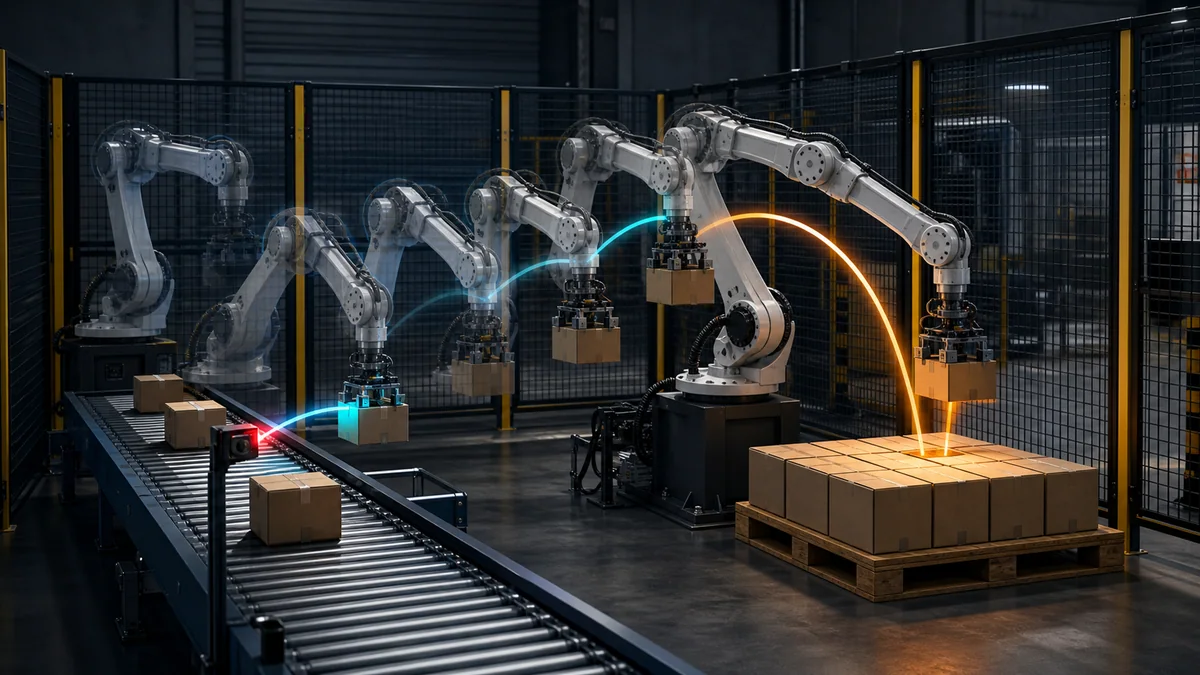
If you are a PLC programmer stepping into robot programming for the first time, the conceptual shift is significant. Here is the direct comparison:
| Concept | PLC (Ladder / ST) | KUKA KRL |
|---|---|---|
| Execution model | Cyclical scan — all rungs evaluated continuously | Sequential — instructions execute one at a time, top to bottom |
| Motion control | Axis motion via MC function blocks (PLCopen) | Native PTP/LIN/CIRC instructions built into the language |
| I/O access | %I0.0, %Q0.0 or tag-addressed |
$IN[n], $OUT[n] or SIGNAL aliases |
| Conditional logic | Normally-open contacts, IF/THEN in ST | IF condition THEN ... ENDIF |
| Looping | No direct equivalent (rungs always scan) | LOOP, FOR, WHILE |
| Variables | Tags in a data block or local variable table | DECL statements in .src or .dat |
| Structured text (ST) | IEC 61131-3 ST — Pascal-like | KRL — also Pascal-like; syntax is very similar |
| Position data | Setpoints in REAL variables | E6POS or AXIS declarations in .dat file |
| Safety | STO/SS1/SS2 via PROFIsafe function blocks | KRC hardware safety (KUKA.SafeOperation option) |
The biggest conceptual difference: a PLC program never "arrives" anywhere — it scans continuously reacting to state changes. A KRL program issues a motion command and then the controller executes it to completion before moving to the next line. The program is a sequential recipe, not a state machine. This makes robot programs easier to read sequentially but harder to make responsive to asynchronous events (which is why interrupt routines and WAIT FOR are important tools).
If you are integrating a KUKA robot with an Allen-Bradley, Siemens, or other PLC, the robot will typically run in AUT EXT mode — the KRL program runs its own loop, and the PLC sends start signals and receives status signals via PROFINET or ProfiSafe I/O. The PLC does not directly control individual robot axes; it tells the robot "start program X" and waits for a "program complete" output signal. For the PLC side of that integration, see the PLC programming languages complete guide.
Frequently Asked Questions
What language do KUKA robots use?
KUKA robots are programmed in KRL (KUKA Robot Language), a Pascal-derived structured programming language. Programs consist of .src (logic) and .dat (position data) file pairs. KRL is used across all current KUKA robot models on KRC4 and KRC5 controllers.
Is KUKA robot programming hard?
KRL is one of the more readable robot languages. If you have any background in Pascal, Delphi, or IEC 61131-3 structured text, the syntax will feel familiar. The motion concepts (coordinate frames, approach/retract patterns, velocity and approximation settings) take more time to internalize than the language syntax itself. Most engineers can write a functional first program within one to two days of hands-on time.
What is the smartPAD?
The smartPAD is KUKA's teach pendant — the handheld device used to jog the robot, teach positions into programs, edit KRL code, and control robot execution in manual mode. It connects to the KRC controller via a hot-plug cable and features a touchscreen, a 6D jogging mouse, mode selector key, and three-position enabling switch (deadman switch) for safe manual operation.
What is the difference between PTP and LIN in KRL?
PTP (Point-to-Point) moves all robot axes simultaneously in joint space. The TCP path is curved and unpredictable in Cartesian terms, but PTP is the fastest motion type and is ideal for large repositioning moves. LIN (Linear) moves the TCP in a geometrically straight Cartesian line at a defined TCP speed. LIN is required wherever the robot must follow a precise path — welding seams, adhesive dispensing, part insertions, or any move near obstacles. Always use LIN for approach and retract moves; use PTP for transits between work areas.


