HMI Screen Design Principles: Contrast, Hierarchy and Testing
Design HMI screens around operator tasks, measurable salience, contextual process data, explicit quality, safe command interaction and observed usability evidence.
Direct answer
Effective HMI screen design makes normal operation calm, deviations easy to detect, actions difficult to misinterpret and failures explicit. Begin with the operator's task and operating context. Give every screen a purpose, show process state and recent direction rather than isolated numbers, reserve strong visual salience for conditions that require attention, and encode state with text plus shape/icon—not color alone.
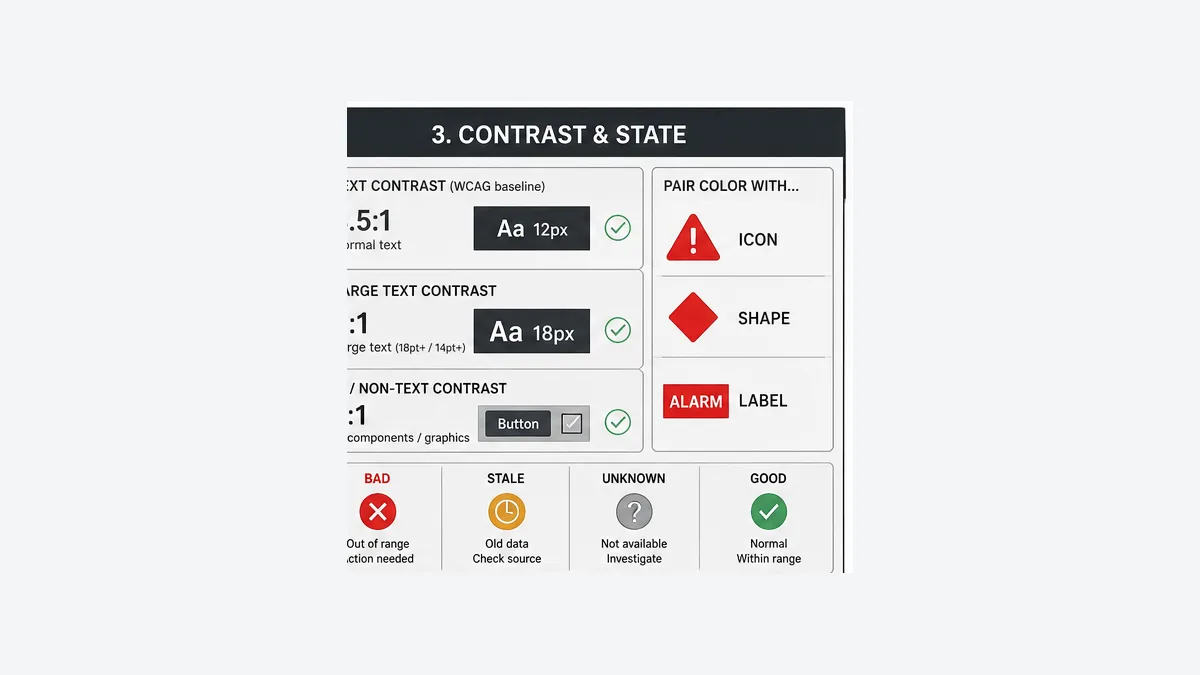
Use measurable contrast as a baseline. For web-rendered interfaces, WCAG 2.2 requires at least 4.5:1 for normal text, 3:1 for large text, and 3:1 for visual information needed to identify UI controls, states and meaningful graphics at Level AA. Enhanced text targets are 7:1 and 4.5:1. These ratios are useful quantitative checks, but they do not replace HMI human-factors requirements or testing on the actual panel at the installed distance, luminance, angle, ambient light and operator conditions.
Do not publish universal red/amber/green meanings, fixed font points, fixed click counts or one button dimension without the governing philosophy and context. Define state meanings in the site style guide, follow applicable indication/safety standards and product requirements, then prove legibility, salience, touch accuracy, navigation and interpretation with representative operators in normal, alarm, stale-data and recovery scenarios.
Download the 40-point HMI screen review checklist, visual-state specification template and operator task-test plan.

What this canonical owns
This established page owns screen-level design and review: task-to-layout decisions, information hierarchy, abnormal salience, contrast, typography, state coding, process context, touch/command interaction, navigation, responsive behavior and observed operator testing.
The HMI programming pillar owns the whole-system architecture and lifecycle. The HMI programming tutorial owns a complete pump-screen implementation. The HMI alarms, events and trends guide owns alarm rationalization, states and historian evidence. The existing high-performance HMI guide owns the broader philosophy, while the HMI design best-practices guide owns the full philosophy/style-guide checklist.
Keeping these roles separate prevents four pages from making shallow versions of the same promise. Use this page while drawing, reviewing or usability-testing an actual display.
Replace ten slogans with ten evidence questions
| Design principle | Evidence question | Failure exposed |
|---|---|---|
| task fit | what decision or action does this screen support, for which role and condition? | screen mirrors PLC/P&ID but not operator work |
| hierarchy | can the operator see scope, location, state and a route to detail? | overview is either empty or overloaded |
| abnormal salience | does the important deviation stand out against a calm normal baseline? | every object competes for attention |
| state clarity | can state be interpreted without color and without guessing a symbol? | running, stopped, faulted and unknown collapse |
| readable information | do text and meaningful graphics exceed measured contrast and installed-context criteria? | designer monitor hides field legibility failure |
| process context | are value, unit, quality, age, normal/limit context and recent direction available? | plausible stale number appears healthy |
| command integrity | is action, target, consequence, acceptance/rejection and feedback unambiguous? | touch/write is mistaken for execution |
| consistent navigation | does location and route behavior match user expectation across screens? | operator searches or loses context under stress |
| input tolerance | can expected users operate controls accurately with the deployed input/device? | adjacent wrong action or hover-only function |
| observed performance | can representative operators complete realistic scenarios correctly? | review approves appearance but misses use errors |
The checklist is intentionally phrased as evidence. “Use gray” is not proof; a screen can be gray, unreadable and misleading. “Three clicks maximum” is not proof; one destructive click can be too easy and four well-signposted steps can be appropriate for a rare configuration task. Measure task completion, interpretation and error in context.
Design around operator tasks and operating modes
Define the screen's decision before its objects
Write a one-sentence task contract for each display: who uses it, to decide or do what, under which state, using which evidence, with what consequence if wrong? Then list the minimum information and interaction required. Remove objects that do not support that task or a defined situational-awareness need.
| Screen candidate | Task contract | Information that belongs | Information to move elsewhere |
|---|---|---|---|
| line overview | operator finds whether demand is met and which unit needs attention | production target/actual, bottleneck, major unit state, abnormal counts/quality | every prox switch and tuning parameter |
| pump-station unit | operator balances available pumps and maintains pressure/flow | common header PV/SP/trend, pump state/mode/availability, constraints | PLC rack addresses and raw network counters |
| pump detail | operator commands or diagnoses one pump | request/result, state, owner, permissive reasons, feedback, current/flow, first-out | unrelated area alarms |
| PID detail | operator understands loop deviation and makes permitted changes | PV/SP/output/mode, units, limits, quality/age, aligned trend | raw controller internals unless diagnostic |
| maintenance diagnostic | authorized technician isolates a fault boundary | raw status with source, age, mapping/version and test instructions | routine operational controls mixed into diagnostics |
Model normal running, startup, shutdown, grade/product change, maintenance, communication degradation, alarm flood, field failure and recovery. An overview designed only with healthy sample data usually fails during the event when it matters most.
Prototype content before visual polish
Start with boxes and labels. Test whether the hierarchy and information grouping support the task before tuning visual style. Create explicit prototypes for normal, one abnormal condition, several simultaneous abnormalities, bad/stale data, local/manual ownership and a command in progress. This exposes missing states earlier than a pixel-perfect normal screenshot.
ISO 9241-210:2019 provides a human-centred design lifecycle for interactive systems, and ISO 9241-110:2020 gives technology-independent interaction principles. Their official abstracts emphasize context, users, tasks and lifecycle rather than a universal visual palette. ISA's public ISA-101 overview likewise frames HMI work across design, implementation, operation and continuous improvement. Use the applicable licensed standard/project procedures for detailed requirements.
Build a display hierarchy without inventing a click rule
Match information scale to task scale
A useful hierarchy commonly includes area/plant overview, unit/line view, equipment/loop detail and diagnostic/maintenance views. Those are functional levels, not a compulsory four-screen stack. A small machine may need fewer; a complex plant may need multiple peer views within a level.
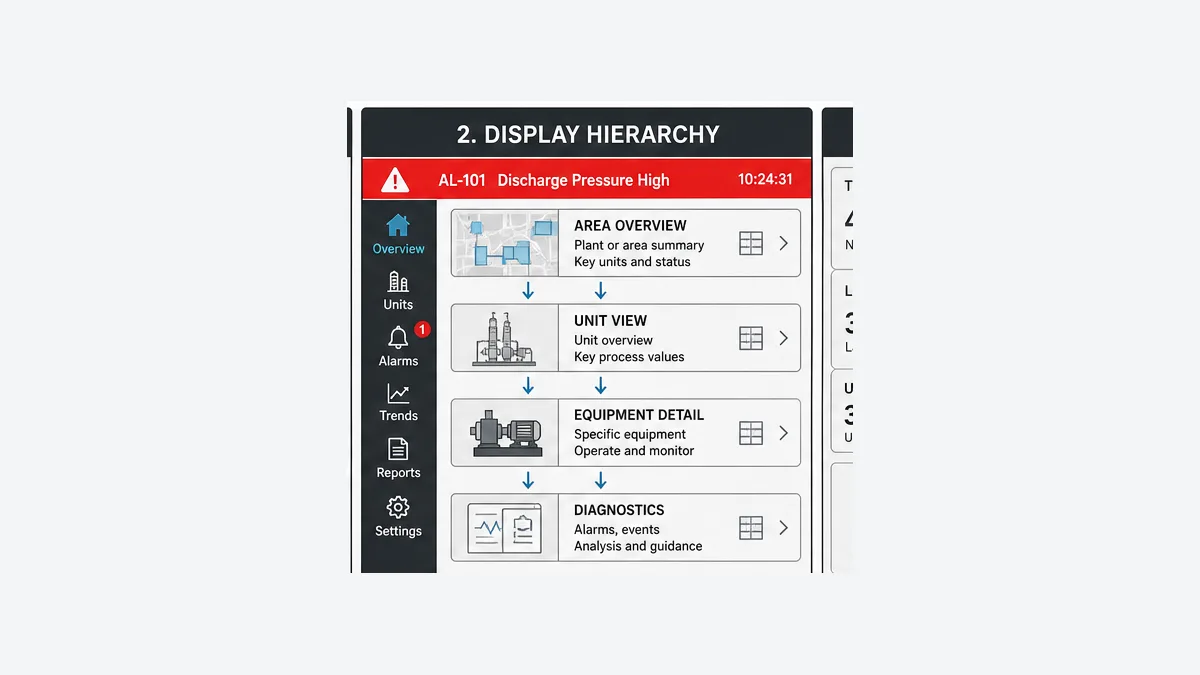
Define a navigation contract:
- persistent indication of current area/unit/equipment and selected mode;
- global access to overview, alarms and other required system surfaces;
- predictable drill-down from an abnormal summary to its source/context;
- clear return behavior that does not depend on undocumented browser history;
- visible filters/scope so alarm and trend views cannot appear complete when filtered;
- behavior for popups, overlays and deep links after logout, reconnect or object deletion; and
- no critical status hidden by a menu, modal or responsive breakpoint.
Do not optimize solely for click count. Measure route discovery, wrong-screen visits, task time, backtracking and interpretation. Frequent and time-critical tasks usually deserve direct access; consequential actions may deliberately require confirmation or an additional context step. Emergency stop and other safety actions belong to the machine safety design, not an arbitrary HMI navigation target.
Create abnormal salience without decorative competition
Treat attention as a limited resource
Large saturated areas, flashing, motion, sound, thick borders and high contrast all attract attention. If used for branding, normal running equipment, animated pipes or every button, they reduce the difference available for abnormal conditions. Define an attention hierarchy in the style guide and apply it consistently.
| Visual strength | Appropriate purpose | Review question |
|---|---|---|
| low/background | structure, inactive equipment, secondary labels | is it still readable and meaningful? |
| normal information | live values, state, navigation, ordinary controls | can the screen be scanned without noise? |
| deviation/advisory | significant departure or maintenance awareness per philosophy | is it distinct without stealing alarm meaning? |
| alarm/urgent | rationalized abnormal condition requiring response | does color/icon/text/priority/state match alarm philosophy? |
| transient focus | new/unacknowledged or current interaction where specified | when and why does animation/sound stop? |
Animation is not automatically forbidden, but it needs a semantic contract. Define trigger, state, duration, acknowledgement relationship, reduced-motion/accessibility behavior and what happens during alarm flood or client load. Continuous animation of normal motors does not prove motion and can mask a failed/stale feedback condition.
Color meaning is a project contract, not a universal palette
IEC 60073 and IEC 61310-1 are relevant publication families for coding indicators/actuators and safety-related signals. The exact application depends on scope, jurisdiction, machine standard and licensed requirements. ISA-101 provides HMI lifecycle/philosophy context. Do not reduce these to a blog table claiming one hue always means one equipment state or priority.
For each dynamic state define:
- semantic name and data source;
- fill/border/text/icon/shape/label treatment;
- light and dark/background contrast where applicable;
- alarm/acknowledgement/quality relationship;
- animation or audible rule if any;
- color-vision and monochrome interpretation; and
- equality, unknown, bad, stale, disabled and unavailable fallbacks.
A good review converts the screen to grayscale or applies color-vision simulations, then checks whether state remains interpretable. Use visible text such as FAULT, STALE, LOCAL or STARTING rather than relying on an unexplained red outline.
Measure contrast instead of calling a screen high contrast
WCAG ratios are a useful quantitative baseline
WCAG 2.2 is a web accessibility standard, not a complete industrial HMI specification. It is directly relevant to browser-delivered HMIs and still useful as a measurable baseline for other digital interfaces:
| Surface | WCAG 2.2 threshold | HMI application caveat |
|---|---|---|
| normal text | 4.5:1 at Level AA | test actual font weight, antialiasing, panel and environment |
| large text | 3:1 at Level AA | WCAG large-text definition is not a viewing-distance rule |
| normal text enhanced | 7:1 at Level AAA | higher ratio does not compensate for tiny text or glare |
| large text enhanced | 4.5:1 at Level AAA | installed legibility and task evidence still required |
| meaningful UI/graphics | 3:1 against adjacent colors at Level AA | includes cues required to identify a control or state |
The contrast ratio compares relative luminance and ranges from 1:1 to 21:1. Test the actual foreground/background pair in every required state, including focus, selected, warning, alarm, bad quality and disabled controls where a requirement applies. Do not round a value just below the threshold upward. Thin lines and antialiasing can make nominal colors less perceivable in practice, so exceeding the threshold and using adequate stroke/weight is prudent.
Typography must be specified in physical context
Point size in an engineering tool or CSS pixels does not by itself define the visual angle at the operator's eye. Panel pixel density, scaling, display size, viewing distance, angle, ambient light, glare, font family, weight and character set all matter. Instead of copying a universal 10 pt or 14 pt table:
- inventory viewing positions and expected users;
- select a legible family with distinguishable characters;
- specify minimum rendered height/weight for each installed target class;
- show units with values and use consistent precision;
- avoid all caps for long labels and avoid italics for routine data;
- test the full localization character set and longest translations;
- inspect under normal and degraded lighting/viewing conditions; and
- measure recognition and reading errors in task scenarios.
If secondary text is not important enough to read, remove it or relocate it. Low-contrast microcopy is not a sound de-emphasis strategy on an operational display.
Show process context, quality and direction
A number needs a decision boundary
An isolated value forces the operator to remember units, normal range, setpoint, rate of change and whether the source is current. Add only the context required by the task, but make that context explicit.
| Context element | Question it answers | Failure if absent |
|---|---|---|
| identity/service | which measurement/equipment is this? | identical values are confused |
| current value + unit | what is the present reading in what scale? | wrong magnitude or unit assumption |
| quality and age | can this reading be trusted as current? | stale plausible value treated as live |
| normal/expected band | is the value where this state/recipe expects it? | operator reads digits but misses deviation |
| SP/target | what is the control objective? | deviation cannot be judged |
| limits/alarm markers | how close is a defined boundary? | current value lacks consequence context |
| recent trend | is it stable, drifting, oscillating or spiking? | action waits for an alarm threshold |
| control output/mode | what is the controller doing and who owns it? | process and controller cause are confused |
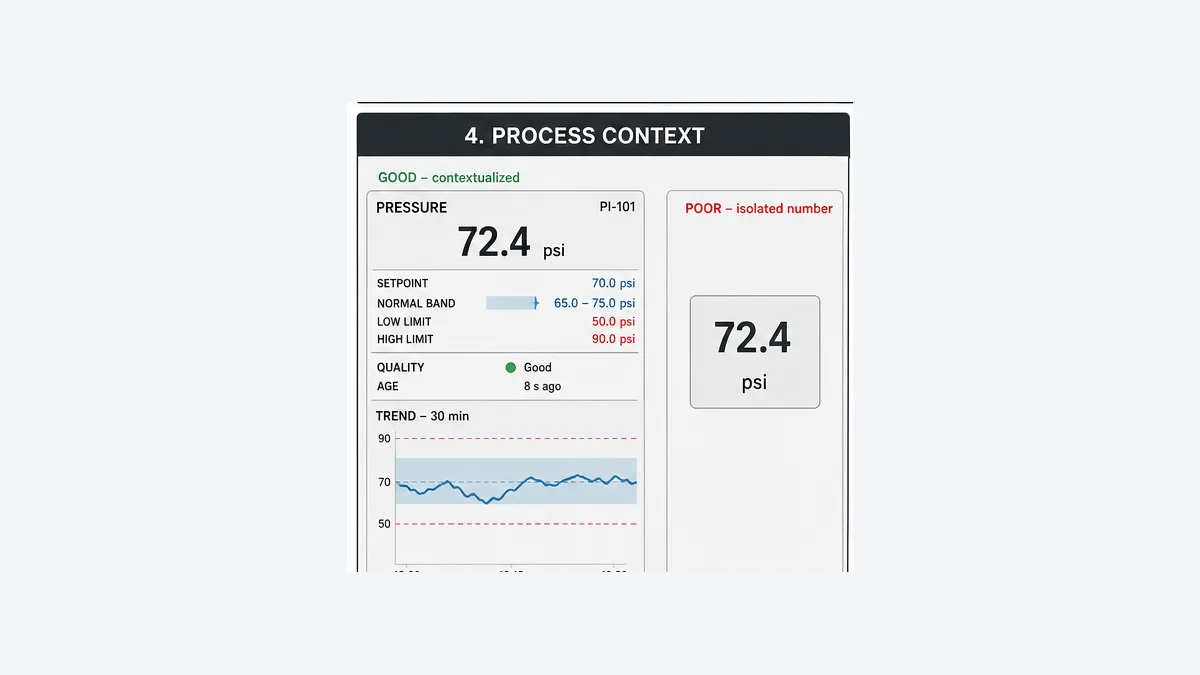
Do not turn every value into a dense instrument panel. Overview context may be a deviation bar, small trend or direction indicator; a detail view can reveal the full trace. If an arrow or sparkline is derived, document window, filtering, thresholds, data quality and behavior on gaps. A rising arrow calculated from two old samples is not current process direction.
Trends must disclose acquisition behavior
Show time span, time zone where relevant, units, scale and series identity. Distinguish PV, SP, output and state changes without relying only on color. Make data gaps and bad quality visible. Avoid autoscaling that exaggerates noise or hides a limit; if autoscale is offered, disclose it and provide meaningful fixed/context bounds.
The HMI alarms, events and trends guide owns sampling, deadband, compression, timestamps and historian diagnosis. Screen design owns whether that evidence is perceivable and connected to the operator's task.
Encode equipment and control state explicitly
Request, command, state and feedback are different
A button press is an operator request. A PLC may accept or reject it. A command output may become true. Field feedback may or may not arrive. The screen must not animate Running from the button or outgoing command. Display a clear transitional state and explain rejection/timeout.
| State surface | Example label | Primary evidence | Interaction implication |
|---|---|---|---|
| owner/mode | LOCAL, MANUAL, AUTO | controller/drive accepted owner | prevent or route commands accordingly |
| availability | START BLOCKED | evaluated reasons | show actionable first reason/all details |
| request | START REQUESTED | fresh request identity | show pending; do not claim movement |
| accepted command | STARTING | PLC state/output arbitration | supervise expected feedback/time |
| field state | RUNNING | defined independent feedback | reveal mismatch from command |
| completion/failure | AT SPEED or START FAILED | actual/state and timeout | show first-out evidence and recovery path |
| data health | STALE / UNKNOWN | quality/age | do not present last-known state as live |
State animation needs priority. If equipment is Running and a diagnostic is stale, which treatment wins? If local mode and an active alarm coexist, both must remain discoverable. Define fill, border, overlay, label and faceplate behavior for combinations rather than allowing the last graphic rule to overwrite the others.
Design touch targets and commands for the deployed input
Use measurable baselines, then test real hands and hardware
WCAG 2.2 Level AA target-size criterion 2.5.8 sets a 24 by 24 CSS-pixel minimum or defined spacing exceptions for pointer inputs; the enhanced Level AAA target is 44 by 44 CSS pixels. These web criteria help expose tiny adjacent controls, but CSS pixels are not a universal physical HMI-button size. Panel resolution/scaling, bezel, touch technology, gloves, vibration, posture, reach, hand size and accidental-actuation consequence all affect the design.
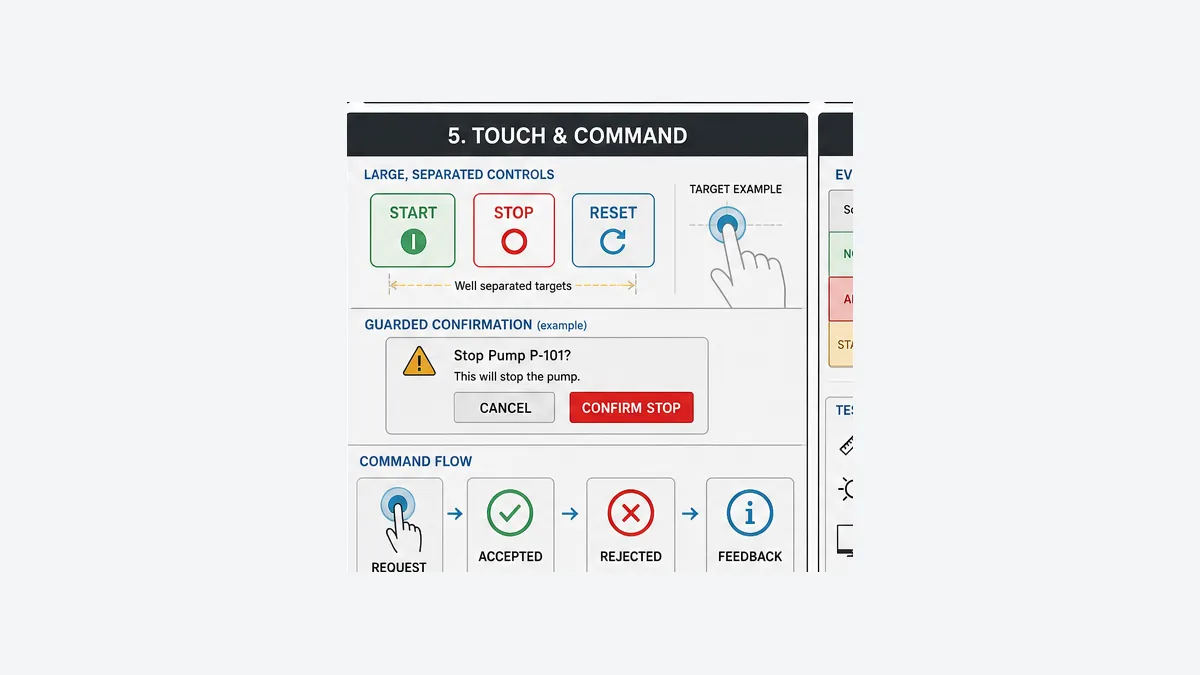
For each input device, test target acquisition time, wrong-target touches, repeated touches, edge targets, scrolling/dragging, long press, gloves and cleaning/contact scenarios as applicable. Separate adjacent consequential controls. Do not place Start and Stop or acknowledge and reset into a cramped row only because the template grid allows it.
Confirmation should reduce error without creating ritual
Use confirmation when the action is consequential, irreversible, unusual, remote or easily confused—not for every frequent benign action. The dialog must identify action, equipment, operating consequence and any relevant value. Generic “Are you sure?” prompts become habitual.
For hold-to-run or momentary interactions, prove pressed/released event behavior, loss of focus, slide-off, multi-touch, network delay/disconnect and runtime restart. Do not assume a client release event always arrives. The PLC/application owns a bounded, fail-defined command contract.
Keep these actions distinct:
- Acknowledge records awareness of an alarm event/state.
- Silence affects audible presentation under the alarm philosophy.
- Reset requests recovery after the initiating cause and state allow it.
- Start requests operation.
- Bypass/override changes an authorization condition under controlled governance.
Combining them into one button destroys the operator's intent and can create unexpected motion.
Standardize symbols and faceplates without creating a visual language nobody knows
Write a visual-state specification for each reusable class. Include normal, transitional, stopped, unavailable, local/manual, active fault/alarm, unacknowledged/acknowledged, maintenance, disabled, bad, stale and unknown states. The downloadable visual-state specification provides fields for data source, redundant cues, contrast, interaction, priority and test evidence.
Use standardized, understandable symbols; add text where meaning is not immediately obvious. A spinning impeller can suggest motion but must not be the only indicator or be driven from a request bit. Keep faceplate positions and command order consistent across instances. Show equipment identity prominently in every popup so indirect binding mistakes and wrong-target commands are visible.
Version the style guide and object library. Record overrides. Test first, last and randomly sampled instances; every state; long labels/translations; unknown values; and upgrade/migration behavior. A reusable object can multiply a defect faster than it multiplies consistency.
Responsive and mobile HMI needs a task-specific design
Do not shrink a desktop control-room display until it fits a phone. Decide which roles, locations and tasks each viewport supports. A mobile maintenance view, supervisor summary and local operator panel may share data and components while intentionally exposing different actions.
| Responsive risk | Design requirement | Test |
|---|---|---|
| alarm/status hidden below fold | persistent summary and route; no critical state lost at breakpoint | every supported width/orientation and zoom |
| controls move under overlays | reserved layout and focus/scroll behavior | keyboard, modal, banner and rotation |
| hover-only detail | equivalent touch/keyboard interaction | touch-only and keyboard-only paths |
| wrong-equipment context after navigation | persistent identity and parameter reset | rapid switching/back/deep link |
| intermittent wireless | explicit quality/age and command expiry | roam, sleep, loss and reconnect |
| remote write authority | identity, role, location/session and server/PLC validation | denied remote/local role matrix |
| gesture conflict | provide alternative to drag/swipe where required | gloves, tremor and assistive input |
WCAG's reflow, focus, color, contrast and input criteria are useful for web HMI accessibility. Industrial context adds installed device, process consequence, gloves, environment, authentication, network and safety boundaries. Do not claim WCAG conformance from a contrast scan alone.
Test screens with representative operators and scenarios
Observe behavior; do not lead the participant
Recruit representative roles and experience levels, including foreseeable accessibility needs. Use a realistic prototype/runtime and context. Give the scenario and goal without narrating the interface. Record whether the participant detects the condition, understands state, selects the correct route/action, completes the task and recovers from errors.
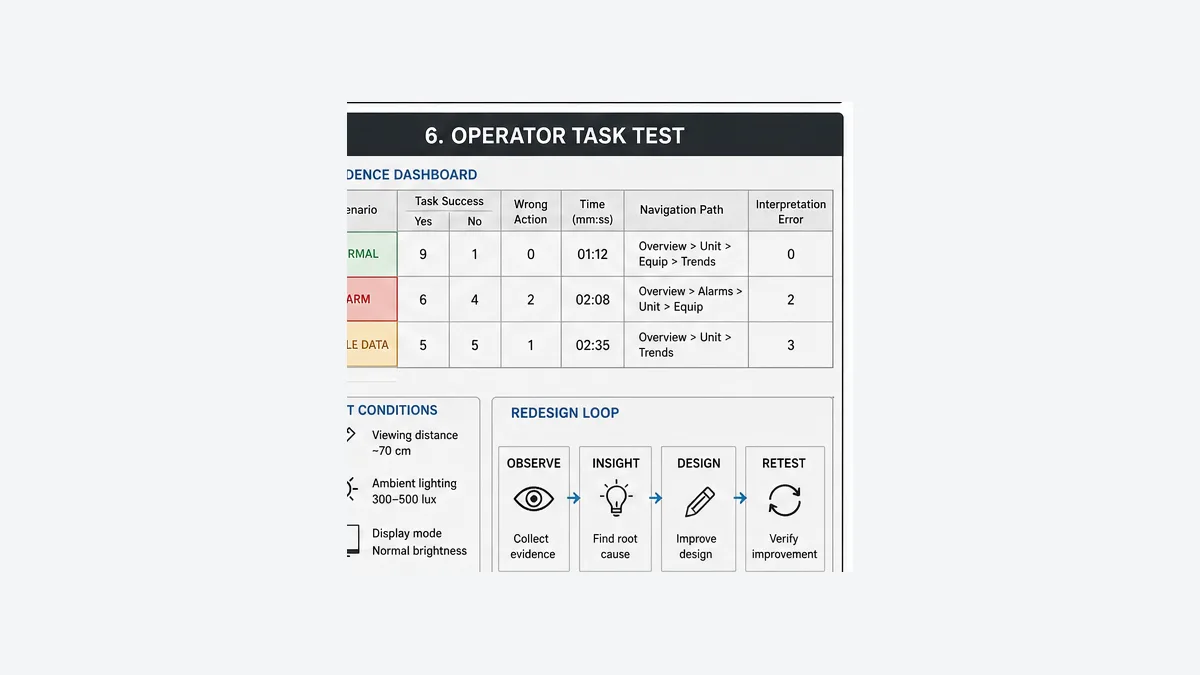
| Measure | Definition | Why it matters |
|---|---|---|
| detection | participant notices relevant deviation/state | proves salience and monitoring support |
| interpretation | participant states correct condition/quality/owner | exposes ambiguous color/symbol/labels |
| task success | goal achieved without prohibited assistance | core effectiveness |
| wrong action | command/navigation/entry not intended by scenario | captures consequential error |
| completion time | scenario start to defined completion | useful with success/context, not alone |
| navigation path | screens/popups/backtracks used | reveals hierarchy mismatch |
| help/hesitation | assistance and long pauses | indicates learnability/self-description gaps |
| recovery | detects and corrects an error | tests robustness rather than perfect-path use |
Do not set arbitrary pass thresholds after seeing results. Define critical-error rules, expected success and time/context bands before the session. A task completed quickly with the wrong pump is a failure. A rare diagnostic task may tolerate longer time but not false state interpretation.
Test the installed context
Repeat essential checks on the real panel/workstation or a faithful representation: physical display dimensions/resolution/scaling, normal viewing position and angle, ambient/emergency lighting, glare, color, touch/mouse/keyboard, gloves, audible environment, language and representative runtime load. Verify that alarm banners, system health, logged-in user and current equipment remain visible with modals, menus and popups.
The NRC's public NUREG-0700 Revision 3 is a detailed human-system-interface review reference for the nuclear-power context, covering information displays, user interaction/controls, alarms, workstations and degraded conditions. Its existence is evidence that serious HSI review is systematic and context-bound; it is not a shortcut to claim nuclear guidance automatically governs a packaging machine.
Diagnose screen-design failures by symptom
| Symptom | Likely design branch | Evidence to collect | Repair direction |
|---|---|---|---|
| alarm is missed | color/noise/placement/state or alarm flood | normal-versus-abnormal screenshot and task detection | restore salience; fix alarm lifecycle upstream |
| operators zoom or lean in | typography/contrast/density/viewing mismatch | physical viewing geometry and reading errors | increase rendered size/weight/spacing or reorganize |
| wrong pump is commanded | identity/indirect binding/layout/target proximity | request target and popup parameter trace | persistent identity, binding test, target separation |
| screen says Running before equipment moves | animation bound to request/command | tag binding and feedback trace | bind normalized state to independent evidence |
| plausible value remains after disconnect | quality/age not encoded | driver quality and source age | explicit stale/unknown state and write inhibition |
| operators memorize obscure paths | hierarchy labels/location/back behavior | navigation paths/backtracks | task-centered route and persistent location |
| red/amber no longer attracts attention | decorative/normal use or too many alarms | color inventory and alarm rate | reserve salience and rationalize alarms |
| confirmation is clicked automatically | generic/repeated prompt | observation and cancellation/error rate | reserve for consequential cases; name outcome |
| buttons misfire with gloves | target/spacing/device calibration/context | wrong-target touches at installed panel | enlarge/separate/reposition and retest |
| trend looks smooth across outage | interpolation/gap/quality hidden | raw samples, timestamps and display config | expose gap and acquisition behavior |
| responsive view hides status | breakpoint/overlay/order issue | viewport and focus screenshots | prioritize critical state at every supported layout |
| faceplates disagree | object versions/overrides/state mapping | instance/version/override report | govern library and regression cases |
Screen-design answer map
| Question | Short answer | Proof |
|---|---|---|
| What background color should an HMI use? | a restrained palette that preserves defined state salience and measured contrast; no universal hex | style guide plus normal/abnormal review |
| What contrast should text have? | WCAG web baseline 4.5:1 normal and 3:1 large at AA; test installed conditions | ratio measurement and reading task |
| What contrast should buttons/graphics have? | meaningful identification/state cues at least 3:1 for WCAG AA web surfaces | state-by-state contrast and discoverability |
| What font size should an HMI use? | size for physical viewing context and task, not universal points | installed distance/lighting recognition test |
| How big should an HMI button be? | WCAG web baseline 24 CSS px or spacing at AA; larger may be needed | real device/glove wrong-touch evidence |
| How many screen levels? | as few coherent functional levels as tasks require; commonly overview to detail/diagnostics | navigation/task-path results |
| Should running equipment be green? | follow project/applicable coding; always add non-color cue and source truth | visual-state spec and color-independent test |
| Should alarms blink? | only under the alarm philosophy with state and stop rule | alarm-state/flood/reduced-motion test |
| Should every value have a trend? | only when direction/history supports a task; critical PV context should be nearby | observed decision benefit and quality-aware trace |
| Can an HMI Stop replace E-stop? | no; ordinary HMI control is not automatically a safety function | safety requirements and validation |
Practise the controller state behind the display
The prominent top offer keeps the established blog_scada_top attribution. After the design review, use the PLC–SCADA practice path to rehearse request, permissive, feedback, alarm and bad-data states that an HMI must present. The bottom link preserves the existing blog_scada_bottom conversion cohort so click-through and paid-signup quality remain separable.
PLC Programming IO and PLC Simulation Software share ownership. The browser lab does not emulate an HMI design tool/runtime, actual panel pixels/luminance/touch, operator cognition, PLC/field process, driver/network, alarm/historian, identity system or safety function. Use it for state-contract practice, then validate the design with representative operators and exact installed system.
Measure qualified CTA impression, lab start, scenario completion, registration, paid signup and retained use by placement/campaign. Do not remove the lower-click placement if downstream paid conversion or user fit is stronger.
Frequently asked questions
What are the most important HMI screen design principles?
Design around operator tasks; build a coherent display hierarchy; keep normal operation calm; reserve salience for important deviations; use measured contrast and redundant state cues; show value context, quality and age; separate request from field feedback; make navigation predictable; size controls for the deployed input; and validate realistic scenarios with representative operators.
What contrast ratio should an HMI screen use?
For a web HMI targeting WCAG 2.2 Level AA, normal text needs at least 4.5:1, large text 3:1 and visual cues required to identify controls/states/meaningful graphics 3:1 against adjacent colors. Enhanced text targets are 7:1 and 4.5:1. Treat these as quantitative baselines and add installed panel, viewing-distance, glare, font/line and operator tests.
Is gray required for high-performance HMI screens?
No single background hex or shade proves performance. Restrained neutral backgrounds are often useful because they reduce competition with abnormal cues. The chosen foreground/background pairs still need measurable contrast, defined semantic roles, support for bad/stale/unknown states and observed task performance in the installed environment.
What colors should mean Running, Stopped, Fault and Alarm?
Use the facility HMI philosophy/style guide, applicable standards and machine/process requirements. Do not rely on a universal internet palette. For every state, combine color with visible text and shape/icon or another non-color cue. Confirm that normal equipment does not consume alarm salience and that unknown/bad/stale states cannot look healthy.
Should all alarms be red and warnings amber?
Alarm presentation follows the rationalized alarm philosophy and applicable coding requirements, including priority, active/acknowledged/returned and suppression states. Color cannot be the only cue. Avoid decorative use of alarm colors, and test multiple simultaneous alarms and alarm floods. Do not make priority a designer-selected color alone.
What font size should an HMI use?
There is no universal point size. Specify legibility from display dimensions/resolution/scaling, viewing distance/angle, ambient light/glare, font family/weight, language and operator needs. Test reading and interpretation on the target. Use WCAG contrast thresholds for web surfaces but do not confuse CSS pixels or points with physical visual angle.
How large should HMI touch buttons be?
WCAG 2.2's web Level AA target baseline is 24 by 24 CSS pixels or defined spacing exceptions, and its enhanced AAA target is 44 by 44 CSS pixels. Industrial panels may need larger and wider-separated targets because of gloves, vibration, reach, bezel, scaling and consequence. Measure wrong-target touches on the actual device.
How many clicks should an HMI control take?
Use no arbitrary universal count. Frequent and time-sensitive tasks should be direct and predictable; rare or consequential actions may need context and confirmation. Measure route discovery, backtracking, time, wrong actions and task success. Safety controls such as emergency stop are an engineered safety matter, not a click-depth rule.
Should an HMI show a live alarm list on every screen?
Every relevant screen should preserve clear alarm awareness and a route to response, but a full list can displace task-critical process information. Define the persistent banner/summary, scope/filter, priority/state counts and drill-down behavior in the philosophy. Test real alarm loads and floods rather than copying a fixed layout rule.
How should stale or bad data look on an HMI?
It must not look like healthy live truth. Mark the value/state explicitly as STALE, BAD or UNKNOWN using text and redundant visual cues; show age/source context where useful; inhibit writes that cannot be validated; and treat last-known values as historical evidence, not current process state.
Should an HMI animation show a motor running?
Only when it is driven by the defined normalized state or independent feedback and the animation has semantic value. Never animate from the Start button or outgoing command alone. Provide a text/non-motion cue, honor the alarm/quality priority and define reduced-motion and stale-data behavior.
How should a responsive mobile HMI differ from a panel HMI?
Define device-specific roles and tasks rather than shrinking the desktop. Keep critical status visible across breakpoints, replace hover-only interactions, protect target identity, make data age explicit on wireless loss, and enforce role/location/session rules server-side and in the PLC. Validate every supported viewport and input method.
How do you test an HMI screen with operators?
Give representative operators realistic normal, alarm, stale-data, command, diagnosis and recovery scenarios without leading them through the interface. Record detection, interpretation, task success, wrong actions, time, route/backtracking, assistance and recovery. Repeat on the installed or faithful target under realistic distance, lighting, input and load.
Can a browser simulator validate HMI screen design?
It can help rehearse the PLC state contract that the screen must represent: requests, permissives, feedback, alarms and bad data. It cannot prove the actual layout, contrast, target size, panel/touch behavior, operator performance, driver, network, process or safety response. Use prototypes, target runtime tests, operator studies, FAT/SAT and safety validation as applicable.
Primary sources and further reading
- ISA-101 series public overview — lifecycle and HMI philosophy/design/implementation/operation context; obtain licensed requirements where applicable.
- ISO 9241-210:2019 — official human-centred design lifecycle publication record and abstract.
- ISO 9241-110:2020 — official interaction-principles publication record and abstract; confirmed current in 2025.
- ISO/TC 159/SC 4 catalogue — current family including ISO 9241-112:2025 presentation and ISO 9241-115:2024 design/navigation records.
- WCAG 2.2 W3C Recommendation — normative web accessibility success criteria.
- W3C Understanding 1.4.3 Contrast (Minimum) — 4.5:1 normal and 3:1 large text rationale/method.
- W3C Understanding 1.4.6 Contrast (Enhanced) — 7:1 normal and 4.5:1 large text enhanced thresholds.
- W3C Understanding 1.4.11 Non-text Contrast — 3:1 meaningful UI component/state/graphic cues.
- W3C Understanding 1.4.1 Use of Color — color not used as the only visual means to convey information/action/state.
- W3C Understanding 2.5.8 Target Size (Minimum) — Level AA 24 CSS-pixel/spacing baseline and exceptions.
- W3C Understanding 2.5.5 Target Size (Enhanced) — Level AAA 44 CSS-pixel enhanced target.
- US NRC NUREG-0700 Revision 3 — public human-system-interface review guideline in its nuclear regulatory context.
- IEC 60073:2002 publication record — coding principles for visual, acoustic and tactile indicators/actuators.
- IEC 61310-1:2007 publication record — machinery visual, acoustic and tactile signal scope.
- OPC UA Part 4 DataValue — source/server timestamps and StatusCode/quality model.
- OPC UA Part 9 Alarms and Conditions — alarm active/acknowledgement and related state surfaces.
- Rockwell Automation FactoryTalk View Machine Edition User's Guide — exact-platform display, tag, security, runtime and deployment boundary.
- Siemens WinCC Unified V21 configuration documentation — current exact-product screen configuration context.
- NIST SP 800-82 Rev. 3 — OT architecture, security and operational constraint context.
Scope and limitations
This guide is a vendor-neutral screen-design and usability-test method. It is not a licensed standard, site HMI philosophy, alarm rationalization, regulated HFE review, target-platform project, machine risk assessment, safety design or proof of accessibility/conformance. WCAG criteria apply to web content in their defined scope; using them as quantitative checks on other panels does not establish WCAG or industrial-HMI compliance.
Verify the application, users/roles, tasks, hazards, applicable standards/law, alarm philosophy, runtime/panel/OS/browser, resolution/scaling/luminance, input device, viewing environment, language, accessibility needs, PLC/data contract, quality/timestamps, network, process and safety system. Qualified responsible people must approve the design and witness target/operator evidence before operational release.


