DeviceNet Protocol Tutorial: Wiring & Setup
Learn DeviceNet architecture, trunk and drop wiring, addressing, commissioning, diagnostics, and Allen-Bradley PLC integration with a practical test plan.
Introduction: Mastering DeviceNet Protocol for Industrial Device Communication
DeviceNet is a CAN-based, multi-drop industrial fieldbus that carries communication and optional 24 VDC device power on the same media. In 2026 it is primarily an installed-base skill: useful for maintaining, extending and migrating existing machines, with new-network choices evaluated against currently supported alternatives.
Developed by Allen-Bradley and transferred to ODVA, DeviceNet combines a CAN data-link layer with the Common Industrial Protocol (CIP). Correct results depend on the physical media, power budget, node settings, scanner configuration and device profile—not the protocol name alone.
This tutorial covers the architecture, trunk/drop media, termination, addressing, scanner setup and a commissioning sequence that produces evidence you can hand to maintenance.
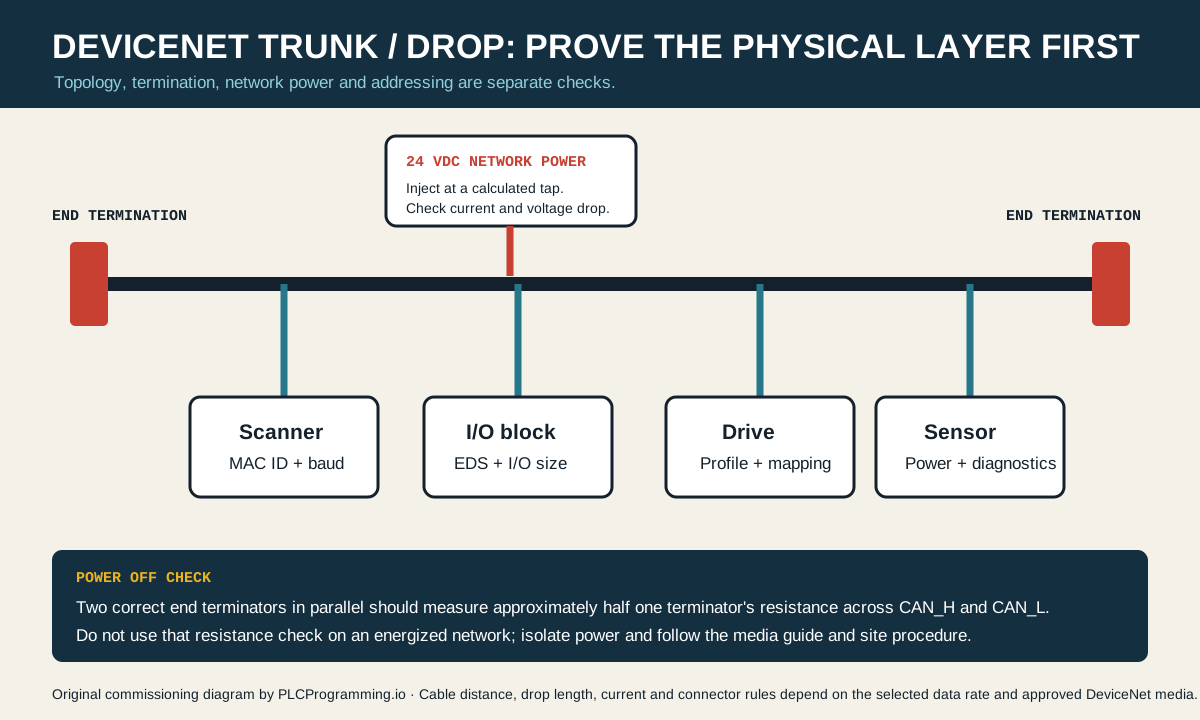
Quick answer: build one continuous trunk with one specified terminator at each physical end, keep every individual and cumulative drop within the selected data-rate limits, prove the network power budget, give every node a unique MAC ID and common data rate, and validate the scanner list against the installed device identities.
Chapter 1: Understanding DeviceNet Protocol Fundamentals
What is DeviceNet and How Does It Work?
DeviceNet is an open industrial networking protocol that uses Controller Area Network (CAN) technology to connect industrial automation devices on a single network trunk. The protocol enables digital communication between PLCs, sensors, motor starters, drives, operator panels, and other automation devices, replacing traditional hard-wired I/O connections with a flexible network infrastructure.
Key DeviceNet Characteristics:
- CAN-Based Physical Layer: Leverages automotive-proven CAN 2.0A standard for robust communication
- Producer/Consumer Model: Efficient multicast messaging enables one-to-many data distribution
- Built-In Power Distribution: Single cable carries both data signals and device power
- Self-Describing Devices: Electronic Data Sheets (EDS) enable automatic device configuration
- Extensive Diagnostics: Comprehensive error detection and reporting simplifies troubleshooting
- Vendor Neutral: ODVA manages open specifications ensuring multi-vendor interoperability
DeviceNet History and Evolution
Origins (1994): Allen-Bradley introduced DeviceNet protocol as a low-cost alternative to existing fieldbus technologies, leveraging readily available CAN components from the automotive industry. The initial specification focused on simple device connectivity with minimal configuration requirements.
Open Standard Transfer (1995): Recognizing the value of open standards, Allen-Bradley transferred DeviceNet specifications to ODVA (Open DeviceNet Vendor Association), ensuring vendor-neutral development and broad industry adoption. ODVA membership quickly grew to include hundreds of automation device manufacturers.
CIP Protocol Integration (2000): DeviceNet became part of the Common Industrial Protocol (CIP) family alongside EtherNet/IP and ControlNet, enabling seamless communication across different network layers while maintaining consistent application-layer semantics. This integration simplified multi-network system design and enhanced interoperability.
Modern Applications (2026): DeviceNet remains relevant wherever supported equipment is still in service. For a greenfield design, compare lifecycle support, spare availability, required diagnostics and migration strategy instead of assuming a legacy scanner is the lowest-cost choice.
Why DeviceNet Remains Relevant
Rockwell Automation Ecosystem: DeviceNet integration with Allen-Bradley ControlLogix, CompactLogix, and MicroLogix PLCs provides seamless connectivity within the Rockwell automation platform. Native support in Studio 5000 and RSLogix software simplifies configuration and reduces engineering time.
Extensive Installed Base: Millions of DeviceNet devices operate in production facilities worldwide, representing substantial capital investment. Maintenance, expansion, and modernization of these systems require DeviceNet expertise for years to come.
Cost-Effective Device Networking: For applications requiring numerous simple devices (sensors, photoelectric eyes, proximity switches, solenoid valves), DeviceNet's low per-node cost and integrated power distribution deliver economical solutions compared to more expensive industrial Ethernet alternatives.
Proven Reliability: Decades of field deployment in harsh industrial environments have validated DeviceNet's robust design. The protocol's automotive-heritage CAN physical layer provides exceptional noise immunity and reliability in electrically challenging installations.
DeviceNet vs Other Industrial Protocols
| Feature | DeviceNet | PROFIBUS-DP | AS-Interface | EtherNet/IP |
|---|---|---|---|---|
| Physical Layer | CAN 2.0A | RS-485 | 2-wire | Ethernet TCP/IP |
| Topology | Trunk-Drop | Bus | Bus | Star (Switched) |
| Addressing scope | 64 MAC IDs (0–63) | Up to 126 addressed stations | Version-specific | IP/network-design dependent |
| Max Distance | 500m @ 125 Kbps | 1,200m @ 9.6 Kbps | 100m (300m extended) | 100m per segment |
| Baud Rate | 125K/250K/500 Kbps | 9.6K-12 Mbps | 167 Kbps | 10/100/1000 Mbps |
| Power on Cable | Yes (24V DC) | No | Yes (24V DC) | No (PoE optional) |
| Typical Application | Device-level I/O | Process control | Discrete sensors | Control/information |
| Cost comparison | Project-specific | Project-specific | Project-specific | Project-specific |
| Configuration | EDS files | GSD files | Simple addressing | EDS files |
When to Choose DeviceNet:
- Rockwell Automation PLC ecosystem integration
- Device-level networking with power distribution
- Moderate-speed discrete and analog I/O applications
- Cost-sensitive projects with many simple devices
- Retrofit of existing DeviceNet installations
- Harsh electrical environments requiring CAN robustness
When to Consider Alternatives:
- Non-Rockwell automation platforms (consider PROFIBUS or AS-Interface)
- High-speed motion control requirements (consider EtherCAT or SERCOS)
- Integration with IT infrastructure (consider EtherNet/IP or PROFINET)
- Very simple sensor connections (consider AS-Interface or IO-Link)
Chapter 2: DeviceNet Physical Layer Architecture
CAN Bus Foundation Technology
Controller Area Network (CAN) Overview: DeviceNet protocol builds on CAN 2.0A specification, originally developed by Bosch for automotive applications. CAN provides a robust multi-master serial bus using differential signaling, sophisticated error detection, and automatic message prioritization that ensure reliable communication in electrically noisy industrial environments.
CAN Message Arbitration: CAN uses Carrier Sense Multiple Access with Bitwise Arbitration (CSMA/BA) to manage network access. Multiple devices can attempt simultaneous transmission, with message priority determined by identifier value—lower identifiers win arbitration without message corruption or retransmission delay.
Error Detection Mechanisms: CAN implements five distinct error detection methods:
- Cyclic Redundancy Check (CRC): 15-bit checksum detects transmission errors
- Frame Check: Validates frame structure compliance
- Acknowledgment Check: Confirms at least one receiver accepted message
- Bit Monitoring: Transmitter verifies transmitted bit values
- Bit Stuffing: Prevents synchronization loss during long bit sequences
These mechanisms help the controller detect data-link errors. Network reliability still depends on correct media, power, termination, grounding and timing configuration.
DeviceNet Cable Types and Specifications
Cable Categories: DeviceNet specification defines cable types optimized for different power and distance requirements:
| Media | Typical role in the ODVA guide | Key identification |
|---|---|---|
| Round thick | Trunk; may also be a drop | Nominal 12.2 mm outside diameter |
| Round mid | Trunk or drop where smaller diameter/bend radius is needed | Dimensions are vendor-specified |
| Round thin | Drop; may also be used as trunk | Nominal 6.9 mm outside diameter |
| Flat | Trunk for insulation-displacement systems | Four conductors; no drain wire |
| Unshielded drop | Drop in a compatible flat-cable system only | Four conductors; product-specific diameter |
Current capacity, conductor size, connector limit, temperature derating and environmental rating are product-specific. Keep the actual part number and data sheet with the power calculation.
Round shielded cable conductors:
Conductor 1: V+ (Red) - 24V DC Power Supply Positive
Conductor 2: V- (Black) - 24V DC Power Supply Negative
Conductor 3: CAN_H (White) - CAN High Signal (Dominant High)
Conductor 4: CAN_L (Blue) - CAN Low Signal (Dominant Low)
Conductor 5: Shield (Bare) - Drain wire connected to earth ground
Flat media uses the red/black power pair and white/blue signal pair without a drain conductor. Follow the selected media system’s connector and grounding instructions rather than applying the round-cable termination detail to flat media.
Specified media: Use DeviceNet media that meets or exceeds the ODVA specification and retain the cable part number in the commissioning record. A generic “CAN cable” label is not enough to prove conductor, impedance, shielding or power performance.
Network Topology and Wiring Rules
Trunk-Line/Drop-Line Topology: DeviceNet uses trunk-line topology with drop cables connecting devices to the main trunk. This configuration provides flexible device placement while maintaining signal integrity through proper impedance matching and termination.
Trunk Line Construction:
- Main communication backbone using thick or thin cable
- Must be continuous with no unterminated stubs
- Supports up to 64 nodes (addresses 0-63)
- Requires 121-ohm termination resistors at both physical ends
- Maximum length depends on baud rate and cable type
Drop Cable Rules:
- Connects individual devices to trunk using T-taps or multi-port connectors
- Maximum drop length: 6 meters regardless of trunk cable type
- Total cumulative drop length limited by baud rate:
- 125 Kbps: 156 meters total drop length
- 250 Kbps: 78 meters total drop length
- 500 Kbps: 39 meters total drop length
- Minimum drop length: None (zero-length drops acceptable)
Distance vs. Baud Rate Specifications:
| Baud Rate | Thick Cable | Thin Cable | Flat Cable | Max Drop Length | Total Drop Length |
|---|---|---|---|---|---|
| 125 Kbps | 500m | 100m | 420m | 6m | 156m |
| 250 Kbps | 250m | 100m | 200m | 6m | 78m |
| 500 Kbps | 100m | 100m | 75m | 6m | 39m |
Critical Wiring Guidelines:
- Never exceed maximum trunk distance for selected baud rate and cable type
- Always terminate both trunk ends with 121-ohm resistors (not 120-ohm!)
- Keep drops short - shorter drops improve signal quality
- Avoid stubs - every device must connect through proper T-tap or tap connector
- Minimize cumulative drop length - counts against total network budget
- Use verified cable - non-standard cable causes mysterious failures
Termination Requirements and Techniques
Why Termination Matters: Proper termination eliminates signal reflections that cause bit errors and communication failures. DeviceNet networks absolutely require correct termination at both physical ends of the trunk cable—no exceptions.
Termination Resistor Specifications:
- Resistance value: 121 ohms, 1%
- Power rating: 1/4 watt
- Placement: Between CAN_H (white) and CAN_L (blue) at each trunk end
- Quantity: Exactly two per network segment
- Selection: Use an approved DeviceNet terminator rather than substituting an unverified resistor assembly
Termination Methods:
Built-In Termination (Preferred): Many DeviceNet devices include switchable termination resistors activated via DIP switch or removable jumper. This simplifies installation when device physically located at network end.
External Termination Resistors: For trunk ends without devices or devices lacking built-in termination, use external inline terminating resistors. These special connectors include precision 121-ohm resistors and attach to unused trunk connector.
T-Tap with Termination: Some T-tap connectors integrate termination resistors, enabling trunk termination at any tap location. Useful for networks where end devices don't support termination or for troubleshooting.
Termination Verification: Measure resistance between CAN_H and CAN_L with network powered down and all devices disconnected. Correctly terminated trunk measures approximately 60.5 ohms (two 121-ohm resistors in parallel). Incorrect values indicate missing, wrong-value, or additional resistors.
Power Distribution Architecture
Integrated Power and Communication: DeviceNet's five-conductor cable carries both 24V DC device power and communication signals, simplifying installation and reducing wiring costs compared to separate power and communication cables.
Power Distribution Topology: DeviceNet specification defines five power distribution architectures:
Architecture 1: Standalone Power Supply
- Single 24V DC supply powers entire network
- Supply connects to trunk at one point
- All devices draw power from trunk cable
- Limited by cable current capacity
- Suitable for low-power devices only
Architecture 2: Distributed Power
- Multiple 24V supplies connected at different trunk locations
- Each supply powers portion of network
- Enables higher total power delivery
- Requires proper supply coordination
- Most common architecture for larger networks
Architecture 3: Isolated Power
- Separate power conductors for different trunk sections
- Isolation prevents ground loops and fault propagation
- More complex wiring with isolated cable sections
- Used for electrically challenging applications
Architecture 4: Auxiliary Power
- Separate auxiliary power cable runs parallel to trunk
- High-power devices draw from auxiliary supply
- Communication and low-power devices use trunk power
- Reduces voltage drop on trunk power conductors
Architecture 5: Sealed Network
- Specialized sealed connectors and cable
- Used in washdown or harsh environment applications
- Follows same electrical principles as other architectures
Power Supply Requirements:
- Use a supply and protection arrangement that meets the current DeviceNet media guide and every connected device specification.
- Check cable and connector current limits for each powered section, not just the power-supply nameplate.
- Include steady-state load, startup/inrush behavior, ambient derating and the effect of each power-insertion point.
- Record source voltage and the lowest measured device voltage under a representative loaded condition.
Voltage Drop Considerations:
Use the branch-by-branch method or power calculator from the selected media guide. A single current × total distance expression is unsafe for a trunk with devices and power taps at different positions because current changes along the cable.
The acceptance criterion is the permitted voltage range at every installed device under the documented load case. Keep the calculation, device current sources and field measurements with the topology drawing.
Power Taps and Distribution: Use proper power taps to connect supplies to trunk. Never cut and splice cable—always use approved connectors and taps that maintain cable characteristic impedance and shielding integrity.
Chapter 3: DeviceNet Data Link Layer
CAN Message Frame Structure
Standard CAN 2.0A Frame: DeviceNet uses CAN 2.0A standard frames with 11-bit identifiers (not extended 29-bit frames). Each CAN message contains:
┌────────────────────────────────────────────────────────────────────┐
│ SOF │ Identifier │ RTR │ Control │ Data (0-8 bytes) │ CRC │ ACK │ EOF │
│ 1b  │   11 bits  │ 1b  │ 6 bits  │   0-64 bits      │ 16b │ 2b  │ 7b  │
└────────────────────────────────────────────────────────────────────┘
Frame Components:
- SOF (Start of Frame): Single dominant bit marking message start
- Identifier: 11-bit message priority and addressing information
- RTR (Remote Transmission Request): 0 for data frame, 1 for request
- Control Field: Contains data length code (0-8 bytes)
- Data Field: 0-8 bytes of application data
- CRC: 15-bit cyclic redundancy check plus delimiter
- ACK: Acknowledgment bit and delimiter
- EOF (End of Frame): 7 recessive bits marking message end
DeviceNet Message Identifier Structure
Connection-Based Messaging: DeviceNet uses the 11-bit CAN identifier to encode message priority, transaction type, and node addressing information. The identifier structure determines message arbitration priority and routing.
Identifier Bit Allocation:
Bits 10-6: Message Group (determines priority and message type)
Bits 5-0:  MAC ID (node address 0-63)

Message Groups:
- Group 1 (0-3):   Unconnected Explicit Messages (highest priority)
- Group 2 (4-7):   I/O Messages (high priority)
- Group 3 (8-10):  Explicit Messages (medium priority)
- Group 4 (11-15): Reserved and Diagnostic Messages (lowest priority)
I/O Message Identifiers: For cyclic I/O data exchange (most common message type):
- Master to slave commands use Message Group 2
- Slave to master responses use Message Group 2
- Identifier uniquely identifies connection and direction
Explicit Message Identifiers: For configuration, diagnostics, and non-cyclic data:
- Lower identifiers = higher priority
- Unconnected messages have highest priority
- Connected explicit messages have medium priority
Producer/Consumer Communication Model
Traditional Source/Destination vs Producer/Consumer: Unlike traditional point-to-point protocols, DeviceNet uses producer/consumer model where data producers broadcast messages that any number of consumers can receive. This multicast capability significantly reduces network traffic.
How Producer/Consumer Works:
Producer Device:
- Broadcasts data using specific CAN identifier
- Does not address specific destination devices
- Single transmission reaches all interested consumers
- Reduces network bandwidth compared to multiple point-to-point messages
Consumer Devices:
- Configure message filter to accept specific identifiers
- Automatically receive relevant producer messages
- No explicit addressing or connection to producer required
- Multiple consumers can receive same data simultaneously
Example Scenario:
Temperature sensor (Producer) broadcasts process temperature:
- Quality control PLC (Consumer 1) receives for monitoring
- Process control PLC (Consumer 2) receives for control
- Data logger (Consumer 3) receives for historical recording
- Operator panel (Consumer 4) receives for display

Single message transmission serves four consumers!
Benefits:
- Reduced Network Load: One transmission serves multiple consumers
- Deterministic Performance: Predictable message timing
- Easy Expansion: Add consumers without reconfiguring producer
- Efficient Multicast: Leverages CAN broadcast capability
DeviceNet Connection Types
Polled I/O Connection:
- Master explicitly requests data from slave
- Slave responds with current input data
- Request-response transaction model
- Lower bandwidth efficiency but flexible timing
- Suitable for slower, event-driven devices
Bit-Strobed I/O Connection:
- Master sends single message containing output data for multiple slaves
- Each slave extracts its specific bits from message
- Slaves respond in allocated time slots
- Very efficient for many simple discrete devices
- Limited to 8 bytes total data across all slaves
Cyclic I/O Connection:
- Slave autonomously produces data at configured rate
- Master consumes data without explicit requests
- Change-of-State (COS) or Cyclic transmission modes
- Most bandwidth-efficient for continuously changing data
- Preferred connection type for most I/O devices
Explicit Message Connection:
- Used for configuration, diagnostics, file access
- Request-response message pairs
- Carries object-oriented commands and data
- Lower priority than I/O messages
- Enables rich device configuration and monitoring
Chapter 4: DeviceNet Application Layer
Common Industrial Protocol (CIP) Integration
DeviceNet as CIP Network: DeviceNet implements Common Industrial Protocol (CIP) at application layer, providing object-oriented device model, messaging services, and communication services consistent across DeviceNet, EtherNet/IP, and ControlNet. This CIP integration enables seamless multi-network automation architectures.
CIP Object Model: DeviceNet devices expose functionality through standardized objects:
Required Objects (All Devices):
- Identity Object: Vendor ID, product code, revision, serial number
- Message Router Object: Routes explicit messages to target objects
- DeviceNet Object: Network configuration and status
- Connection Object: Manages I/O and explicit message connections
Common Application Objects:
- Assembly Object: Organizes I/O data into consumable/producible groups
- Discrete Input Object: Binary input points
- Discrete Output Object: Binary output points
- Analog Input Object: Analog measurement values
- Analog Output Object: Analog control outputs
- Parameter Object: Configuration parameters
- Acknowledge Handler Object: Manages device reset and fault acknowledgment
Device-Specific Objects: Specialized devices implement additional objects:
- Motor drives: AC/DC Drive Profile objects
- Pneumatic valves: Pneumatic Valve object
- Position controllers: Position Controller object
- Safety devices: Safety Validator object
Electronic Data Sheet (EDS) Files
Purpose and Function: Electronic Data Sheets describe DeviceNet device capabilities, supported objects, configuration parameters, and I/O format to network configuration tools. EDS files enable automatic device integration without manual parameter entry.
EDS File Contents:
[File]
DescText = "Example DeviceNet Temperature Sensor"
CreateDate = 12-02-2025
CreateTime = 10:00:00
ModDate = 12-02-2025
ModTime = 10:00:00
Revision = 1.0

[Device]
VendCode = 123
ProdType = 12
ProdCode = 45
MajRev = 1
MinRev = 2
VendName = "Automation Products Inc"
ProdName = "4-Channel Temperature Module"
Catalog = "TEMP-4CH-DN"

[Device Classification]
Class1 = Yes
Class2 = No

[IO_Info]
Input1 = 8  ;; 8 bytes input data
Output1 = 0 ;; No output data

[Groups]
Group1 = "Temperature Inputs"
Group2 = "Configuration"

[Params]
Param1 =
  link_path_size = 0
  path = ""
  descriptor = "Temperature Scale"
  data_type = Boolean
  data_size = 1
  enum_0 = "Celsius"
  enum_1 = "Fahrenheit"
Using EDS Files:
- Download EDS from device manufacturer website
- Install/import into network configuration software
- Add device to network configuration
- Configure device parameters using EDS-defined options
- Download configuration to master and device
EDS Installation Locations:
- RSNetWorx for DeviceNet: C:\Program Files\Rockwell Software\RSNetWorx\EDS
- Studio 5000: EDS Hardware Installation Tool
- Other tools: Consult documentation for correct EDS directory
Explicit Messaging Services
Explicit Message Purpose: Explicit messages provide request-response communication for configuration, diagnostics, parameter access, and file transfers. These messages carry object-oriented commands and responses with full addressing and service information.
Common Explicit Services:
Get_Attribute_Single (0x0E): Read single attribute value from device object
Request: Service=0x0E, Class ID, Instance ID, Attribute ID
Response: Data value
Set_Attribute_Single (0x10): Write single attribute value to device object
Request: Service=0x10, Class ID, Instance ID, Attribute ID, Data
Response: Success/error code
Reset (0x05): Reset device to power-on state
Request: Service=0x05, Type (0=emulate power cycle, 1=return to out-of-box)
Response: Success code
Get_Attribute_All (0x01): Read all attributes from object instance
Request: Service=0x01, Class ID, Instance ID
Response: All attribute data
Create (0x08) and Delete (0x09): Dynamically create or delete object instances
Create Request: Service=0x08, Class ID, Instance ID
Delete Request: Service=0x09, Class ID, Instance ID
Example Explicit Message Exchange: Reading temperature scale parameter (Fahrenheit/Celsius):
Master Request:
- Service Code: 0x0E (Get_Attribute_Single)
- Class ID: 0x04 (Assembly)
- Instance ID: 0x64 (Config assembly 100)
- Attribute ID: 0x03 (Temperature scale)

Slave Response:
- Service Code: 0x8E (Get_Attribute_Single response)
- Data: 0x01 (Fahrenheit selected)
I/O Messaging Services
Polled I/O: Master sends Poll command to slave, slave responds with input data.
Change-of-State (COS) I/O: Slave produces message only when input data changes, reducing network bandwidth for slowly changing signals.
Cyclic I/O: Slave produces messages at fixed rate (Expected Packet Rate parameter), ensuring fresh data regardless of change state.
Bit-Strobed I/O: Master broadcasts single message containing outputs for up to 32 slaves; each extracts its 2-bit output data. Slaves respond in pre-allocated time slots with 2-bit input data. Extremely efficient for simple discrete devices.
Live mini-lab
Try it: press START, then STOP
A stop-dominant seal-in rung: START latches the motor output through its own contact, and STOP breaks the circuit.
Watch the output lamp: it stays on after START until you press STOP.
Free to start · runs in your browserOpens plcsimulationsoftware.com — same team
Chapter 5: DeviceNet Addressing and Node Configuration
MAC ID Address Assignment
DeviceNet Addressing Overview: Every DeviceNet device requires unique MAC ID (Media Access Control Identifier) address ranging from 0 to 63. This 6-bit address identifies device on network and forms part of CAN message identifier.
Address Range Allocation:
- 0-63: Valid device addresses (64 total nodes maximum)
- 63: Often reserved for commissioning or master scanner
- 0: Typically not used (some systems reserve for special functions)
- 1-62: Standard device address range
Address Assignment Methods:
Hardware Switches (Most Common):
- Rotary switches, DIP switches, or thumbwheel on device
- Set address before connecting to network
- Survives power cycles without configuration loss
- Simplest method for devices supporting hardware addressing
Software Configuration:
- Set address via configuration software before commissioning
- Requires temporary address or unconnected communication
- Address stored in device non-volatile memory
- Some devices support Auto-MAC ID (described below)
Auto-MAC ID Feature: Some intelligent devices support automatic address assignment:
- Install device with Auto-MAC ID enabled
- Configuration tool assigns available address
- Device stores address in non-volatile memory
- Simplifies commissioning but requires compatible devices
Address Conflict Detection: DeviceNet protocol includes Duplicate MAC ID Check service that detects address conflicts during power-up. Devices with duplicate addresses enter communication faulted state and require manual intervention.
Baud Rate Selection
Supported Baud Rates: DeviceNet specification defines three standard communication rates:
- 125 Kbps: Longest distances (500m thick cable), most common
- 250 Kbps: Medium distances (250m thick cable), moderate speed
- 500 Kbps: Shortest distances (100m), highest throughput
Network-Wide Requirement: All devices on DeviceNet segment must operate at identical baud rate. Mixed baud rates cause complete communication failure—no partial operation possible.
Baud Rate Configuration: Most devices use hardware switches (DIP switch or rotary) to select baud rate. Some intelligent devices support software baud rate configuration. Always verify baud rate setting before connecting device to network.
Selection Guidelines:
Choose 125 Kbps when:
- Network exceeds 100 meters trunk length
- Maximum distance and node count required
- Bandwidth requirements easily met at lower speed
- Default choice for most applications
Choose 250 Kbps when:
- Moderate network size (under 250m)
- Additional bandwidth needed beyond 125 Kbps capability
- Network distance permits higher speed
Choose 500 Kbps when:
- Small network under 100 meters
- High I/O count or fast update rates required
- Maximum bandwidth essential for application
Bandwidth Calculation: Estimate network bandwidth usage:
Bandwidth (%) = (Total Bits per Second / Baud Rate) × 100

Where Total Bits per Second includes:
- All I/O messages (cyclic, polled, bit-strobed)
- Explicit message traffic
- CAN frame overhead (approximately 50% overhead)

Compare the calculated traffic with scanner diagnostics during a representative operating cycle. Set an engineering margin from the required update time, explicit-message demand and fault-recovery behavior; DeviceNet does not define one universal utilization target for every application.
Connection Configuration Parameters
Expected Packet Rate (EPR): Specifies maximum time interval between messages before connection timeout:
- Units: milliseconds
- Typical values: 10ms - 10,000ms
- Shorter EPR = faster fault detection
- Longer EPR = more tolerance for delays
- Watchdog timer expires at 4× EPR value
Request Packet Interval (RPI): For master-initiated connections, specifies how often master requests data:
- Units: milliseconds
- Determines I/O update rate
- Faster RPI = more responsive but higher bandwidth
- Must be achievable within network bandwidth constraints
Production Trigger: Specifies when device produces I/O data:
- Cyclic: Produce at fixed rate (EPR interval)
- Change-of-State: Produce only when data changes
- Application Triggered: Device logic determines production timing
Connection Size: Number of data bytes in I/O connection:
- Input connection size (slave to master)
- Output connection size (master to slave)
- Defined by device capability and configuration
- Maximum 8 bytes per CAN message (fragmentation for larger)
Chapter 6: DeviceNet Configuration Tutorial
Hardware Installation Steps
Step 1: Plan Network Topology
Before physical installation:
- Determine device locations and physical layout
- Select trunk cable type based on distance and power requirements
- Calculate total cable lengths (trunk + cumulative drops)
- Verify specifications against baud rate distance limits
- Plan power distribution architecture and supply locations
- Assign MAC ID addresses to all devices (document in spreadsheet)
- Select baud rate appropriate for network size
Step 2: Install Trunk Cable
- Route thick or thin trunk cable along equipment
- Use proper cable supports maintaining minimum bend radius (10× cable diameter)
- Keep away from noise sources (VFDs, welders, high-voltage cables)
- Avoid sharp bends and excessive stress on cable
- Leave slack for future modifications and maintenance access
- Label cable at regular intervals and connection points
Step 3: Install Termination Resistors
- Locate physical trunk ends (furthest point in each direction)
- Install 121-ohm terminating resistors at both ends
- Verify resistor connection between CAN_H (white) and CAN_L (blue)
- Measure trunk resistance with network power removed; expect approximately 60 ohms for two healthy 121-ohm terminators and use the media guide’s acceptance range
- Document termination locations on network diagram
Step 4: Install Power Supplies
- Connect 24V DC supply to trunk at planned location(s)
- Use proper power tap connectors (never splice cable)
- Verify source voltage against the supply and DeviceNet media requirements
- Check polarity (V+ to red, V- to black conductors)
- Enable current limiting or circuit breaker protection
- Measure loaded voltage at every worst-case node and compare it with the connected device’s operating range
Step 5: Connect Devices
- Set MAC ID address on each device using hardware switch
- Set baud rate to match network (typically 125 Kbps)
- Connect drop cable from device to trunk via T-tap
- Verify drop length does not exceed 6 meters
- Check total drop length remains within specification
- Label each device with MAC ID and description
- Power up devices one at a time, checking status indicators
Physical Layer Verification: Before proceeding to software configuration:
- Verify all devices show power indicators
- Check communication status LEDs (should show network activity)
- Measure device-terminal voltage against each device’s specified operating range
- Confirm no duplicate addresses (check for fault indicators)
- Validate powered-down trunk termination resistance against the media guide
Software Configuration with RSNetWorx
Step 1: Install Configuration Software
For Studio 5000 Environment:
- RSNetWorx for DeviceNet integrates with Studio 5000
- Download from Rockwell Automation website
- Requires valid license or demonstration mode
- Install EDS Hardware Installation Tool for device support
For Standalone Configuration:
- Install RSNetWorx for DeviceNet standalone version
- Configure DeviceNet interface (1756-DNB, 1769-SDN, PCMCIA card, USB adapter)
- Install device EDS files before adding devices
Step 2: Create New Network
- Launch RSNetWorx for DeviceNet
- Select File → New to create new network configuration
- Configure scanner module (ControlLogix 1756-DNB, CompactLogix 1769-SDN, etc.)
- Set network parameters:
- Baud Rate: 125 Kbps (or selected rate)
- Scanner MAC ID: 0 or 63 (per convention)
- Bus-Off Recovery: Enable/Disable per requirements
Step 3: Scan Network and Add Devices
- Click Network → Upload from Network to scan physical devices
- Review discovered devices (compares expected vs actual)
- Manually add devices not auto-discovered:
- Click device from catalog (requires EDS file)
- Drag device icon to network window
- Configure MAC ID address
- Set connection parameters
- Configure each device:
- Set EPR (Expected Packet Rate)
- Configure I/O connection size
- Set production trigger (Cyclic/COS)
- Map I/O data to scanner memory
Step 4: Configure I/O Connections
Input Connection Configuration:
Device: Temperature Module (MAC ID 10)
- Connection Type: Polled/Cyclic
- Input Size: 8 bytes (4 channels × 2 bytes)
- RPI: 100ms (10 times per second)
- EPR: 100ms (watchdog = 400ms)
Output Connection Configuration:
Device: Valve Manifold (MAC ID 15)
- Connection Type: Polled
- Output Size: 4 bytes (32 discrete outputs)
- RPI: 50ms (20 times per second)
- EPR: 50ms (watchdog = 200ms)
Step 5: Set Device Parameters
Access device parameters via explicit messaging:
- Right-click device in RSNetWorx
- Select Module Configuration or Properties
- Configure device-specific parameters:
- Analog input ranges (4-20mA, 0-10V, etc.)
- Filter time constants
- Alarm setpoints
- Operating modes
- Engineering units and scaling
- Save parameters to device non-volatile memory
Step 6: Download Configuration
- Verify complete configuration (all devices, connections, parameters)
- Save project file for future reference and backups
- Click Network → Download to Network
- Confirm download operation
- Monitor download progress and error messages
- Verify all devices transition to Run state
Step 7: Commission and Test
- Monitor network in online mode
- Verify I/O data exchange using data monitoring windows
- Test each device:
- Activate outputs, verify physical response
- Stimulate inputs, verify data updates in scanner
- Check analog values against known inputs
- Exercise all I/O points systematically
- Verify alarm and fault detection (simulate faults)
- Document final configuration including addresses, parameters, cable routing
Allen-Bradley PLC Integration
ControlLogix Scanner Configuration:
Hardware: 1756-DNB DeviceNet Scanner Module
Step 1: Add Scanner to I/O Configuration
- Open Studio 5000 project
- Right-click I/O Configuration → New Module
- Select 1756-DNB DeviceNet Scanner
- Assign module to available slot
- Configure module properties:
- Baud Rate: 125 Kbps
- Module MAC ID: 0 (default scanner address)
Step 2: Configure Scanlist
Scanlist Entry for Temperature Module (MAC ID 10):
- Connection Type: Rack Optimization (or Explicit)
- Input Size: 8 bytes
- Output Size: 0 bytes
- RPI: 100 ms
- Input Tag: Local:2:I.Data[0] (8-byte array)
- Configuration: Temperature_Module_Config
Step 3: Map I/O Data in Ladder Logic
Temperature Channel 1 (INT format, 0.1°C resolution):
COP(
  Source: Local:2:I.Data[0],
  Dest: Temp_Ch1_Raw,
  Length: 1
);

// Scale to engineering units (°C)
MUL(
  Source A: Temp_Ch1_Raw,
  Source B: 0.1,
  Dest: Temp_Ch1_degC
);
CompactLogix Scanner Configuration:
Hardware: 1769-SDN DeviceNet Scanner Module
Similar configuration to ControlLogix but using CompactLogix I/O structure:
- Embedded scanner in some CompactLogix CPUs
- Add-on scanner module for others
- Configure through Studio 5000 I/O Configuration
- Map I/O to Local tags automatically
MicroLogix Scanner Configuration:
Hardware: 1761-NET-DNI DeviceNet Interface
Configuration via RSLinx and RSNetWorx:
- Configure scanner using RSNetWorx for DeviceNet
- Download scanlist to 1761-NET-DNI module
- Map I/O data to PLC file addresses (N7, B3, etc.)
- Access in ladder logic via standard addressing
Chapter 7: DeviceNet Programming Examples
Reading Analog Inputs from DeviceNet Module
Application: 4-Channel Temperature Module
- MAC ID: 10
- Input Size: 8 bytes (4 channels × 2 bytes per channel)
- Data Format: Signed INT, 0.1°C resolution, range -200.0°C to +850.0°C
Studio 5000 Structured Text Example:
// Temperature Module I/O Mapping
// Scanner: Local:2 (1756-DNB in slot 2)
// Device: MAC ID 10, Input Assembly mapped to Data[10]

// Read and scale temperature channels
Temp_Ch1_Raw := Local:2:I.Data[10];  // Raw INT value
Temp_Ch2_Raw := Local:2:I.Data[11];
Temp_Ch3_Raw := Local:2:I.Data[12];
Temp_Ch4_Raw := Local:2:I.Data[13];

// Convert to engineering units (°C)
Temp_Ch1_degC := INT_TO_REAL(Temp_Ch1_Raw) * 0.1;
Temp_Ch2_degC := INT_TO_REAL(Temp_Ch2_Raw) * 0.1;
Temp_Ch3_degC := INT_TO_REAL(Temp_Ch3_Raw) * 0.1;
Temp_Ch4_degC := INT_TO_REAL(Temp_Ch4_Raw) * 0.1;

// Fault detection
IF Temp_Ch1_Raw = -32768 THEN
    Temp_Ch1_Fault := TRUE;  // Sensor open/short
ELSE
    Temp_Ch1_Fault := FALSE;
END_IF;

// High temperature alarm (>100°C)
IF Temp_Ch1_degC > 100.0 THEN
    Temp_Ch1_HighAlarm := TRUE;
ELSE
    Temp_Ch1_HighAlarm := FALSE;
END_IF;
Run Structured Text in the simulator
Ladder Logic Equivalent:
|                                                                      |
| Local:2:I.Data[10]         Temp_Ch1_Raw    0.1        Temp_Ch1_degC |
+----[MUL]---------------------------------------------------[CPT]-----+
|     Source A                Source B                     Dest       |
|                                                                      |
| Temp_Ch1_Raw    -32768                             Temp_Ch1_Fault   |
+----[EQU]----------------------------------------------------( )------+
|   Source A     Source B                                    Output   |
|                                                                      |
| Temp_Ch1_degC   100.0                          Temp_Ch1_HighAlarm   |
+----[GRT]----------------------------------------------------( )------+
|   Source A     Source B                                    Output   |
Run this in the simulator — no signup
Controlling Digital Outputs via DeviceNet
Application: 16-Point Discrete Output Module
- MAC ID: 15
- Output Size: 2 bytes (16 discrete outputs)
- Data Format: Bit-packed UINT, bit 0 = Output 0, bit 15 = Output 15
Studio 5000 Structured Text Example:
// Discrete Output Module I/O Mapping
// Scanner: Local:2 (1756-DNB in slot 2)
// Device: MAC ID 15, Output Assembly mapped to Data[15]

// Individual output control using bit operations
// Turn ON output 5
Local:2:O.Data[15].5 := TRUE;

// Turn OFF output 12
Local:2:O.Data[15].12 := FALSE;

// Toggle output 8
Local:2:O.Data[15].8 := NOT Local:2:O.Data[15].8;

// Conditional output control
IF Tank_Level_High THEN
    Local:2:O.Data[15].0 := TRUE;   // Stop fill pump
    Local:2:O.Data[15].1 := TRUE;   // Open drain valve
ELSE
    Local:2:O.Data[15].0 := FALSE;
    Local:2:O.Data[15].1 := FALSE;
END_IF;

// Sequence control with outputs
CASE Process_Step OF
    0: // Idle
        Local:2:O.Data[15] := 0;  // All outputs OFF

    1: // Fill
        Local:2:O.Data[15].2 := TRUE;  // Fill valve
        Local:2:O.Data[15].3 := TRUE;  // Agitator

    2: // Mix
        Local:2:O.Data[15].2 := FALSE; // Fill valve OFF
        Local:2:O.Data[15].3 := TRUE;  // Agitator ON

    3: // Drain
        Local:2:O.Data[15].3 := FALSE; // Agitator OFF
        Local:2:O.Data[15].4 := TRUE;  // Drain valve
END_CASE;
Run Structured Text in the simulator
Ladder Logic Byte-Level Control:
|                                                                      |
| Fill_Sequence                   Output_Pattern     Local:2:O.Data[15]|
+----[ ]-----------------------------[MOV]-------------------[   ]-----+
|                                  Source=16#000F     Dest             |
|  (Sets outputs 0-3 when Fill_Sequence is TRUE)                       |
|                                                                      |
| Emergency_Stop                                     Local:2:O.Data[15]|
+----[ ]---------------------------------------------[MOV]-------------+
|                                                   Source=0           |
|  (Clears all outputs during E-Stop)              Dest               |
Run this in the simulator — no signup
DeviceNet Drive Control Example
Application: AC Drive Control via DeviceNet
- MAC ID: 20
- Input Size: 6 bytes (status, speed feedback, current)
- Output Size: 4 bytes (command word, speed reference)
- Device Profile: AC Drive
Studio 5000 Drive Control Logic:
// AC Drive DeviceNet I/O Structure
TYPE DriveOutput :
STRUCT
    Command_Word : UINT;      // Control word (start/stop/fault reset)
    Speed_Ref : INT;          // Speed reference (-16384 to +16384 = ±100%)
END_STRUCT
END_TYPE

TYPE DriveInput :
STRUCT
    Status_Word : UINT;       // Status bits (running, fault, etc.)
    Speed_Actual : INT;       // Actual speed feedback
    Current_Actual : UINT;    // Motor current (% of rated)
END_STRUCT
END_TYPE

// Map to DeviceNet scanner I/O
Drive_Output : DriveOutput := Local:2:O.Data[20];
Drive_Input : DriveInput := Local:2:I.Data[20];

// Drive control logic
IF Start_Button AND NOT E_Stop AND NOT Drive_Fault THEN
    // Set command word bits
    Drive_Output.Command_Word.0 := TRUE;  // Enable drive
    Drive_Output.Command_Word.1 := TRUE;  // Start command
    Drive_Output.Command_Word.2 := FALSE; // Forward direction

    // Set speed reference (scale 0-100% to 0-16384)
    Drive_Output.Speed_Ref := REAL_TO_INT(Speed_Setpoint * 163.84);

ELSE
    // Stop drive
    Drive_Output.Command_Word.0 := FALSE; // Disable
    Drive_Output.Command_Word.1 := FALSE; // Stop
    Drive_Output.Speed_Ref := 0;
END_IF;

// Fault reset logic
IF Fault_Reset_Button AND Drive_Input.Status_Word.3 THEN
    Drive_Output.Command_Word.7 := TRUE;  // Fault reset bit
    TON(Fault_Reset_Timer, 500);  // 500ms pulse
    IF Fault_Reset_Timer.DN THEN
        Drive_Output.Command_Word.7 := FALSE;
    END_IF;
END_IF;

// Read drive status
Drive_Running := Drive_Input.Status_Word.0;
Drive_Fault := Drive_Input.Status_Word.3;
Drive_At_Speed := Drive_Input.Status_Word.10;

// Scale feedback values
Actual_Speed_Percent := INT_TO_REAL(Drive_Input.Speed_Actual) / 163.84;
Motor_Current_Percent := UINT_TO_REAL(Drive_Input.Current_Actual) / 100.0;

// Overcurrent protection
IF Motor_Current_Percent > 110.0 THEN
    Overcurrent_Alarm := TRUE;
    // Initiate controlled stop
END_IF;
Run Structured Text in the simulator
Explicit Messaging Example
Reading Device Configuration Parameter:
// Read temperature scale parameter from temperature module
// Using MSG instruction in Studio 5000

// Configure MSG instruction
MSG_Read_Temp_Scale.MessageType := CIP_Generic;
MSG_Read_Temp_Scale.Service_Code := 16#0E;  // Get_Attribute_Single
MSG_Read_Temp_Scale.Class := 16#04;         // Assembly Object
MSG_Read_Temp_Scale.Instance := 16#64;      // Config assembly 100
MSG_Read_Temp_Scale.Attribute := 16#03;     // Temp scale attribute
MSG_Read_Temp_Scale.Source_Element := Temp_Scale_Value;
MSG_Read_Temp_Scale.Source_Length := 1;
MSG_Read_Temp_Scale.Destination := Local:2;  // DNB scanner
MSG_Read_Temp_Scale.Path := {1, 10};        // Port 1, Node 10

// Trigger message execution
IF Read_Config_Trigger THEN
    MSG_Read_Temp_Scale.EN := TRUE;
END_IF;

// Check completion
IF MSG_Read_Temp_Scale.DN THEN
    Config_Read_Complete := TRUE;
    // Temp_Scale_Value now contains: 0=Celsius, 1=Fahrenheit
END_IF;

// Check for errors
IF MSG_Read_Temp_Scale.ER THEN
    Config_Read_Error := TRUE;
    Error_Code := MSG_Read_Temp_Scale.ERR;
END_IF;
Chapter 8: Troubleshooting DeviceNet Networks
Common DeviceNet Problems and Solutions
Problem: Device Shows "Module Not Responding" Fault
Symptoms:
- Device configured in scanlist but shows faulted in RSNetWorx
- PLC fault log indicates "connection timeout" or "module not responding"
- Device status LED shows fault/error condition
- I/O data not updating
Diagnostic Steps:
- Verify power at the device terminals against that device’s specified operating range
- Check MAC ID address matches configuration (hardware switch vs software setting)
- Confirm baud rate matches network (all devices must match)
- Verify cable connection (secure connector, no damaged cable)
- Check EPR timeout values (may be too short for device response time)
- Review device status LEDs per manufacturer documentation
Solutions:
- Correct MAC ID address mismatch between hardware and software
- Replace damaged drop cable or connector
- Increase EPR timeout value to accommodate slower devices
- Verify device firmware compatibility with scanner
- Reset device and clear faults using Fault Reset service
- Replace failed device if hardware fault confirmed
Problem: Intermittent Communication Errors
Symptoms:
- Random "Bus Off" errors on scanner
- Occasional device timeouts that recover automatically
- Network Status LED flickers between OK and fault
- CAN error counters incrementing in scanner diagnostics
Diagnostic Steps:
-
Check network cable quality:
- Inspect for damaged insulation or crushed cable
- Verify proper cable type (ODVA-verified DeviceNet cable)
- Check for excessive cable stress or tight bends
- Look for cable damage from equipment movement
-
Verify proper termination:
- Measure trunk resistance (should be ~60.5 ohms)
- Confirm 121-ohm resistors at both trunk ends ONLY
- Check for missing or additional termination resistors
- Verify termination between correct conductors (CAN_H and CAN_L)
-
Identify electromagnetic interference:
- Check cable routing near VFDs, welders, motors
- Verify shield connection (one point only, typically at power supply)
- Look for ground loops (multiple shield ground points)
- Test for excessive common-mode noise
-
Review network specifications:
- Calculate total cable length vs. baud rate limits
- Count total drop cable length vs. specification
- Verify number of nodes within limits (64 maximum)
- Check power supply current capacity vs. total load
Solutions:
- Replace damaged cable with verified DeviceNet cable
- Install correct termination (exactly two 121-ohm resistors)
- Reroute cables using the separation, crossing and bonding rules in the site and equipment wiring standards
- Add ferrite cores to reduce EMI if rerouting impractical
- Correct shield grounding (single-point ground only)
- Reduce baud rate if network at maximum distance for current rate
- Add repeater or isolator to extend network or reduce noise coupling
Problem: Entire Network Communication Failure
Symptoms:
- Scanner shows "Communication Fault" or "Bus Off"
- No devices responding
- All device status LEDs show fault or no communication
- Network completely non-functional
Diagnostic Steps:
-
Check scanner module status:
- Power indicators (module powered correctly?)
- Network status LED (fault indication)
- Scanner fault codes in PLC diagnostic memory
-
Verify basic power distribution:
- Measure 24V DC at power supply output
- Check voltage at multiple points along trunk
- Verify power supply capacity vs. network load
- Look for blown fuses or tripped circuit breakers
-
Inspect termination:
- Measure trunk resistance with all devices disconnected
- Verify exactly two 121-ohm resistors installed
- Check resistor connections are secure
-
Test cable continuity:
- Verify CAN_H and CAN_L conductor continuity
- Check for short circuits between conductors
- Confirm shield integrity
- Look for damaged connectors
Solutions:
- Replace failed scanner module if module fault confirmed
- Repair/replace damaged trunk cable
- Install missing termination resistors
- Remove extra termination resistors (should be exactly two)
- Upgrade power supply if insufficient capacity
- Correct short circuits or damaged connectors
- Reset scanner and perform network restart sequence
DeviceNet Diagnostic Tools
Built-In Scanner Diagnostics:
ControlLogix 1756-DNB Scanner Status: Access via Controller Tags → IO → Scanner_Module:
- Status Word: Overall module health and communication status
- Bus Off Counter: Increments when scanner enters bus-off state
- Bus Off Recovery: Shows if bus-off auto-recovery enabled
- Active Nodes: Bitmap showing communicating devices
- Faulted Nodes: Bitmap indicating devices in faulted state
Common Status Codes:
- 16#0000: Module OK, network communicating normally
- 16#0001: Module starting up, not ready
- 16#0004: Communication fault, check network
- 16#0008: No power to module
- 16#0010: Duplicate MAC ID detected
RSNetWorx for DeviceNet Diagnostic Features:
Online Network Monitoring:
- Connect to live network (Network → Go Online)
- View real-time device status (green=OK, red=fault, gray=not configured)
- Monitor I/O data values in real-time
- Track network error statistics
- Capture communication traffic for analysis
Network Statistics Display:
- Bus Off Events: Indicates severe network problems
- Device CAN Errors: Error counters per device
- Allocation Failures: Connection allocation problems
- Duplicate MAC ID: Address conflict detection
- Bus Load: Network bandwidth utilization percentage
DeviceNet Test Set: Professional diagnostic hardware for advanced troubleshooting:
- Monitors CAN bus traffic in real-time
- Decodes DeviceNet protocol messages
- Measures signal quality and noise
- Tests cable integrity and termination
- Simulates devices for testing
Oscilloscope Diagnosis:
Signal Quality Verification: Use an isolated, correctly rated differential measurement setup and the waveform limits in the applicable troubleshooting guide. Save a capture at both trunk ends with the data rate, probe, grounding method and network state. Do not compare an undocumented oscilloscope trace with generic voltage numbers.
Noise Analysis: Look for:
- Excessive ringing (indicates termination problems)
- Voltage spikes (EMI coupling)
- Slow rise/fall times (excessive capacitance, cable too long)
- Asymmetric waveforms (resistance mismatch)
Network Performance Optimization
Bandwidth Utilization:
Calculate network load:
Device A: 8 bytes input @ 50ms RPI = 160 bytes/sec
Device B: 4 bytes input @ 100ms RPI = 40 bytes/sec
Device C: 2 bytes output @ 25ms RPI = 80 bytes/sec
Explicit Messages: ~20 bytes/sec average

Total Data: 300 bytes/sec

CAN Frame Overhead Factor: ~2.5× (CAN protocol overhead)
Actual Bandwidth: 300 × 2.5 = 750 bytes/sec = 6,000 bits/sec

Network Utilization @ 125 Kbps:
(6,000 / 125,000) × 100 = 4.8%

Treat the arithmetic as an estimate, then compare it with scanner or analyzer diagnostics during worst-case production and commissioning traffic.
Optimization Strategies:
-
Adjust RPI Values:
- Reduce update rate for non-critical data
- Group devices with similar timing requirements
- Use Change-of-State for slowly changing data
-
Optimize Connection Types:
- Use Bit-Strobed for simple discrete devices
- Select Cyclic vs Polled based on application
- Minimize explicit message traffic during production
-
Reduce EPR Timeouts:
- Set EPR as short as reliable communication permits
- Faster fault detection without wasting bandwidth
- Balance between responsiveness and stability
-
Connection Scheduling:
- Stagger device RPI values to distribute network load
- Avoid synchronized bursts from multiple devices
- Use scanner scheduling features if available
Network Segmentation:
For very large systems:
- Split into multiple DeviceNet segments with separate scanners
- Bridge segments using PLC logic or gateway devices
- Isolate critical devices on dedicated segment
- Reduces bandwidth contention and improves reliability
Chapter 9: DeviceNet vs Other Industrial Protocols
DeviceNet vs PROFINET Comparison
| Aspect | DeviceNet | PROFINET |
|---|---|---|
| Physical Layer | CAN 2.0A serial bus | Ethernet (Industrial switches) |
| Maximum Distance | 500m @ 125 Kbps | 100m per segment, unlimited with switches |
| Speed | 125/250/500 Kbps | 100 Mbps / 1 Gbps |
| Cycle Time | 5-50ms typical | 1-10ms (IRT: <1ms) |
| Node Limit | 64 | 512+ |
| Power Distribution | Integrated in cable | Separate power wiring |
| Primary Vendor | Rockwell Automation | Siemens |
| Best Application | Rockwell systems, device I/O | Siemens systems, high-speed I/O |
| Cost | Low-medium | Medium-high |
| Complexity | Moderate | Higher (network switches) |
Choose DeviceNet when:
- Using Allen-Bradley / Rockwell Automation PLCs
- Integrated power distribution desired
- Device-level networking with moderate speed requirements
- Lower installation cost critical
- Existing DeviceNet infrastructure
Choose PROFINET when:
- Using Siemens S7-1200/S7-1500 PLCs
- High-speed I/O or motion control required
- Integration with IT infrastructure important
- Future scalability to very large systems
- IRT (Isochronous Real-Time) performance needed
DeviceNet vs EtherNet/IP Comparison
Both protocols are part of CIP (Common Industrial Protocol) family, sharing application layer:
| Aspect | DeviceNet | EtherNet/IP |
|---|---|---|
| Physical Layer | CAN bus serial | Ethernet TCP/IP |
| Typical Application Layer | Device I/O | Controller communication |
| Maximum Nodes | 64 | Unlimited |
| Network Speed | 125/250/500 Kbps | 10/100/1000 Mbps |
| Power Distribution | Yes | No (separate) |
| Per-Node Cost | Lower | Higher |
| Data Capacity | 8 bytes per message | Large message support |
| Real-Time Performance | Good | Moderate (no hard real-time) |
| IT Integration | Difficult | Excellent |
Hybrid Architecture Strategy: Many modern systems combine both:
- EtherNet/IP: PLC-to-PLC communication, HMI, SCADA
- DeviceNet: Field device connectivity (sensors, actuators, simple I/O)
- CIP Routing: Seamless communication across network types
- Cost Optimization: Use each protocol where it provides best value
Migration Path: Transitioning from DeviceNet to EtherNet/IP:
- Maintain DeviceNet for field devices (proven, cost-effective)
- Deploy EtherNet/IP for new controller-level communication
- Use hybrid scanners supporting both protocols
- Gradually migrate to EtherNet/IP devices as equipment renewed
- Leverage CIP common application layer for consistency
DeviceNet vs AS-Interface Comparison
| Feature | DeviceNet | AS-Interface |
|---|---|---|
| Complexity | Moderate | Very simple |
| Maximum Nodes | 64 | 62 slaves |
| Data per Node | Up to 8 bytes | 4 bits in / 4 bits out standard |
| Distance | 500m @ 125K | 100m (300m extended) |
| Speed | 125-500 Kbps | 167 Kbps |
| Power | 24V DC on cable | 24V DC on cable |
| Diagnostics | Extensive | Basic |
| Device Cost | Medium | Very low |
| Best For | Mixed I/O types | Simple discrete sensors/actuators |
Selection Criteria:
- Simple sensors/actuators only: AS-Interface provides lowest cost
- Mixed analog/discrete I/O: DeviceNet offers more flexibility
- Advanced diagnostics needed: DeviceNet superior diagnostic capabilities
- Very cost-sensitive with simple I/O: AS-Interface wins
- Integration with Rockwell PLCs: DeviceNet native support advantage
Chapter 10: DeviceNet Best Practices
Network Design Best Practices
Topology Planning:
- Keep trunk continuous: Avoid splitting or branching trunk line
- Minimize drop lengths: Shorter drops improve signal quality
- Place high-speed devices first: Lower latency for critical devices
- Group devices physically: Reduces total cable length
- Plan for expansion: Leave spare capacity for future devices
Power Distribution Design:
- Calculate total current draw: Sum all device power requirements
- Model real load cases: Include startup, simultaneous outputs and temperature derating
- Check voltage drop: Prove every device remains within its specified terminal-voltage range
- Use multiple supplies: For large networks, distribute power sources
- Isolate high-current devices: Prevent voltage drop affecting sensitive devices
Cable Installation:
- Maintain bend radius: Follow the selected cable manufacturer’s minimum
- Support cable properly: Follow the installation environment and cable specification
- Avoid cable stress: No pulling, crushing, or sharp bends
- Separate from power cables: Apply the site and equipment wiring rules
- Route away from EMI sources: VFDs, welders, motors, transformers
- Label clearly: Cable tags at regular intervals and connections
Configuration Best Practices
Device Addressing Strategy:
- Document all addresses: Maintain spreadsheet or database
- Use logical grouping: Assign addresses by area or function
- Reserve addresses: Leave gaps for future expansion
- Label devices: Physical tags with MAC ID and description
- Follow the site allocation: Address 0 is valid unless the project standard assigns it a special purpose
Connection Parameter Selection:
Expected Packet Rate (EPR):
- Set based on actual update requirements, not arbitrarily fast
- Faster EPR = more network traffic and quicker fault detection
- Record the selected value, device behavior and scanner timeout semantics
Request Packet Interval (RPI):
- Match it to the process response and fault-detection requirements
- Use the device/scanner-supported range rather than a generic “fast” or “slow” preset
- Verify network bandwidth supports all RPI values
Production Trigger:
- Cyclic: Most common, predictable timing
- Change-of-State: Reduces bandwidth for slowly changing data
- Application: Device-specific triggering for special cases
Documentation Requirements
Essential Documentation:
Network Topology Diagram:
- Physical trunk routing with distances
- Device locations with MAC IDs
- Drop cable lengths
- Termination resistor locations
- Power supply connection points
- Total cable length calculations
Device Configuration Records:
- MAC ID address assignments
- Baud rate settings
- EPR and RPI values
- Connection types and sizes
- Device-specific parameter settings
- Firmware versions
Address Allocation Table:
MAC ID | Device Type        | Description          | Location      | RPI   | EPR   |
-------|--------------------|----------------------|---------------|-------|-------|
0      | 1756-DNB Scanner   | Main Scanner         | Panel A       | N/A   | N/A   |
10     | Temp Module        | 4-Ch Temperature     | Zone 1        | 100ms | 100ms |
15     | Discrete Out       | 16-Point Output      | Valve Bank 1  | 50ms  | 50ms  |
20     | AC Drive           | Conveyor Motor       | Conv #1       | 20ms  | 20ms  |
25     | Photoelectric      | Part Detect Sensor   | Station 3     | 100ms | 100ms |
Maintenance Records:
- Network commissioning date
- Configuration changes history
- Fault events and resolutions
- Device replacements
- Cable modifications
- Performance measurements over time
Preventive Maintenance
Set the interval from the machine risk assessment, environment, connector technology and observed fault history. The maintenance task should state both the method and the pass/fail criterion:
| Check | Evidence to retain |
|---|---|
| Physical media | Damage/contamination inspection and corrective work |
| Scanner health | Error-counter snapshot and change from the accepted baseline |
| Network power | Loaded voltage at defined test nodes |
| Termination | Powered-down CAN_H-to-CAN_L resistance at the defined test point |
| Configuration | Scanner list, EDS/device identity, MAC ID, data rate and configuration backup |
| Changes | Updated topology, cable/drop lengths, power budget and functional-test result |
Do not routinely “tighten all connections” without the connector manufacturer’s procedure; unnecessary disturbance can create faults. Apply specified torque only where inspection or the maintenance plan requires it.
Spare Parts Inventory:
- Common device types (I/O modules, sensors)
- Scanner module (1756-DNB or 1769-SDN)
- Trunk cable (thick and thin, 20m each)
- Drop cables (various lengths)
- Termination resistors (121-ohm)
- T-taps and connectors
- 24V DC power supply
Frequently Asked Questions About DeviceNet
What is DeviceNet protocol used for? DeviceNet protocol connects sensors, actuators, motor drives, operator panels, and I/O modules to PLCs in industrial automation systems. Built on CAN bus technology, DeviceNet provides device-level networking with integrated power distribution, making it ideal for distributed I/O applications in manufacturing, packaging, and material handling systems.
How many devices can be on a DeviceNet network? A single DeviceNet network segment supports maximum 64 devices (MAC IDs 0-63). Practical limits often range from 32-48 devices depending on bandwidth requirements, power distribution capacity, and update rate demands. Larger systems use multiple DeviceNet segments with separate scanner modules.
What is the difference between DeviceNet and EtherNet/IP? DeviceNet uses CAN bus serial communication for device-level I/O networking with integrated power distribution, while EtherNet/IP uses standard Ethernet for higher-level controller communication and information exchange. Both share the CIP application layer, enabling seamless integration. DeviceNet excels for field devices; EtherNet/IP for PLC-to-PLC and HMI communication.
What cable is used for DeviceNet? Round shielded DeviceNet media has a red/black power pair, white/blue signal pair and bare drain. Compatible flat media has four conductors and no drain. Thick, mid, thin, flat and designated unshielded-drop options have different roles and distance rules; use media that meets or exceeds the ODVA specification and retain the exact part number.
Why does DeviceNet use 121-ohm termination resistors? The media guide specifies a 121-ohm, 1%, 1/4-watt-or-greater terminator at each physical trunk end to reduce communication-signal reflections. With network power removed, the guide calls for a CAN_H-to-CAN_L check near 60 ohms; use its stated acceptance range and investigate unexpected readings.
Can you mix thick and thin DeviceNet cable? Yes. The ODVA/Rockwell media guide allows round thick, mid and thin cable in trunk or drop roles subject to the rules for the chosen media system. A mixed trunk needs the guide’s distance calculation rather than simply applying the all-thick or all-thin maximum. Document every cable type and length.
What baud rate should I use for DeviceNet? 125 Kbps is most common, supporting up to 500 meters with thick cable and sufficient bandwidth for typical applications. Use 250 Kbps for moderate distances (250m max) with higher bandwidth needs. Use 500 Kbps only for short networks (100m max) requiring maximum throughput. All network devices must use identical baud rate.
How do I troubleshoot DeviceNet communication problems? Start with the physical record: compare loaded terminal voltage with each device specification, verify the two end terminators with power removed, confirm MAC IDs and a common data rate, then compare actual cable/drop lengths with the media limits. Use scanner and configuration-tool diagnostics to identify faulted nodes and rising error counts.
What does "Bus Off" error mean on DeviceNet scanner? "Bus Off" indicates the scanner detected excessive CAN errors and disabled communication to protect the network. Common causes include missing termination, cable damage, electromagnetic interference, incorrect baud rate, or failed device flooding network with errors. Fix underlying problem, then reset scanner to restore communication.
Can DeviceNet work without power on the network cable? Do not assume so. A device may use separate auxiliary power for its load while still requiring DeviceNet network power for its communication interface. Follow the device wiring manual and media-system power design; omitting V+ and V− because the load has another supply can prevent or destabilize communication.
How do I calculate DeviceNet network voltage drop? Map every load and power insertion point, then use the selected DeviceNet media guide’s branch-by-branch power calculation. Verify the result with loaded field measurements at the defined worst-case nodes. The acceptance limit is each device’s specified terminal-voltage range, not a universal percentage quoted without the topology.
What is the maximum DeviceNet cable length? Maximum distance depends on data rate and media: thick cable permits 500/250/100 m at 125/250/500 kbit/s; thin permits 100 m at each rate; flat permits 420/200/75 m. The longest distance between any two nodes and the cumulative drops also matter. Cumulative drop limits are 156/78/39 m, and no node on a branching drop may be more than 6 m from the trunk.
Conclusion: Mastering DeviceNet for Industrial Automation Success
DeviceNet expertise remains valuable in 2026 for installed systems. Understanding the physical media, power distribution and scanner configuration helps teams maintain those assets and collect the evidence needed for an orderly migration.
For a new design, compare currently supported network options against the application requirements and lifecycle plan. For an existing DeviceNet segment, resist unnecessary redesign: baseline it, correct physical faults, control configuration changes and plan spares or migration before support becomes urgent.
Future success in industrial automation requires both understanding established protocols like DeviceNet and staying current with emerging technologies. This balanced expertise enables you to maintain existing systems while designing next-generation multi-protocol architectures that leverage each network type's strengths for optimal performance, cost, and reliability.
Related Industrial Communication Resources
Expand your industrial protocol knowledge beyond DeviceNet:
- PLC Communication Protocols Complete Guide - Compare all major industrial networking protocols
- EtherCAT Protocol Tutorial - High-speed industrial Ethernet for motion control
- Modbus RTU Protocol Tutorial - Serial communication fundamentals
- CANopen Protocol Tutorial - Alternative CAN-based fieldbus
- Allen-Bradley PLC Comparison - Rockwell Automation platform overview
Accelerate Your PLC Programming Career
Ready to become a PLC programming expert with comprehensive industrial communication skills? Our complete Master PLC Programming Guide covers everything from fundamental concepts to advanced networking protocols including DeviceNet, EtherNet/IP, PROFINET, and more. Download your complete resource today and master the skills driving modern industrial automation.
Primary specification trail
Reviewed July 26, 2026. Product manuals and the project’s licensed specification take precedence where revisions differ.
- ODVA DeviceNet overview — current architecture summary and CIP relationship.
- ODVA DeviceNet document library — technology overview, planning/installation manual and plant-floor troubleshooting guide.
- DeviceNet media planning and installation guide — cable options, trunk/drop design, power calculations and specified termination.
- Rockwell Automation network-media documentation — current DeviceNet media documentation and installation resources.
Now run it · free to start
Practise the PLC side of industrial networks
Compare EtherNet/IP, PROFINET, IO-Link and OPC UA by data flow and common commissioning failures, then practise the controller logic in your browser.
Ownership disclosure: PLC Programming IO and PLC Simulation Software are operated by the same publisher.


