OpenPLC Tutorial: Install, Program & Run Your First PLC
A current OpenPLC v4 tutorial covering the Editor, built-in simulator, Runtime v4, a tested first program, board targets, protocols and safety limits.
OpenPLC v4 is an open-source PLC editor and runtime toolchain. Install the current desktop Editor, create a project, select the built-in Simulator, declare one input and one output, build the project, and run the logic before connecting hardware. This guide also includes a complete conveyor-reject OpenPLC project with an I/O list, runnable Structured Text, acceptance tests and a grading rubric. If you deploy to Runtime v4, connect from the Editor over HTTPS on port 8443; do not follow old v3 tutorials that expect a browser dashboard on port 8080.
Last tested against public documentation and releases: August 30, 2026. The latest published releases during this review were OpenPLC Editor v4.2.11 and Runtime v4.1.10, both released August 11, 2026. Version labels, supported boards and menus can change. Use the live download page and release notes as the final authority.
This guide distinguishes three surfaces that older OpenPLC tutorials often mix together:
| Surface | What it does | Current boundary |
|---|---|---|
| OpenPLC Editor v4 | Creates, builds, simulates and deploys IEC-oriented PLC projects | Desktop downloads are published for Windows x64, macOS Intel/Apple Silicon and Linux x64; check the live matrix |
| Built-in Simulator | Runs a project without a physical PLC | Intended for logic learning and debugging, not plant commissioning |
| OpenPLC Runtime v4 | Executes a built project on standard computing hardware | Headless service; Editor connection uses HTTPS on port 8443 |
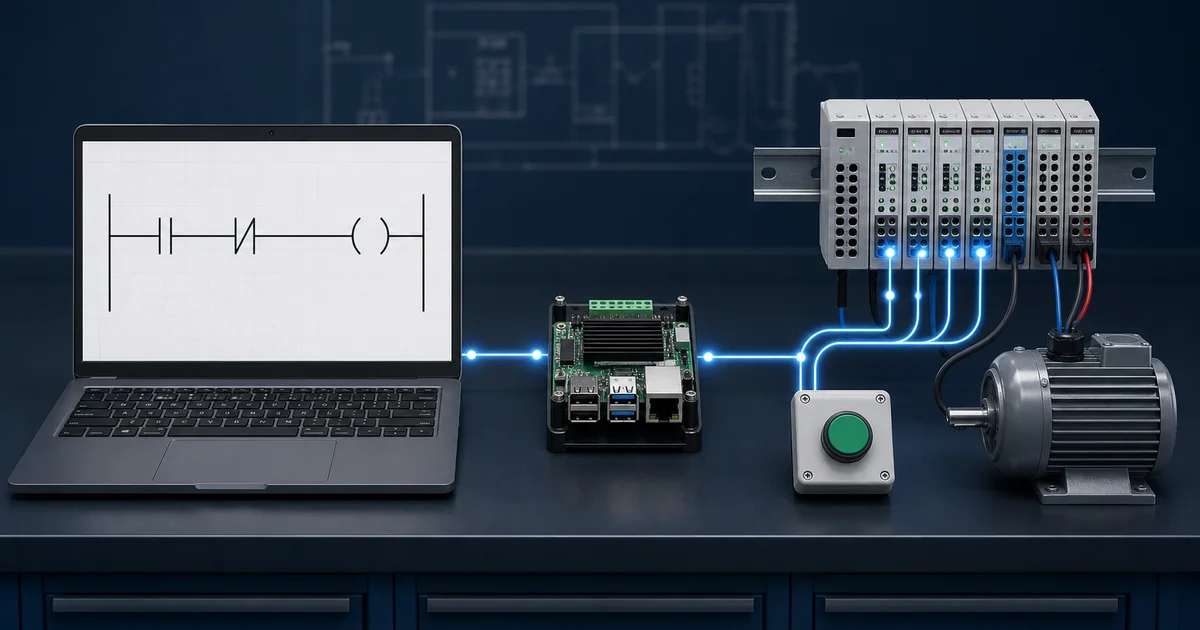
Independent publisher note: plcprogramming.io is not the OpenPLC project. We link to the project's current Autonomy and GitHub sources and identify our related browser simulator separately.
OpenPLC v4 Quick Start
Use this route for a first successful project:
- Download the current OpenPLC Editor from Autonomy's official download page.
- Verify the operating-system and architecture label before opening the installer.
- Create a new project and choose Ladder Diagram (LD) or Structured Text (ST).
- Leave the built-in Simulator selected for the first test.
- Create a cyclic task and attach the main Program POU if the project template has not already done so.
- Declare
StartPB,StopPB,RunCmdandMotorOutas Boolean variables. - Build a seal-in circuit, run it, and test start, stop and restart behavior.
- Save a known-good project copy.
- Only then select an embedded board or connect Runtime v4.
- Validate the final I/O map with outputs de-energized before connecting a load.
That sequence isolates editor, program, target and wiring faults. If the simulated program fails, hardware is not yet part of the problem.
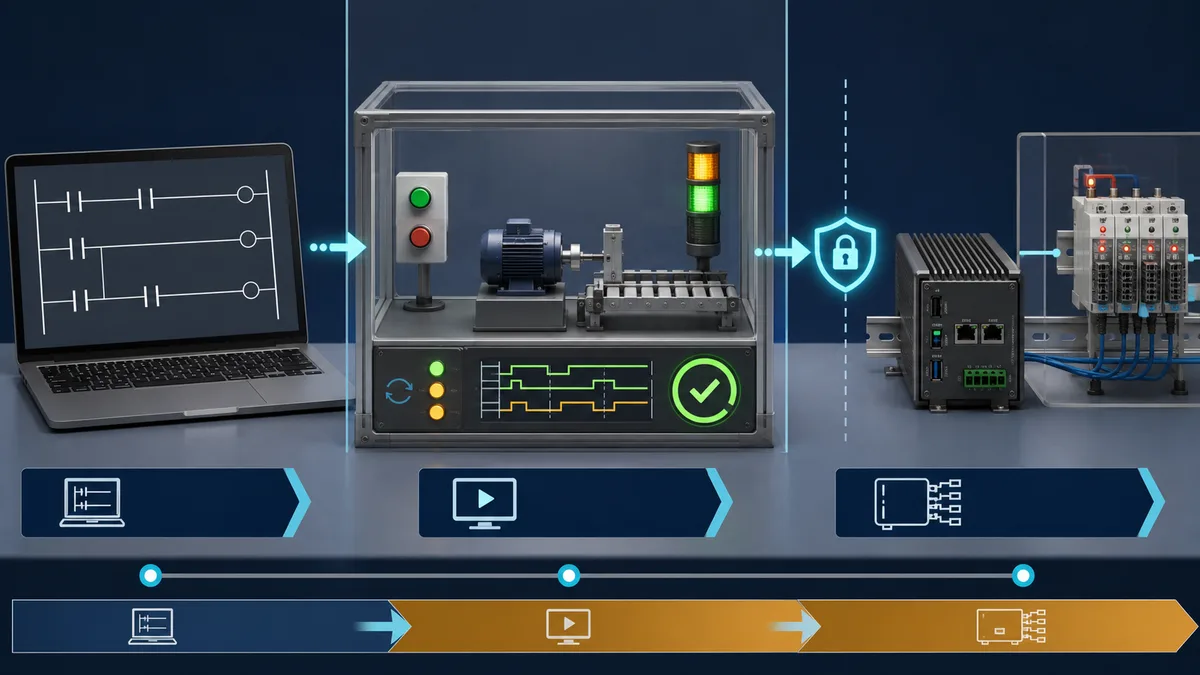
OpenPLC Editor v4 vs Runtime v4
The Editor and Runtime are separate applications.
OpenPLC Editor v4
The Editor is the engineering environment. Current project documentation describes:
- Structured Text, Ladder Diagram, Function Block Diagram and Instruction List editors;
- Program, Function and Function Block POUs;
- variable tables and direct IEC-style locations such as
%IX0.0and%QX0.0; - cyclic task configuration;
- a built-in browser/desktop simulator;
- an embedded-board selector in the desktop application; and
- build targets for the simulator, Arduino-class boards and OpenPLC Runtime.
Sequential Function Chart support has appeared in OpenPLC generations, but do not assume every current Editor surface exposes the same language menu. Check the installed release and current documentation instead of relying on an “all five languages” claim.
OpenPLC Runtime v4
Runtime v4 is the headless execution service. The current runtime repository describes:
- a C/C++ PLC runtime core;
- a Python/Flask REST API;
- an HTTPS interface on port 8443 for Editor connections;
- Linux, Docker and multi-architecture build paths;
- TLS and authenticated management; and
- a plugin model for hardware and industrial protocols.
Runtime v4 does not provide the old v3 web dashboard. Opening https://runtime-host:8443 in a normal browser is not the configuration workflow. Configure and control v4 from the Editor or the documented platform surface.
OpenPLC v3 vs v4
OpenPLC Runtime v3 reached end of life and its original GitHub repository was archived on April 4, 2026. Runtime v4 is the current branch for a new deployment.
| Topic | Runtime v3 | Runtime v4 |
|---|---|---|
| Repository | Archived and read-only | Current Autonomy-Logic/openplc-runtime repository |
| Management | Browser dashboard commonly shown on port 8080 | Editor/API connection over HTTPS on port 8443 |
| Debug transport | Legacy Modbus TCP path | Secure WebSocket path documented by the v4 debugger |
| Installation commands | Old OpenPLC_v3 clone/install scripts |
Current Docker or v4 repository instructions |
| Use now | Maintain only when an existing system requires it | Start here for a new runtime project |
Do not combine a v3 installation command, v3 screenshot and v4 connection step. That is the main reason many copied tutorials fail.
Install OpenPLC Editor v4
Windows
At the review date, the official page listed Windows 10/11 x64. Windows on ARM was marked as not yet available.
- Open the official OpenPLC Editor download.
- Select Windows x64.
- Record the displayed version and file name in your lab notes.
- Scan the downloaded file using your normal security controls.
- Run the installer as the current user unless the installer explicitly requests elevation.
- Launch the Editor and confirm its version before creating a project.
Do not disable antivirus software or install a hand-picked collection of old Python packages. Those instructions belong to earlier Editor generations and weaken the machine without proving compatibility.
macOS
The official download page listed separate builds for Apple Silicon and Intel Macs.
- Choose the build matching Apple Silicon or Intel.
- Install using the signed package supplied by the current publisher.
- If macOS blocks the app, inspect the publisher/signature and use the operating system's normal privacy-and-security approval flow.
- Launch the Editor and run a simulator project before adding a USB target.
Linux
The official page listed a universal x64 AppImage and marked Linux ARM as not yet available on the download matrix.
- Download the current Linux x64 AppImage.
- Verify the file name/version against the download page.
- Make the AppImage executable using your file manager or a scoped
chmod +xcommand. - Launch it as a normal user.
- Test the built-in Simulator.
If you build the development Editor from source, use the requirements in the current Autonomy-Logic/openplc-editor repository. At review time, the repository requested Node.js >=22 <24; this is a contributor path, not the normal desktop installation.
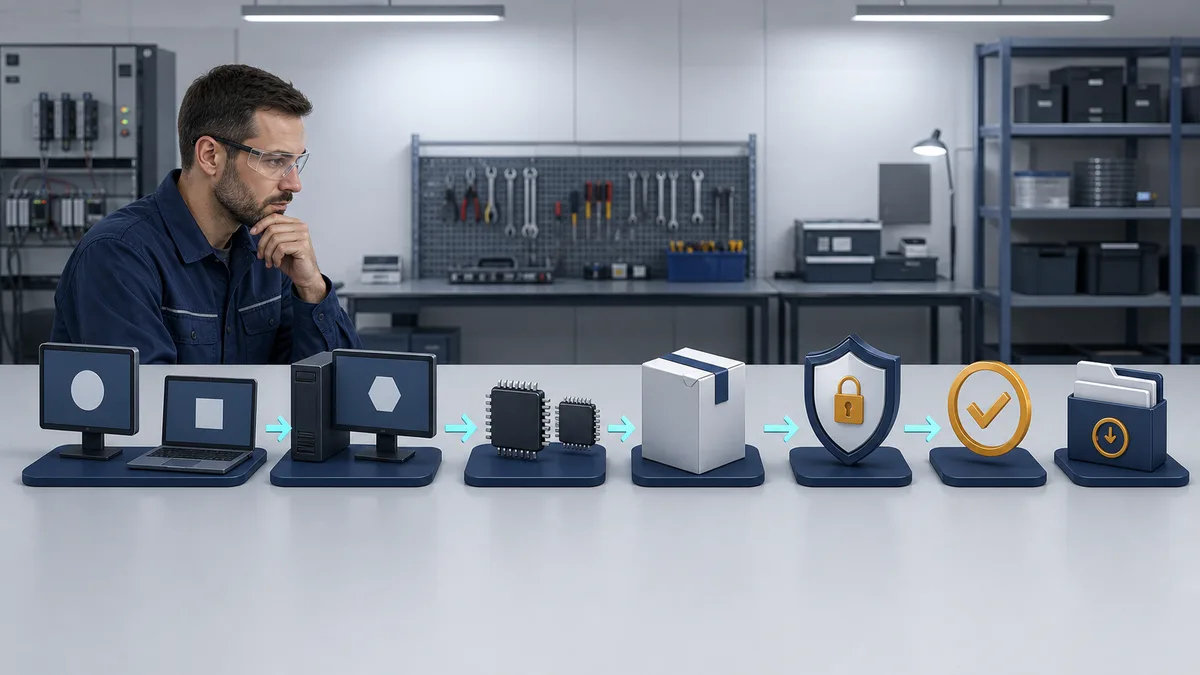
Build Your First OpenPLC Program
The first program is a motor-command seal-in circuit. It deliberately controls a simulated MotorOut, not a real contactor.
1. Define the behavior
The acceptance criteria are:
- pressing Start turns
RunCmdon; - releasing Start leaves
RunCmdon; - pressing Stop turns
RunCmdoff; - Stop has priority if Start and Stop are true together; and
MotorOutfollowsRunCmd.
2. Declare the variables
Use four Boolean variables:
| Name | Type | Initial value | Role |
|---|---|---|---|
StartPB |
BOOL | FALSE | Simulated normally-open start command |
StopPB |
BOOL | FALSE | Simulated stop request; TRUE means stop |
RunCmd |
BOOL | FALSE | Internal latched run state |
MotorOut |
BOOL | FALSE | Simulated output |
Keep them unlocated in the first simulator run. Physical addresses belong to the target configuration, not the reusable control intent.
3. Ladder Diagram version
Create two branches feeding the RunCmd coil:
|----[/ StopPB ]----+----[ StartPB ]--------( RunCmd )----|
|                   |                                      |
|                   +----[ RunCmd ]-------------------------|

|----[ RunCmd ]-----------------------------( MotorOut )---|
The normally closed logical condition NOT StopPB surrounds both the start and seal-in paths. That makes Stop dominant.
4. Structured Text equivalent
If you chose ST, use:
RunCmd := (StartPB OR RunCmd) AND NOT StopPB;
MotorOut := RunCmd;
The assignment executes every scan. Because the previous RunCmd value participates in the expression, it remains true after StartPB returns false. StopPB breaks the latch.
5. Add the program to a cyclic task
A POU that is not assigned to a running task may compile but never execute. Confirm:
- one cyclic task exists;
- the main Program instance is attached to it;
- the interval is appropriate for a simple lab; and
- there are no duplicate program instances writing the same output.
Do not copy a “1 ms is always better” recommendation. Task interval, operating system, target load and timing requirements must be measured together.
6. Build and simulate
With the Simulator target selected:
- Build the project and resolve every compiler error.
- Start the simulation.
- Set
StartPBtrue for one or more scans, then false. - Confirm
RunCmdandMotorOutremain true. - Set
StopPBtrue. - Confirm both outputs become false.
- Set Start and Stop true together.
- Confirm Stop wins.
- Stop and restart the simulation and record the initial state.
This is a complete, reproducible first test. A screenshot of a green rung is not enough; record the expected and observed value for each test case.
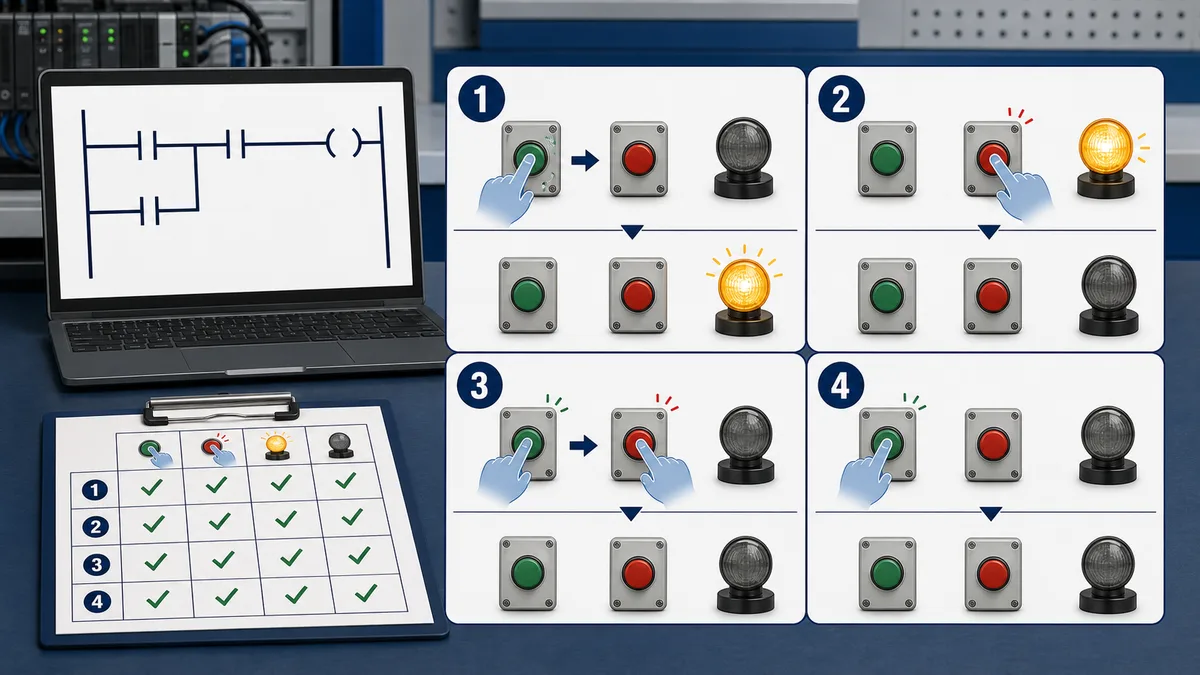
Add a Timer: Delayed Motor Output
To practise a stateful function block, add:
| Name | Type | Role |
|---|---|---|
StartDelay |
TON | On-delay timer instance |
MotorReady |
BOOL | Becomes true after the preset |
Structured Text:
RunCmd := (StartPB OR RunCmd) AND NOT StopPB;

StartDelay(
    IN := RunCmd,
    PT := T#2s
);

MotorReady := StartDelay.Q;
MotorOut := RunCmd AND MotorReady;
Test at least these cases:
- Start for less than two seconds:
MotorOutstays false. - Keep Run true past two seconds:
MotorOutbecomes true. - Press Stop:
MotorOutbecomes false without waiting for the timer. - Restart: timing begins again according to TON behavior.
The timer instance must be declared as TON; StartDelay.Q and StartDelay.ET are outputs of that stateful instance.
Complete OpenPLC Project: Conveyor Reject and Jam Diagnosis
The first seal-in circuit proves that the editor and simulator work. A useful OpenPLC project should go further: it should translate a written process requirement into named I/O, deterministic logic, observable fault evidence and repeatable acceptance tests. The following project models a low-energy training conveyor with one inspection station, a timed reject gate and a travel watchdog.
The default target is the built-in Simulator. No physical motor, solenoid, contactor or field voltage is required. If you later map the outputs to hardware, treat ConveyorCmd and RejectCmd as software requests only; qualified personnel must design the electrical interface, isolation, protective devices, risk reduction and safe stopping system.
Project problem statement
Create an OpenPLC program that meets these requirements:
- Start latches a conveyor run request only when the diagnostic emergency-stop status is healthy and no fault is active.
- Stop always removes the run request. If Start and Stop are true in the same scan, Stop wins.
- A rising edge at the entry sensor starts tracking one test part.
- A rising edge at the inspection sensor samples
PartBad. A bad part starts a 500 ms reject pulse. - A rising edge at the exit sensor completes the tracked part and increments either the good or rejected count.
- If a tracked part does not reach the exit within five seconds of conveyor running time, the project latches a jam fault and removes both output commands.
- Reset clears the fault, counters and tracked-part state only while the conveyor is stopped, the diagnostic E-stop status is healthy and all three process sensors are clear.
- Restarting the simulator must leave the output requests false unless the operator starts the process again.
This is intentionally a bounded one-part training model. It does not queue multiple parts between sensors, calculate belt position or guarantee a physical reject. Those are extensions, not hidden assumptions.
OpenPLC project I/O list
Keep all variables unlocated for the simulator run. Add %I and %Q locations only after the logic passes, and derive those locations from the exact target configuration rather than from this generic table.
| Variable | Type | Direction | Simulator meaning | Physical-project boundary |
|---|---|---|---|---|
StartPB |
BOOL | input | momentary start request | ordinary control input, not a safety device |
StopPB |
BOOL | input | TRUE requests a stop | logical convention for this project; verify field polarity separately |
ResetPB |
BOOL | input | momentary reset request | reset must not initiate hazardous motion |
EStopHealthy |
BOOL | input | TRUE permits ordinary logic to run | diagnostic status only; never replaces a certified safety circuit |
EntrySensor |
BOOL | input | part reaches conveyor entry | simulated rising edge |
InspectSensor |
BOOL | input | part reaches inspection station | simulated rising edge |
PartBad |
BOOL | input | classification sampled at inspection | classification source must be validated in a real machine |
ExitSensor |
BOOL | input | tracked part reaches exit | simulated rising edge |
ConveyorCmd |
BOOL | output | conveyor run request | not a contactor or drive command until engineered and interlocked |
RejectCmd |
BOOL | output | reject-gate request for 500 ms | not a safe pneumatic design or proof of rejection |
RunLamp |
BOOL | output | mirrors a valid run request | diagnostic indication |
FaultLamp |
BOOL | output | mirrors the latched fault | diagnostic indication |
GoodCount |
DINT | internal | completed good parts | resets under the controlled reset condition |
RejectCount |
DINT | internal | completed rejected parts | counts requested classification, not independently verified reject motion |
StateCode |
INT | internal | 0 stopped, 10 running, 90 faulted |
compact troubleshooting surface |
EStopHealthy is named carefully. It is feedback available to ordinary application logic, not the emergency-stop function itself. The actual safety function must remove or control hazardous energy through an architecture selected and validated for the risk.
Runnable Structured Text solution
Create a Structured Text Program POU named Main, attach one instance to a cyclic task, and use a 20 ms interval for this simulator exercise. The interval is a lab choice, not a universal production value. If the Editor manages declarations in its variable table, enter the variables there and paste only the executable statements between the declaration block and END_PROGRAM.
The same source is available as a plain-text download: OpenPLC conveyor reject project ST file.
PROGRAM Main
VAR
    (* Simulated operator and process inputs *)
    StartPB       : BOOL := FALSE;
    StopPB        : BOOL := FALSE;
    ResetPB       : BOOL := FALSE;
    EStopHealthy  : BOOL := TRUE;
    EntrySensor   : BOOL := FALSE;
    InspectSensor : BOOL := FALSE;
    PartBad       : BOOL := FALSE;
    ExitSensor    : BOOL := FALSE;

    (* Output requests and visible diagnostics *)
    ConveyorCmd   : BOOL := FALSE;
    RejectCmd     : BOOL := FALSE;
    RunLamp       : BOOL := FALSE;
    FaultLamp     : BOOL := FALSE;
    GoodCount     : DINT := 0;
    RejectCount   : DINT := 0;
    StateCode     : INT := 0;

    (* Internal state *)
    RunRequest    : BOOL := FALSE;
    FaultActive   : BOOL := FALSE;
    PieceActive   : BOOL := FALSE;
    PendingReject : BOOL := FALSE;
    RejectActive  : BOOL := FALSE;

    EntryRise     : R_TRIG;
    InspectRise   : R_TRIG;
    ExitRise      : R_TRIG;
    TravelWatch   : TON;
    RejectPulse   : TON;
END_VAR

(* Capture one-scan events from held simulator inputs. *)
EntryRise(CLK := EntrySensor);
InspectRise(CLK := InspectSensor);
ExitRise(CLK := ExitSensor);

(* Reset is deliberately constrained and cannot start motion. *)
IF ResetPB
   AND NOT RunRequest
   AND EStopHealthy
   AND NOT EntrySensor
   AND NOT InspectSensor
   AND NOT ExitSensor THEN
    FaultActive := FALSE;
    PieceActive := FALSE;
    PendingReject := FALSE;
    RejectActive := FALSE;
    GoodCount := 0;
    RejectCount := 0;
END_IF;

(* Stop, unhealthy safety feedback and faults dominate Start. *)
IF StopPB OR NOT EStopHealthy OR FaultActive THEN
    RunRequest := FALSE;
ELSIF StartPB THEN
    RunRequest := TRUE;
END_IF;

(* Track one part from entry to exit. *)
IF EntryRise.Q AND RunRequest AND NOT PieceActive THEN
    PieceActive := TRUE;
    PendingReject := FALSE;
END_IF;

(* Sample classification at the inspection edge. *)
IF InspectRise.Q AND RunRequest AND PieceActive AND PartBad THEN
    PendingReject := TRUE;
    RejectActive := TRUE;
END_IF;

(* End the reject request after its configured pulse time. *)
RejectPulse(IN := RejectActive, PT := T#500ms);
IF RejectPulse.Q THEN
    RejectActive := FALSE;
END_IF;

(* Count a completed tracked part once, on the exit edge. *)
IF ExitRise.Q AND RunRequest AND PieceActive THEN
    IF PendingReject THEN
        RejectCount := RejectCount + 1;
    ELSE
        GoodCount := GoodCount + 1;
    END_IF;
    PieceActive := FALSE;
    PendingReject := FALSE;
END_IF;

(* Accumulate only powered conveyor travel time for the active part. *)
TravelWatch(IN := PieceActive AND RunRequest, PT := T#5s);
IF TravelWatch.Q THEN
    FaultActive := TRUE;
    RunRequest := FALSE;
    RejectActive := FALSE;
END_IF;

(* Assign outputs after all stop and fault decisions. *)
ConveyorCmd := RunRequest AND EStopHealthy AND NOT FaultActive;
RejectCmd := RejectActive AND ConveyorCmd;
RunLamp := ConveyorCmd;
FaultLamp := FaultActive;

IF FaultActive THEN
    StateCode := 90;
ELSIF ConveyorCmd THEN
    StateCode := 10;
ELSE
    StateCode := 0;
END_IF;
END_PROGRAM
The last-writer order is deliberate. A fault discovered by TravelWatch removes RunRequest before the outputs are assigned. This prevents a one-scan period in which the fault is true while ConveyorCmd remains true. It is still ordinary control logic, not safety logic.
Build the OpenPLC simulator project
Use this reproducible path in the current Editor generation:
- Create a new project and record the installed Editor version with the project evidence.
- Select the built-in Simulator as the initial target.
- Add
Mainas a Program POU using Structured Text. - Add the declarations in the variable editor, or use the complete source form if the selected editor surface accepts it.
- Create a cyclic task with a 20 ms interval and attach exactly one
Mainprogram instance. - Build the project. Treat warnings as review items, not decoration.
- Run the Simulator and watch every input, output, counter,
PieceActive,PendingReject,FaultActive, both timer elapsed values andStateCode. - Keep each momentary test input true for at least two task scans, then return it false so the rising-edge block can detect a later event.
- Execute the acceptance matrix below from a clean state.
- Save the project, Editor version, build result and observed test record together.
If the project builds but values do not change, first confirm the POU instance is attached to the cyclic task. If an edge triggers only once, return the simulated input to false before trying the next rising edge. If the reject output never turns on, confirm PartBad is already true when InspectSensor rises and that a part is currently tracked.
Acceptance-test matrix
Run these tests in order. “Pulse” means set the input true for at least two scans and return it false. Record observed values rather than only marking pass/fail.
| ID | Initial condition and action | Expected evidence |
|---|---|---|
| OT-01 | fresh simulation; EStopHealthy=TRUE; pulse Start |
ConveyorCmd=TRUE, RunLamp=TRUE, StateCode=10 |
| OT-02 | running; hold Start and Stop true together | Stop wins; both command outputs false and StateCode=0 |
| OT-03 | running; pulse Entry, then pulse Exit before 5 s | GoodCount increments once; PieceActive=FALSE; no fault |
| OT-04 | running; pulse Entry; set PartBad=TRUE; pulse Inspect |
RejectCmd turns true, then false after about 500 ms; PendingReject=TRUE |
| OT-05 | continue OT-04 and pulse Exit | RejectCount increments once; GoodCount does not increment |
| OT-06 | running; pulse Entry and never pulse Exit | after 5 s of running time, FaultActive=TRUE, commands false, StateCode=90 |
| OT-07 | faulted; pulse Start without Reset | outputs remain false; fault remains latched |
| OT-08 | faulted; leave a process sensor true and pulse Reset | reset is refused; counter and fault values do not clear |
| OT-09 | stopped; clear sensors; EStopHealthy=TRUE; pulse Reset |
fault, counters and part state clear; outputs remain false |
| OT-10 | running; set EStopHealthy=FALSE |
command outputs become false; ordinary restart is prevented |
| OT-11 | stop for 3 s while a part is active, then restart and exit before total powered time reaches 5 s | stopped time is not accumulated by TravelWatch; no jam fault |
| OT-12 | hold Exit true for several scans | the relevant counter increments only once because ExitRise detects an edge |
| OT-13 | stop and restart the simulator/application | output requests initialize false and motion does not resume automatically |
Timer observations can differ by approximately one task interval. For a 20 ms task, a nominal 500 ms pulse should not be graded against an oscilloscope-level tolerance. The important evidence is that the pulse is bounded, Stop/fault removes it immediately and only a qualified inspection event initiates it.
Troubleshooting from state, cause and timer evidence
The project exposes three layers of evidence:
| Symptom | First values to inspect | Likely cause to prove | Corrective direction |
|---|---|---|---|
| conveyor never starts | StopPB, EStopHealthy, FaultActive, RunRequest |
a dominant stop condition is true | correct the simulated condition; do not bypass it in code |
| entry sensor does not begin tracking | EntrySensor, EntryRise.Q, RunRequest, PieceActive |
input never returned false, project stopped, or a part already active | reproduce the edge and verify the one-part boundary |
| reject never pulses | InspectRise.Q, PartBad, PieceActive, RejectActive |
classification was false at the inspection edge | set and observe classification before the edge |
| reject stays on | RejectPulse.ET, RejectPulse.Q, task execution |
timer instance not called or POU not executing cyclically | prove task assignment and timer state before rewriting logic |
| false jam fault | PieceActive, ExitRise.Q, TravelWatch.ET, RunRequest |
exit edge was missed or travel requirement is unrealistic | fix event capture or justify a new timeout from measured travel |
| counters increment twice | ExitSensor and ExitRise.Q |
raw level was used elsewhere or duplicate POU instances write the counter | enforce single ownership and one program instance |
| fault reset fails | all three process sensors, RunRequest, EStopHealthy |
one reset permissive is not satisfied | expose the false permissive; do not delete the guard |
This evidence structure is useful beyond the exercise. A troubleshooting-friendly PLC program exposes the commanded state, the dominant inhibit, sequence ownership and timer progress. It does not force a technician to infer all four from the final output bit.
OpenPLC project grading rubric
Use a 100-point rubric so “it ran once” cannot hide missing behavior:
| Area | Points | Full-credit evidence |
|---|---|---|
| project setup and repeatability | 10 | exact Editor version, Simulator target, cyclic task and one Main instance recorded |
| I/O and naming | 10 | all variables match the list; diagnostic safety status is not mislabeled as a safety function |
| start/stop dominance | 10 | OT-01 and OT-02 pass with Stop dominant in the same scan |
| part tracking and counting | 15 | OT-03, OT-05 and OT-12 pass without duplicate counts |
| reject pulse | 10 | OT-04 passes and Stop/fault can remove the command |
| jam detection | 15 | OT-06, OT-07 and OT-11 prove timeout, latching and powered-time behavior |
| controlled reset | 10 | OT-08 and OT-09 prove permissive enforcement and no automatic start |
| restart behavior | 10 | OT-13 passes from a documented initial condition |
| troubleshooting evidence | 5 | watched values and observed timer/state evidence are saved |
| safety and hardware boundary | 5 | report explicitly separates simulator requests from physical safety and power design |
A score below 80 requires correction and a complete retest. Any failure of Stop dominance, fault output removal, controlled reset or safe initialization is an automatic resubmission regardless of the numeric score.
Extensions after the base project passes
Extend one requirement at a time and add tests before changing code:
- add a
BlockedAtInspecttimeout distinct from the entry-to-exit travel watchdog; - retain counts across an ordinary restart while still initializing commands false;
- add a manual mode with hold-to-run behavior and explicit mode arbitration;
- expose a first-out fault code rather than one general fault bit;
- simulate sensor chatter and prove the chosen debounce strategy;
- create a bounded queue for two parts rather than silently assuming only one;
- publish read-only counts and state through a lab Modbus client; or
- reimplement the same acceptance tests in Ladder Diagram and compare maintainability.
Do not add physical motion merely to make the exercise look more realistic. The simulator project is complete when the written behavior, observable state and evidence agree. Hardware deployment is a separate engineering stage.
Run OpenPLC Runtime v4
Use the runtime when you need execution outside the Editor's built-in simulator.
Recommended Docker quick start
The current Runtime v4 repository publishes this Docker path:
docker pull ghcr.io/autonomy-logic/openplc-runtime:latest

docker run -d \
  --name openplc-runtime \
  -p 8443:8443 \
  --cap-add=SYS_NICE \
  --cap-add=SYS_RESOURCE \
  -v openplc-runtime-data:/var/run/runtime \
  ghcr.io/autonomy-logic/openplc-runtime:latest
For a reproducible lab or production review, pin a tested image digest/version rather than leaving latest in a permanent deployment.
Native Linux installation
The project's runtime page currently documents:
git clone https://github.com/Autonomy-Logic/openplc-runtime.git
cd openplc-runtime
sudo ./install.sh
Before running an installer with elevated privileges:
- inspect the current repository and release;
- use an isolated lab host or image;
- record the commit/tag you tested;
- review ports, created services and file locations; and
- keep a rollback or clean rebuild path.
The current service name shown by the project is openplc-runtime.service. Check it with:
sudo systemctl status openplc-runtime.service
Connect from the Editor
- Confirm the runtime host is reachable on the intended management network.
- In the Editor, select the Runtime v4 target or device connection surface.
- Enter the runtime host and port 8443.
- Complete the documented first-user/login flow.
- Build before upload.
- Upload and start the PLC from the Editor.
- Confirm the uploaded build/hash matches the project you just compiled.
- Watch selected variables in the debugger.
Runtime v4's debugger is live inspection; the current documentation says it does not provide breakpoint/step execution. Use the Simulator for controlled logic tests.
Arduino, ESP32 and Other Board Targets
The desktop Editor's current board-selection documentation describes more than 60 supported board profiles. Arduino-compatible targets compile through arduino-cli, while Runtime v4 targets use the runtime compiler/upload path.
The correct embedded workflow is:
- Open Device → Configuration in the desktop Editor.
- Select the exact board profile.
- Let the Editor obtain the required core/board definitions.
- Map IEC variables to the board's available pins.
- Review voltage, current, ADC and boot-strap constraints in the board documentation.
- Build and upload through the configured serial port.
- Test with LEDs or isolated low-energy training I/O first.
When you change boards, review every pin mapping. The control logic may remain the same, but the electrical interface does not.
Electrical boundary
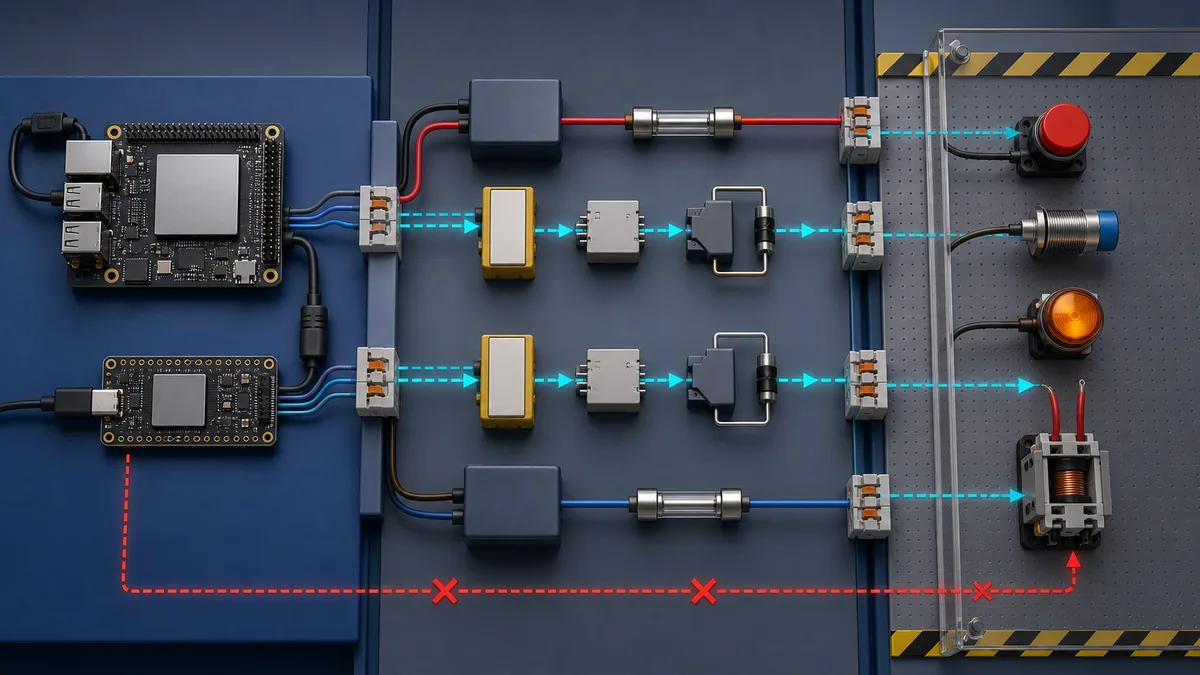
Arduino, ESP32 and Raspberry Pi GPIO are logic-level electronics, not 24 V industrial I/O. Never connect a field signal, relay coil, contactor or inductive load directly unless a properly engineered interface provides:
- voltage-level conversion;
- input protection and filtering;
- output current amplification;
- flyback suppression for inductive loads;
- galvanic isolation where required;
- a suitable power supply and grounding scheme; and
- a fail-safe state for startup, reset and communications loss.
Use certified safety hardware for emergency stops and safety functions. Software running on a general-purpose board is not made safety-rated by drawing an E-stop contact in ladder logic.
I/O Addressing Without Guesswork
IEC-style located variables communicate intent:
%IX0.0— input, bit addressing;%QX0.0— output, bit addressing;%IW0— input word;%QW0— output word; and%MW0— internal memory word.
The physical or protocol mapping behind an address depends on the target and plugin. Do not reuse a v3 register table, Raspberry Pi GPIO table or Arduino pin map without checking the v4 target documentation.
Use an I/O worksheet:
| Program variable | IEC location | Target channel | Electrical state | Safe test |
|---|---|---|---|---|
StartPB |
%IX0.0 |
DI channel to verify | TRUE when pressed | Toggle with output disabled |
StopPB |
%IX0.1 |
DI channel to verify | TRUE when stop requested | Confirm stop-dominant logic |
MotorOut |
%QX0.0 |
DO channel to verify | TRUE requests run | Test with indicator before contactor |
The worksheet—not a generic address screenshot—should be reviewed against the selected board/runtime configuration.
OpenPLC v4 Protocol Support
The current OpenPLC communication matrix lists these Runtime v4 states:
| Protocol | Runtime v4 status in current documentation | Important boundary |
|---|---|---|
| Modbus server | Supported | Verify address mapping and transport |
| Modbus client | Supported | Verify polling, timeouts and failure behavior |
| Modbus RTU master | Supported | Verify serial settings and isolation |
| Siemens S7Comm server | Supported | Treat as OpenPLC's implementation, not Siemens firmware |
| OPC UA server | Supported | Configure certificates, identities and exposed variables |
| EtherCAT master | Supported through the documented plugin | Verify platform, cycle timing and slave compatibility |
| EtherNet/IP | In development | Do not plan a project around an unreleased path |
| DNP3 | Not listed as supported for v4 | Do not inherit v3 beta claims |
Arduino targets have a narrower protocol surface; the current documentation lists Modbus server mode rather than the full Runtime v4 matrix.
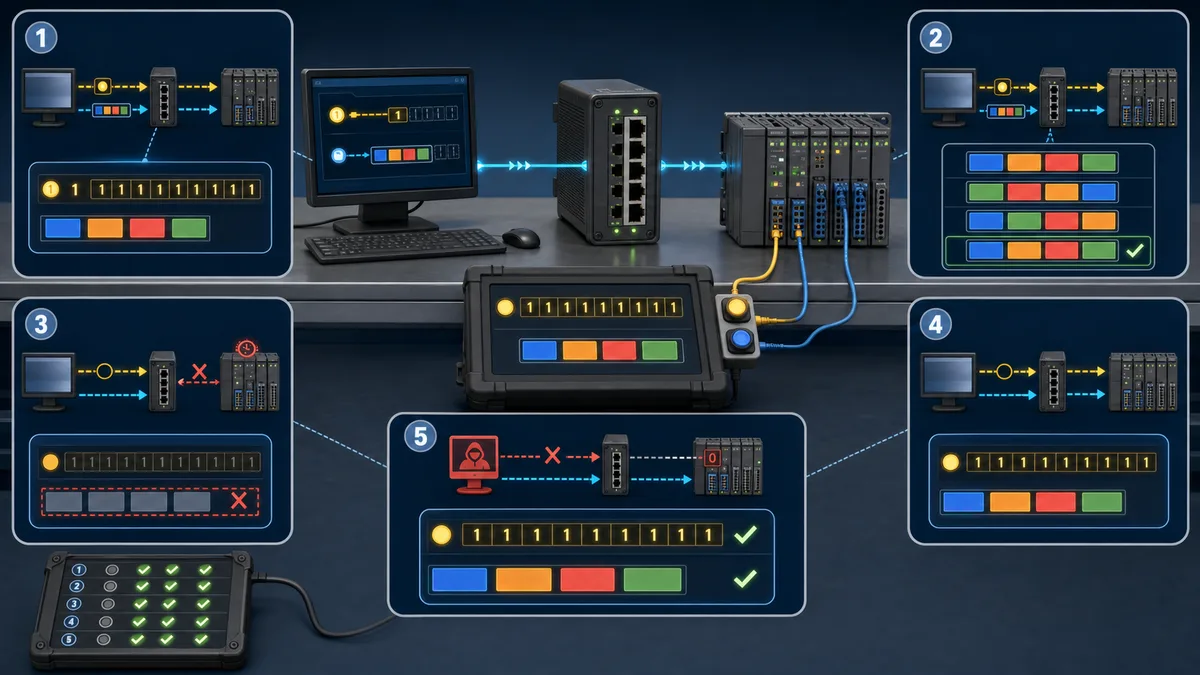
Modbus validation checklist
Before connecting an HMI or SCADA client:
- Confirm whether OpenPLC is the client or server.
- Record TCP/serial transport and unit identifier.
- Map one Boolean and one word end to end.
- Confirm zero-based vs one-based display notation in the client.
- Test word byte order with a known hexadecimal pattern.
- Test timeout, disconnect and reconnect behavior.
- Prevent unintended writes to safety- or motion-related variables.
- Restrict protocol access to the intended network zone.
OpenPLC Security and Production Limits
Runtime v4 adds modern management controls such as TLS and authenticated access, but those features do not make an arbitrary host, plugin or control panel production-ready.
For a serious deployment, document:
- the exact Editor and Runtime commit/version;
- operating-system image and patch process;
- user and credential ownership;
- network zones, firewall rules and permitted peers;
- plugin versions and protocol exposure;
- startup and watchdog behavior;
- I/O state during boot, stop, fault and communications loss;
- backup/restore and rollback;
- measured scan-time distribution under load;
- electrical/environmental ratings of the hardware; and
- an independent safety risk assessment.
Open source also does not mean “no obligations.” At review time, the current Editor repository displays GPL-3.0 and the Runtime v4 repository displays MIT. Review the exact repository licences and bundled dependencies for your intended distribution and commercial use.
Troubleshooting OpenPLC v4
The tutorial says port 8080, but nothing appears
You are probably reading Runtime v3 instructions. Runtime v4 listens for Editor/API connections on port 8443 and does not expose the old browser dashboard.
The Windows installer name says v3
Do not install an old OpenPLC_Editor_v3.x_Windows.exe from a copied tutorial. Start at the current official download page and record the version offered for your architecture.
The program builds but does not run
Check that:
- the Program POU is instantiated;
- the instance is assigned to a task;
- the task is enabled and cyclic;
- the selected target matches the build;
- the runtime is started after upload; and
- no second POU overwrites the same output later in the scan.
The simulator works but hardware does not
Separate the layers:
- confirm the selected board/runtime target;
- check the pin or plugin map;
- observe the program variable;
- observe the logical output;
- measure the electrical output with the load isolated;
- verify polarity and common reference; and
- then test the interface module and load.
Modbus values are shifted
Check function code, data type, zero/one-based notation, byte order and the OpenPLC variable-to-register map. Do not “fix” a one-register shift by changing every tag until the addressing convention is documented.
Runtime v4 will not start
Use the current service/container logs, not a guessed v3 log path. For native Linux, check:
sudo systemctl status openplc-runtime.service
sudo journalctl -u openplc-runtime.service
For Docker, use the container's logs and confirm port 8443 plus the required capabilities/volume were applied.
OpenPLC FAQ
Is OpenPLC free?
The current Editor and Runtime source repositories are publicly available under open-source licences. That removes a conventional per-seat editor fee, but it does not remove hardware, engineering, hosting, support, cybersecurity or licence-compliance costs. Review the exact repository and dependency licences.
Is OpenPLC v4 the current version?
Yes for new Runtime work. Runtime v3 is archived and explicitly marked end-of-life. On August 30, 2026, the latest published releases were Editor v4.2.11 and Runtime v4.1.10. Treat those as a dated test record, not a permanent “latest” claim.
Does OpenPLC v4 have a web interface on port 8080?
No. That is a common v3 instruction. Runtime v4 is headless and the current documentation directs the Editor to connect over HTTPS on port 8443.
Can I simulate without hardware?
Yes. The current Editor includes a built-in Simulator. It is suitable for program logic and learning. It does not validate field wiring, electrical behavior, proprietary controller firmware or functional safety.
Which programming languages are supported?
Current Editor documentation explicitly covers Structured Text, Ladder Diagram, Function Block Diagram and Instruction List. Other OpenPLC generations and surfaces have referenced SFC; verify the exact installed Editor rather than assuming an identical language list across every release.
Can OpenPLC run on Raspberry Pi or Arduino?
OpenPLC supports standard-computing Runtime targets and many embedded-board profiles, but the exact board, architecture and compiler path must appear in the current board selector/documentation. A family name such as “Raspberry Pi” or “Arduino” is not a promise that every model is supported.
Can I use OpenPLC in an industrial machine?
Only after engineering the complete system and validating that the chosen hardware, operating system, I/O, network, environmental design and lifecycle controls meet the application's requirements. Do not use a general-purpose OpenPLC setup as a safety PLC or claim certification the selected system does not have.
Does OpenPLC support Modbus?
The current Runtime v4 protocol matrix lists Modbus server, Modbus client and Modbus RTU master support. Exact transport, mapping and target availability still require configuration and testing.
Where can I get an OpenPLC project example?
The conveyor-reject section on this page includes a complete Structured Text listing and a plain-text download, plus the I/O list, acceptance matrix and grading criteria needed to evaluate it. The official OpenPLC documentation also publishes small examples. Confirm the example's Editor generation before importing it; old v3 project instructions are not proof of v4 compatibility.
How should I test an OpenPLC project?
Start with the built-in Simulator and a written matrix covering nominal behavior, simultaneous commands, timeouts, reset permissives, edge cases and restart state. Save the observed variable and timer evidence with the exact Editor version. A successful compile or one highlighted rung does not prove the full requirement.
Is OpenPLC the same as a Siemens or Allen-Bradley PLC?
No. OpenPLC teaches IEC-oriented control concepts and provides its own runtime. It does not reproduce the compiler, firmware, instruction edge cases, safety functions or commissioning workflow of a proprietary controller.
Official Sources and Test Record
These primary sources were checked on August 30, 2026:
- OpenPLC Editor official download
- OpenPLC Editor v4.2.11 release and change record
- OpenPLC Editor v4 source repository and GPL-3.0 licence
- OpenPLC Runtime v4 product and installation page
- OpenPLC Runtime v4.1.10 release record
- OpenPLC Runtime v4 source repository, Docker quick start and MIT licence
- OpenPLC Runtime v3 archived end-of-life repository
- OpenPLC Editor overview and current surface boundaries
- OpenPLC Editor installation documentation
- POUs in the current OpenPLC Editor
- Variables and data types in the current OpenPLC Editor
- Tasks and program instances in the current OpenPLC Editor
- Current task-configuration model
- Current variables editor
- Current board selection and compiler paths
- Current protocol support matrix
- Current project compilation path
- Current built-in Simulator workflow
- Current debugger behavior
- Structured Text syntax and TON example
- Structured Text examples
- Current timer function blocks
- Current edge-detection function blocks
- Official start/stop seal-in example
Practise the Logic Before Installing
If you want to practise the seal-in and timer examples before downloading OpenPLC, our related browser-based PLC simulator provides lessons and scenario-based feedback. Check its versioned product facts for the current free allowance, dialect list, and access caveat.
Disclosure and limit: plcprogramming.io and PLC Simulation Software share the same publisher. The browser product is an educational simulator, not OpenPLC Editor, Runtime v4 or a hardware emulator. Use it to practise the control idea, then rebuild and validate the project in the current OpenPLC toolchain.
Related resources:


