Programming Guides14 min read7Β 809 words

Beckhoff TwinCAT Programming Tutorial: Complete Guide to PC-Based Control

Master Beckhoff TwinCAT 3 programming with this comprehensive tutorial covering PC-based control, EtherCAT, motion control, Structured Text, and Industry 4.0 applications.

IAE
Senior PLC Programmer
15+ years hands-on experience β€’ 50+ automation projects completed
PLC
Programming Excellence
🚧 COMING DECEMBER 2025

🎯 Master PLC Programming Like a Pro

Preorder our comprehensive 500+ page guide with real-world examples, step-by-step tutorials, and industry best practices. Everything you need to become a PLC programming expert.

  • βœ“ Complete Ladder Logic Programming Guide
  • βœ“ Advanced Function Block Techniques
  • βœ“ Real Industrial Applications & Examples
  • βœ“ Troubleshooting & Debugging Strategies
60% Off Preorder
$47
vs $127 Final Price
Preorder Now

πŸ“‹ Table of Contents

This comprehensive guide covers:

  • Introduction to PLC Programming Fundamentals
  • Understanding Ladder Logic Programming
  • Function Block Diagrams and Structured Text
  • Advanced Programming Techniques
  • Real-World Application Examples
  • Troubleshooting and Best Practices
  • Industry Standards and Compliance
  • Career Development and Certification Paths

Introduction: Master Beckhoff TwinCAT Programming for Modern PC-Based Automation

Beckhoff TwinCAT (The Windows Control and Automation Technology) has revolutionized industrial automation by transforming standard Windows-based industrial PCs into powerful, deterministic real-time controllers capable of sub-millisecond cycle times and coordinated multi-axis motion control. This innovative PC-based control approach delivers exceptional performance, flexibility, and scalability that traditional hardware PLCs cannot match, making TwinCAT the platform of choice for demanding motion control, Industry 4.0, and high-performance automation applications.

Understanding Beckhoff TwinCAT programming opens unprecedented opportunities in modern automation engineering. TwinCAT 3 integrates seamlessly with Microsoft Visual Studio, providing automation engineers with professional-grade development tools typically reserved for software developers. Combined with EtherCAT communication delivering cycle times below 100 microseconds, TwinCAT enables applications ranging from precision semiconductor manufacturing to high-speed packaging machinery that require exceptional determinism and synchronization.

This comprehensive TwinCAT programming tutorial covers everything from fundamental concepts through advanced implementation techniques. You'll learn how TwinCAT transforms industrial PCs into real-time controllers, master IEC 61131-3 programming with emphasis on Structured Text, configure EtherCAT networks for distributed I/O and motion control, implement sophisticated multi-axis motion applications, and apply best practices used by professional automation engineers worldwide.

The growing adoption of Industry 4.0, smart manufacturing, and data-driven automation makes PC-based control platforms like TwinCAT increasingly relevant. By mastering TwinCAT programming, you gain skills applicable across industries including packaging, semiconductor manufacturing, automotive assembly, material handling, CNC machining, and roboticsβ€”industries where Beckhoff technology delivers competitive advantages through superior performance and flexibility.

Chapter 1: Beckhoff Hardware Overview

Understanding PC-Based Control Architecture

The PC-Based Control Revolution:

Beckhoff pioneered PC-based control in the 1980s, recognizing that industrial PCs could deliver superior processing power, flexibility, and scalability compared to traditional hardware PLCs. Modern TwinCAT 3 leverages multi-core processors to create isolated real-time cores for deterministic control while maintaining full Windows functionality for HMI, database connectivity, and enterprise integration.

PC-Based Control Advantages:

  • Superior Processing Power: Multi-GHz processors handle complex algorithms impossible on traditional PLCs
  • Scalability: Add processing power by upgrading industrial PC rather than replacing entire control system
  • Unified Platform: Combine PLC, motion control, CNC, robotics, HMI, and IoT on single platform
  • Cost Effectiveness: Leverage commodity computing hardware while maintaining industrial reliability
  • Future-Proof Architecture: Benefit from continuous PC technology advancement without platform migration

Real-Time Determinism on Windows:

TwinCAT achieves real-time determinism on non-real-time Windows by dedicating CPU cores exclusively to real-time tasks, implementing high-priority kernel drivers, and isolating real-time execution from Windows interrupts. This architecture delivers 100-microsecond cycle times with sub-microsecond jitter while maintaining complete Windows functionality.

Beckhoff Industrial PC Product Families

CX Series Embedded Controllers:

| Controller Family | Processor Type | Performance Class | Typical Applications | |------------------|----------------|-------------------|---------------------| | CX9240 | ARM Cortex-A9 | Entry-level | Simple I/O control, building automation | | CX5020 | Intel Atom | Compact control | Machine control, moderate I/O | | CX5140 | Intel Core i7 | High-performance | Motion control, visualization | | CX2040 | Intel Core i3/i5/i7 | Scalable platform | Flexible machine control | | CX7000 | ARM Cortex-A8 | Embedded Linux | Compact applications |

Industrial PC (IPC) Systems:

Beckhoff offers rack-mount and panel-mount industrial PCs for applications requiring maximum processing power, extensive I/O capacity, or integrated visualization. C6xxx series IPCs range from compact fanless designs through multi-core server-class systems supporting hundreds of motion axes.

CP Series Panel PCs:

Integrated control and visualization platforms combining industrial PC, touchscreen HMI, and TwinCAT runtime in single compact package. Available in screen sizes from 7 inches through 24 inches with various processor options matching CX controller capabilities.

Recommended Hardware Selection:

  • Learning/Development: CX5140 or any Windows PC with TwinCAT trial license
  • Simple Machine Control: CX5020 with moderate I/O requirements
  • Motion Control (< 16 axes): CX5140 or C6030 industrial PC
  • High-Performance Motion: C6640 or higher with multi-core processors
  • Integrated HMI: CP series matching processing requirements

EtherCAT I/O System Architecture

EtherCAT Terminal System:

Beckhoff EtherCAT Terminals provide distributed I/O in ultra-compact form factors with comprehensive signal types:

  • Digital I/O: 2-channel through 16-channel terminals, 24VDC standard
  • Analog Input: Voltage, current, RTD, thermocouple, strain gauge inputs
  • Analog Output: Voltage and current outputs with 12-16 bit resolution
  • Specialty Terminals: Encoder interfaces, stepper controllers, communication gateways
  • Safety Terminals: TwinSAFE safety I/O certified to SIL 3 / PLe

EtherCAT Box Modules:

IP67-rated I/O modules for mounting directly on machinery, eliminating control cabinet wiring for remote I/O. Available in same signal types as EtherCAT Terminals with M12 connectors and industrial enclosures.

EtherCAT Couplers:

Bus couplers connect traditional fieldbus I/O systems to EtherCAT networks, enabling migration from legacy systems while leveraging existing I/O infrastructure. Available for PROFIBUS, DeviceNet, CANopen, and other protocols.

Servo Drive Systems

AX5000 Series Servo Drives:

High-performance servo amplifiers for demanding motion applications:

  • Power range: 200W to 12kW continuous
  • Advanced features: Auto-tuning, vibration suppression, flying saw
  • Multi-axis synchronization with distributed clocks
  • Single-cable technology (SCT) combines power and feedback in one cable

AX8000 Series Multi-Axis Servo Systems:

Modular servo systems supporting up to 50+ axes in compact footprint:

  • Centralized power distribution reduces wiring complexity
  • Integrated safety functionality (STO, SS1, SLS)
  • Optimal for machines requiring many coordinated axes
  • Superior power efficiency through shared DC bus and regeneration

AM8000 Series Servomotors:

Complete servomotor family from 0.09 Nm to 180 Nm with:

  • One Cable Technology (OCT) simplifying installation
  • Compact design with high power density
  • Integrated multi-turn absolute encoders
  • IP65 and IP67 variants for harsh environments

Typical Motion System Configuration:

For 4-axis CNC machine:

  • CX5140 controller with TwinCAT NC license
  • AX5206 servo drives (4 units) matched to motor requirements
  • AM8042 servomotors with appropriate gearing
  • EtherCAT network connecting controller and drives
  • EK1100 EtherCAT coupler with digital/analog I/O terminals

Comparison: PC-Based Control vs Traditional PLCs

| Aspect | TwinCAT PC-Based | Traditional Hardware PLC | |--------|------------------|-------------------------| | Processing Power | Multi-GHz, multi-core | 100-500 MHz typical | | Cycle Time | 50-100 Β΅s achievable | 1-10 ms typical | | Motion Axes | 100+ axes possible | Limited by hardware | | Programming | Visual Studio IDE | Proprietary tools | | Scalability | Upgrade PC hardware | Replace entire PLC | | Cost (Basic System) | $1,500-$3,000 | $2,000-$5,000 | | Cost (High-End Motion) | $5,000-$15,000 | $15,000-$50,000+ | | Flexibility | Extremely high | Moderate | | Industry Adoption | Growing rapidly | Established standard |

Chapter 2: TwinCAT 3 Development Environment

TwinCAT 3 XAE Engineering Environment

Visual Studio Integration:

TwinCAT 3 eXtended Automation Engineering (XAE) integrates completely into Microsoft Visual Studio, transforming the world's most popular development platform into a comprehensive industrial automation engineering environment. This integration provides automation engineers with professional software development capabilities:

  • IntelliSense Code Completion: Context-aware code suggestions accelerate programming
  • Advanced Debugging: Breakpoints, watch windows, call stacks for complex troubleshooting
  • Source Control Integration: Git, SVN, TFS support for team collaboration
  • Unified Development: PLC, motion, HMI, C++/C# in single environment
  • Extensions Ecosystem: Leverage thousands of Visual Studio extensions

TwinCAT XAE Installation:

TwinCAT 3 XAE (Engineering) installs as Visual Studio shell or integrates into existing Visual Studio 2019/2022 installations. Download from Beckhoff website requires free registration. Installation includes:

  • TwinCAT 3 engineering environment
  • PLC programming (IEC 61131-3 languages)
  • Motion control configuration
  • I/O configuration tools
  • Comprehensive function libraries
  • 7-day trial runtime license (renewable)

Free Trial and Licensing:

TwinCAT 3 engineering tools are completely freeβ€”no license required for development, simulation, or offline programming. Runtime licenses activate deployed systems:

  • TwinCAT 3 PLC Runtime: Free trial, €900-€1,800 for permanent license
  • TwinCAT 3 NC I (Motion): €900 base + €150 per axis
  • TwinCAT 3 NC PTP: Point-to-point motion, €600 + €90 per axis
  • TwinCAT 3 CNC: Full CNC functionality, €3,000+

Trial licenses provide full functionality for 7 days, renewable indefinitely for development and testing purposes.

Creating Your First TwinCAT Project

Step 1: Create New TwinCAT Project

Launch Visual Studio with TwinCAT XAE installed:

  1. File β†’ New β†’ Project
  2. Select "TwinCAT XAE Project" template
  3. Name project (e.g., "FirstTwinCATProject")
  4. Choose location and solution name
  5. Click "Create" to generate project structure

Project Structure Overview:

Solution Explorer:
β”œβ”€β”€ SYSTEM (Configuration)
β”‚   β”œβ”€β”€ Tasks
β”‚   β”œβ”€β”€ Real-Time Settings
β”‚   └── License
β”œβ”€β”€ I/O (Hardware Configuration)
β”‚   β”œβ”€β”€ Devices
β”‚   └── EtherCAT Master
β”œβ”€β”€ PLC (Programming)
β”‚   β”œβ”€β”€ POUs (Program Organization Units)
β”‚   β”œβ”€β”€ DUTs (Data Unit Types)
β”‚   β”œβ”€β”€ GVLs (Global Variable Lists)
β”‚   └── VISUs (Visualizations)
β”œβ”€β”€ MOTION (NC Configuration)
β”‚   β”œβ”€β”€ Axes
β”‚   β”œβ”€β”€ Groups
β”‚   └── Tables
└── Safety (TwinSAFE)
    └── Safety Project

Step 2: Configure Target System

Select target for TwinCAT runtime:

  1. Right-click SYSTEM β†’ "Choose Target"
  2. Select "Local" for PC-based development
  3. Or search network for remote Beckhoff controller
  4. Activate target system configuration

Step 3: Scan I/O Hardware

For systems with connected EtherCAT devices:

  1. Expand I/O β†’ Devices
  2. Right-click Devices β†’ "Scan"
  3. TwinCAT automatically detects connected EtherCAT devices
  4. Confirm detected topology matches physical installation
  5. System generates I/O configuration automatically

Step 4: Add PLC Project

Create PLC programming project:

  1. Right-click PLC β†’ "Add New Item"
  2. Select "Standard PLC Project"
  3. Name PLC project (e.g., "PlcProgram")
  4. TwinCAT creates MAIN program (POU) automatically

TwinCAT Real-Time Configuration

Isolated Cores for Real-Time:

Configure CPU cores for real-time operation:

  1. Expand SYSTEM β†’ Real-Time
  2. Select "Real-Time Settings"
  3. View CPU core assignments
  4. Reserve core(s) for real-time tasks (typically Core 1+)
  5. Leave Core 0 for Windows operation

Task Configuration:

TwinCAT tasks define execution timing and priority:

Default PlcTask Configuration:

Task Name: PlcTask
Priority: 20 (higher = more priority)
Cycle Time: 10 ms (adjustable 0.1 ms - 1000 ms)
CPU Affinity: Core 1 (real-time core)

For motion control applications, create faster task:

Task Name: MotionTask
Priority: 1 (highest priority)
Cycle Time: 1 ms (1000 Hz for servo control)
CPU Affinity: Core 1

Performance Monitoring:

Monitor real-time performance:

  • Task execution time vs. cycle time
  • Jitter (timing variation)
  • CPU load percentage
  • Real-time violations (cycle overruns)

Simulation Mode Development

Virtual PLC Operation:

TwinCAT simulation mode enables program development and testing without hardware:

  1. Develop and compile PLC programs normally
  2. Activate TwinCAT configuration (simulation mode)
  3. Programs execute on development PC
  4. Use watch windows to monitor variables
  5. Force I/O values for testing different scenarios

Simulating EtherCAT Devices:

TwinCAT can simulate EtherCAT slaves for development:

  1. Configure I/O topology without physical devices
  2. Link virtual I/O to PLC variables
  3. Manually set input values
  4. Observe output responses
  5. Test complete program logic offline

Testing Motion Control:

NC/CNC simulation visualizes motion:

  • Virtual servo axes respond to motion commands
  • 3D visualization shows machine movement
  • Test programs without physical hardware
  • Validate kinematics and trajectory planning
  • Verify motion sequence logic

Chapter 3: IEC 61131-3 Programming in TwinCAT

Programming Languages Overview

TwinCAT 3 supports all five IEC 61131-3 programming languages with Beckhoff-specific extensions:

Structured Text (ST):

  • Primary language for complex logic and algorithms
  • Syntax similar to Pascal/C for software developers
  • Excellent for mathematical calculations, data processing
  • Most efficient for array manipulation and string handling
  • Recommended for: 80% of TwinCAT programming

Ladder Diagram (LD):

  • Traditional relay logic representation
  • Familiar to electricians and traditional PLC programmers
  • Best for simple boolean logic and discrete control
  • Visual debugging advantages
  • Recommended for: Simple interlock logic, discrete I/O

Function Block Diagram (FBD):

  • Graphical representation of function blocks
  • Good for control loops and signal flow
  • Visual representation of data flow
  • Recommended for: Control algorithms, signal processing

Sequential Function Chart (SFC):

  • State-based sequential control programming
  • Excellent for batch processes and state machines
  • Clear visualization of process steps
  • Recommended for: Sequential processes, recipe management

Instruction List (IL):

  • Low-level assembly-like language
  • Rarely used in modern TwinCAT programming
  • Provided for legacy compatibility

Structured Text Programming Tutorial

Basic Syntax and Structure:

PROGRAM MAIN
VAR
    // Input variables
    StartButton : BOOL;
    StopButton : BOOL;
    TemperatureSensor : REAL;

    // Output variables
    MotorRun : BOOL;
    HeaterOutput : BOOL;

    // Internal variables
    SystemRunning : BOOL := FALSE;
    TargetTemperature : REAL := 75.0;
    Hysteresis : REAL := 2.0;
END_VAR

// Simple start/stop logic
IF StartButton AND NOT SystemRunning THEN
    SystemRunning := TRUE;
ELSIF StopButton THEN
    SystemRunning := FALSE;
END_IF;

MotorRun := SystemRunning;

// Temperature control with hysteresis
IF TemperatureSensor < (TargetTemperature - Hysteresis) THEN
    HeaterOutput := TRUE;
ELSIF TemperatureSensor > (TargetTemperature + Hysteresis) THEN
    HeaterOutput := FALSE;
    // ELSE maintain current state
END_IF;

Data Types in TwinCAT:

VAR
    // Boolean (1 bit)
    bFlag : BOOL := FALSE;

    // Integer types
    byCounter : BYTE := 0;        // 8-bit unsigned (0-255)
    iTemperature : INT := 0;      // 16-bit signed (-32768 to 32767)
    uiPosition : UINT := 0;       // 16-bit unsigned (0-65535)
    diValue : DINT := 0;          // 32-bit signed
    liLargeNumber : LINT := 0;    // 64-bit signed

    // Real numbers
    fVelocity : REAL := 0.0;      // 32-bit floating point
    lfPrecision : LREAL := 0.0;   // 64-bit floating point

    // Strings
    sMessage : STRING(80) := '';  // String up to 80 characters

    // Time types
    tDelay : TIME := T#5s;        // Time duration
    dtTimestamp : DATE_AND_TIME;  // Date and time

    // Arrays
    aiSensorArray : ARRAY[1..10] OF INT;

    // Structures
    stMotorData : ST_MotorData;   // User-defined type
END_VAR

Control Structures:

// IF-ELSIF-ELSE conditional
IF Temperature > 100.0 THEN
    AlarmHigh := TRUE;
ELSIF Temperature < 10.0 THEN
    AlarmLow := TRUE;
ELSE
    AlarmHigh := FALSE;
    AlarmLow := FALSE;
END_IF;

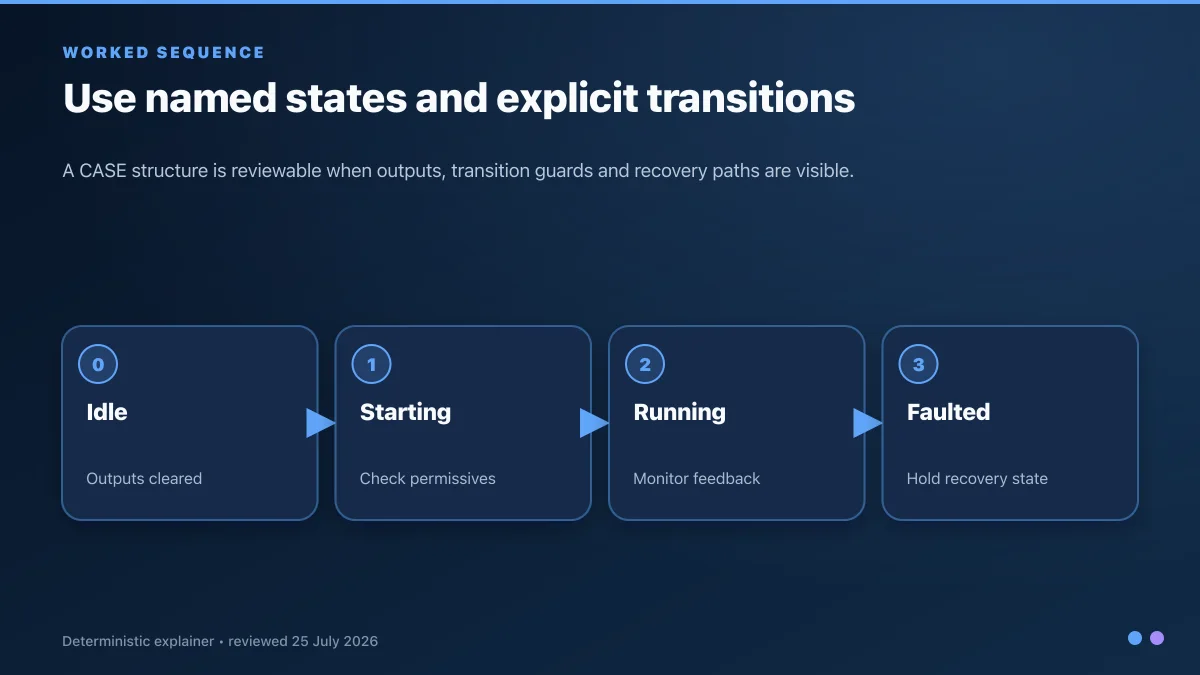
// CASE statement for state machines
CASE CurrentState OF
    0: // Idle state
        IF StartCommand THEN
            CurrentState := 1;
        END_IF;

    1: // Running state
        ExecuteProcess();
        IF ProcessComplete THEN
            CurrentState := 2;
        END_IF;

    2: // Stopping state
        Shutdown();
        CurrentState := 0;

ELSE
    // Handle unexpected state
    CurrentState := 0;
    ErrorFlag := TRUE;
END_CASE;

// FOR loop
FOR i := 1 TO 10 DO
    SensorAverage := SensorAverage + SensorArray[i];
END_FOR;
SensorAverage := SensorAverage / 10.0;

// WHILE loop
WHILE Counter < MaxCount AND NOT StopCondition DO
    Counter := Counter + 1;
    ProcessData(Counter);
END_WHILE;

// REPEAT-UNTIL loop
REPEAT
    ReadNextValue();
    ProcessValue();
UNTIL EndOfData OR ErrorOccurred;

Functions and Function Blocks:

// Function definition (returns single value)
FUNCTION FC_CalculateFlow : REAL
VAR_INPUT
    fPressureDiff : REAL;     // Pressure difference in Pa
    fPipeDiameter : REAL;     // Pipe diameter in meters
    fFluidDensity : REAL;     // Fluid density in kg/mΒ³
END_VAR
VAR
    fFlowCoefficient : REAL;
    fPipeArea : REAL;
END_VAR

// Simplified flow calculation
fFlowCoefficient := SQRT(2.0 * ABS(fPressureDiff) / fFluidDensity);
fPipeArea := 3.14159 * EXPT(fPipeDiameter/2.0, 2.0);
FC_CalculateFlow := fPipeArea * fFlowCoefficient;
// Function Block (maintains internal state)
FUNCTION_BLOCK FB_Conveyor
VAR_INPUT
    Enable : BOOL;
    Speed : REAL;  // 0-100%
END_VAR
VAR_OUTPUT
    Running : BOOL;
    ActualSpeed : REAL;
    RunHours : REAL;
END_VAR
VAR
    StartTimer : TON;
    RunTimer : TON;
    TotalRunTime : TIME;
END_VAR

// Startup delay logic
StartTimer(IN := Enable, PT := T#2s);
Running := StartTimer.Q;

// Track running hours
RunTimer(IN := Running, PT := T#1h);
IF RunTimer.Q THEN
    RunHours := RunHours + 1.0;
    RunTimer(IN := FALSE); // Reset for next hour
END_IF;

// Ramp speed
IF Running THEN
    IF ActualSpeed < Speed THEN
        ActualSpeed := ActualSpeed + 0.1; // Ramp up
    ELSIF ActualSpeed > Speed THEN
        ActualSpeed := ActualSpeed - 0.1; // Ramp down
    END_IF;
ELSE
    ActualSpeed := 0.0;
END_IF;

Complete Multi-Axis Motion Control Example

PROGRAM PRG_PickAndPlace
VAR
    // Axis references
    AxisX : AXIS_REF;
    AxisY : AXIS_REF;
    AxisZ : AXIS_REF;
    AxisGripper : AXIS_REF;

    // Motion function blocks
    MC_Power_X : MC_Power;
    MC_Home_X : MC_Home;
    MC_MoveAbsolute_X : MC_MoveAbsolute;

    MC_Power_Y : MC_Power;
    MC_Home_Y : MC_Home;
    MC_MoveAbsolute_Y : MC_MoveAbsolute;

    MC_Power_Z : MC_Power;
    MC_Home_Z : MC_Home;
    MC_MoveAbsolute_Z : MC_MoveAbsolute;

    MC_Power_Gripper : MC_Power;
    MC_MoveRelative_Gripper : MC_MoveRelative;

    // State machine
    eState : E_PickPlaceStates := E_PickPlaceStates.INIT;

    // Position targets
    fPickX : LREAL := 100.0;
    fPickY : LREAL := 50.0;
    fPickZ : LREAL := 20.0;

    fPlaceX : LREAL := 200.0;
    fPlaceY : LREAL := 150.0;
    fPlaceZ : LREAL := 25.0;

    fSafeZ : LREAL := 100.0;  // Safe height for travel

    // Control
    bStart : BOOL;
    bReset : BOOL;
    bCycleComplete : BOOL;

    // Parameters
    fVelocity : LREAL := 500.0;  // mm/s
    fAcceleration : LREAL := 2000.0;  // mm/sΒ²
END_VAR

// Enable all axes
MC_Power_X(Axis := AxisX, Enable := TRUE);
MC_Power_Y(Axis := AxisY, Enable := TRUE);
MC_Power_Z(Axis := AxisZ, Enable := TRUE);
MC_Power_Gripper(Axis := AxisGripper, Enable := TRUE);

// State machine for pick-and-place sequence
CASE eState OF
    E_PickPlaceStates.INIT:
        // Initialize and home all axes
        MC_Home_X(Axis := AxisX, Execute := TRUE);
        MC_Home_Y(Axis := AxisY, Execute := TRUE);
        MC_Home_Z(Axis := AxisZ, Execute := TRUE);

        IF MC_Home_X.Done AND MC_Home_Y.Done AND MC_Home_Z.Done THEN
            MC_Home_X(Execute := FALSE);
            MC_Home_Y(Execute := FALSE);
            MC_Home_Z(Execute := FALSE);
            eState := E_PickPlaceStates.IDLE;
        END_IF;

    E_PickPlaceStates.IDLE:
        bCycleComplete := FALSE;
        IF bStart THEN
            bStart := FALSE;
            eState := E_PickPlaceStates.MOVE_TO_PICK_XY;
        END_IF;

    E_PickPlaceStates.MOVE_TO_PICK_XY:
        // Move X and Y to pick position (Z stays at safe height)
        MC_MoveAbsolute_X(
            Axis := AxisX,
            Execute := TRUE,
            Position := fPickX,
            Velocity := fVelocity,
            Acceleration := fAcceleration,
            Deceleration := fAcceleration
        );

        MC_MoveAbsolute_Y(
            Axis := AxisY,
            Execute := TRUE,
            Position := fPickY,
            Velocity := fVelocity,
            Acceleration := fAcceleration,
            Deceleration := fAcceleration
        );

        IF MC_MoveAbsolute_X.Done AND MC_MoveAbsolute_Y.Done THEN
            MC_MoveAbsolute_X(Execute := FALSE);
            MC_MoveAbsolute_Y(Execute := FALSE);
            eState := E_PickPlaceStates.MOVE_Z_DOWN;
        END_IF;

    E_PickPlaceStates.MOVE_Z_DOWN:
        // Lower Z axis to pick position
        MC_MoveAbsolute_Z(
            Axis := AxisZ,
            Execute := TRUE,
            Position := fPickZ,
            Velocity := fVelocity * 0.5,  // Slower for precision
            Acceleration := fAcceleration,
            Deceleration := fAcceleration
        );

        IF MC_MoveAbsolute_Z.Done THEN
            MC_MoveAbsolute_Z(Execute := FALSE);
            eState := E_PickPlaceStates.CLOSE_GRIPPER;
        END_IF;

    E_PickPlaceStates.CLOSE_GRIPPER:
        // Close gripper (relative move)
        MC_MoveRelative_Gripper(
            Axis := AxisGripper,
            Execute := TRUE,
            Distance := -10.0,  // Negative = close
            Velocity := 100.0
        );

        IF MC_MoveRelative_Gripper.Done THEN
            MC_MoveRelative_Gripper(Execute := FALSE);
            eState := E_PickPlaceStates.MOVE_Z_UP;
        END_IF;

    E_PickPlaceStates.MOVE_Z_UP:
        // Raise Z to safe height
        MC_MoveAbsolute_Z(
            Axis := AxisZ,
            Execute := TRUE,
            Position := fSafeZ,
            Velocity := fVelocity,
            Acceleration := fAcceleration,
            Deceleration := fAcceleration
        );

        IF MC_MoveAbsolute_Z.Done THEN
            MC_MoveAbsolute_Z(Execute := FALSE);
            eState := E_PickPlaceStates.MOVE_TO_PLACE_XY;
        END_IF;

    E_PickPlaceStates.MOVE_TO_PLACE_XY:
        // Move to place position
        MC_MoveAbsolute_X(
            Axis := AxisX,
            Execute := TRUE,
            Position := fPlaceX,
            Velocity := fVelocity,
            Acceleration := fAcceleration,
            Deceleration := fAcceleration
        );

        MC_MoveAbsolute_Y(
            Axis := AxisY,
            Execute := TRUE,
            Position := fPlaceY,
            Velocity := fVelocity,
            Acceleration := fAcceleration,
            Deceleration := fAcceleration
        );

        IF MC_MoveAbsolute_X.Done AND MC_MoveAbsolute_Y.Done THEN
            MC_MoveAbsolute_X(Execute := FALSE);
            MC_MoveAbsolute_Y(Execute := FALSE);
            eState := E_PickPlaceStates.MOVE_Z_DOWN_PLACE;
        END_IF;

    E_PickPlaceStates.MOVE_Z_DOWN_PLACE:
        // Lower Z to place position
        MC_MoveAbsolute_Z(
            Axis := AxisZ,
            Execute := TRUE,
            Position := fPlaceZ,
            Velocity := fVelocity * 0.5,
            Acceleration := fAcceleration,
            Deceleration := fAcceleration
        );

        IF MC_MoveAbsolute_Z.Done THEN
            MC_MoveAbsolute_Z(Execute := FALSE);
            eState := E_PickPlaceStates.OPEN_GRIPPER;
        END_IF;

    E_PickPlaceStates.OPEN_GRIPPER:
        // Open gripper to release part
        MC_MoveRelative_Gripper(
            Axis := AxisGripper,
            Execute := TRUE,
            Distance := 10.0,  // Positive = open
            Velocity := 100.0
        );

        IF MC_MoveRelative_Gripper.Done THEN
            MC_MoveRelative_Gripper(Execute := FALSE);
            eState := E_PickPlaceStates.RETURN_HOME;
        END_IF;

    E_PickPlaceStates.RETURN_HOME:
        // Return to home position
        MC_MoveAbsolute_Z(Execute := TRUE, Position := fSafeZ);

        IF MC_MoveAbsolute_Z.Done THEN
            MC_MoveAbsolute_Z(Execute := FALSE);
            MC_MoveAbsolute_X(Execute := TRUE, Position := 0.0);
            MC_MoveAbsolute_Y(Execute := TRUE, Position := 0.0);

            IF MC_MoveAbsolute_X.Done AND MC_MoveAbsolute_Y.Done THEN
                MC_MoveAbsolute_X(Execute := FALSE);
                MC_MoveAbsolute_Y(Execute := FALSE);
                bCycleComplete := TRUE;
                eState := E_PickPlaceStates.IDLE;
            END_IF;
        END_IF;

    E_PickPlaceStates.ERROR:
        // Error handling
        IF bReset THEN
            bReset := FALSE;
            eState := E_PickPlaceStates.INIT;
        END_IF;
END_CASE;

// Check for errors on any axis
IF AxisX.Status.Error OR AxisY.Status.Error OR
   AxisZ.Status.Error OR AxisGripper.Status.Error THEN
    eState := E_PickPlaceStates.ERROR;
END_IF;

Chapter 4: EtherCAT Communication in TwinCAT

EtherCAT Protocol Integration

Why TwinCAT Uses EtherCAT:

Beckhoff invented EtherCAT in 2003 and contributed it as open standard, making it the native communication protocol for TwinCAT systems. EtherCAT delivers exceptional performance characteristics perfectly matched to PC-based control requirements:

  • Cycle Times: 50-100 microseconds typical, sub-millisecond guaranteed
  • Jitter: Less than 1 microsecond for precision synchronization
  • Topology Flexibility: Line, tree, star, ring without switches
  • Device Count: Up to 65,535 slaves on single network
  • Bandwidth Efficiency: Greater than 90% for process data

Distributed Clocks Synchronization:

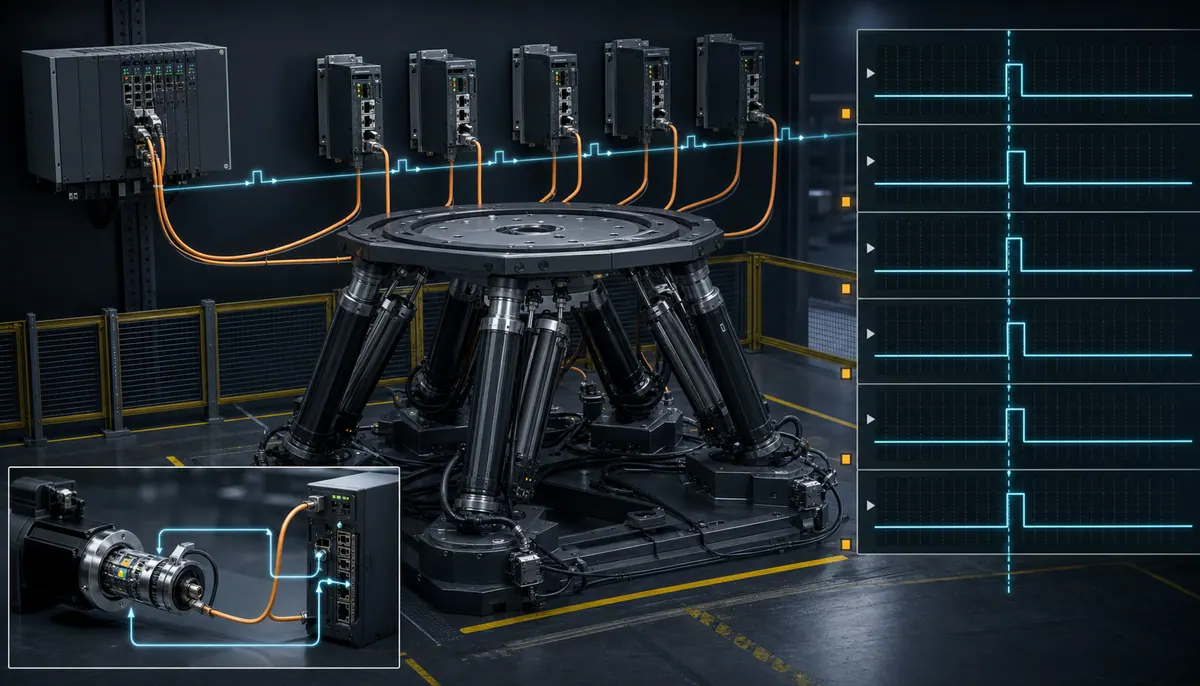
TwinCAT leverages EtherCAT Distributed Clocks (DC) for sub-microsecond synchronization across all network devices. This precision enables:

  • Coordinated multi-axis motion control
  • Electronic gearing and camming
  • Synchronized data acquisition
  • Phase-locked control loops
  • Flying shear and registration control

Configuring EtherCAT Network in TwinCAT

Step 1: Physical Network Installation

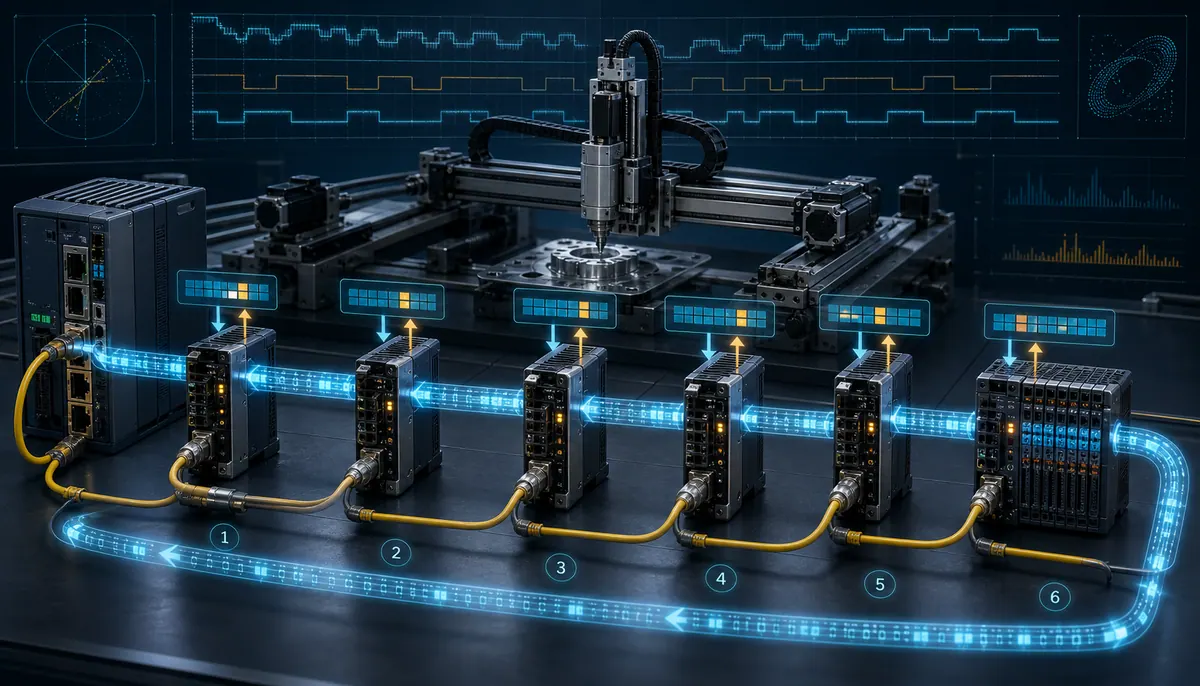
Wire EtherCAT network in daisy-chain topology:

  1. Connect Beckhoff controller Ethernet port to first EtherCAT device
  2. Connect device OUT port to next device IN port
  3. Continue through all devices
  4. Last device OUT port remains open (or connects to IN for redundancy)
  5. Install 120Ξ© termination resistors at both network ends if required

Step 2: Scan EtherCAT Devices

In TwinCAT XAE:

  1. Expand I/O β†’ Devices in solution explorer
  2. Right-click on "Device 1 (EtherCAT)" β†’ Scan
  3. TwinCAT scans network and detects all connected slaves
  4. Detected devices appear in topology tree
  5. Verify detected devices match physical installation

Step 3: Configure Device Parameters

For each EtherCAT device:

  1. Double-click device in I/O tree
  2. Review "General" tab for device information
  3. Configure "Process Data" tab to select PDO mappings
  4. Set "Startup" parameters if required
  5. Configure "DC Settings" for synchronized devices

Step 4: Link Variables to PLC

Map EtherCAT I/O to PLC variables:

// Global Variable List (GVL)
VAR_GLOBAL
    // EtherCAT Digital Inputs (linked to EL1008 terminal)
    {attribute 'pytmc' := 'pv: DI:01'}
    DI_StartButton AT %I* : BOOL;
    DI_StopButton AT %I* : BOOL;
    DI_EStopOK AT %I* : BOOL;

    // EtherCAT Digital Outputs (linked to EL2008 terminal)
    {attribute 'pytmc' := 'pv: DO:01'}
    DO_MotorRun AT %Q* : BOOL;
    DO_GreenLight AT %Q* : BOOL;
    DO_RedLight AT %Q* : BOOL;

    // EtherCAT Analog Input (linked to EL3064 terminal)
    AI_Temperature AT %I* : INT;  // Raw value
    fTemperature : REAL;  // Scaled value

    // EtherCAT Analog Output (linked to EL4004 terminal)
    AO_ValvePosition AT %Q* : INT;
END_VAR

Link variables through I/O mapping:

  1. Activate "Prepare Configuration" (builds links)
  2. I/O tree shows available inputs/outputs
  3. Drag I/O channels to PLC variables or use "Change Link" dialog
  4. Confirm all required I/O is linked
  5. Activate configuration to runtime

Step 5: Configure Distributed Clocks

For motion control and synchronized I/O:

  1. Select EtherCAT master device
  2. Enable "Distributed Clocks" in settings
  3. Select reference clock device (typically first DC-capable slave)
  4. Configure DC synchronization mode:
    • DC-Synchron (SM-Synchron): Synchronize slave processing
    • DC-Synchron with SYNC0: Generate precise output events
  5. Set SYNC0 cycle time matching task cycle time
  6. Apply configuration and verify synchronization status

EtherCAT Device Configuration Examples

Example 1: Digital I/O Terminal EL1008/EL2008

EL1008 Configuration (8-channel digital input):
- Update rate: Matches task cycle time
- Input delay: 3 ms typical
- Logic level: 24VDC
- Diagnostics: Underrange/overrange detection

Link to PLC:
DI_Channel1 AT %I*  : BOOL;  // Linked to EL1008 Channel 1
DI_Channel2 AT %I*  : BOOL;  // Linked to EL1008 Channel 2
// ... etc for all 8 channels

Example 2: Analog Input Terminal EL3064

EL3064 Configuration (4-channel Β±10V analog input):
- Resolution: 12-bit (4096 counts)
- Input range: Β±10V
- Sampling rate: 10 kHz per channel
- Filter: Adjustable lowpass filter

Scaling in PLC:
AI_Channel1_Raw AT %I* : INT;  // Range: -32768 to 32767
fVoltage : REAL;

// Scale to engineering units
fVoltage := INT_TO_REAL(AI_Channel1_Raw) * 10.0 / 32767.0;

Example 3: Servo Drive AX5206

AX5206 EtherCAT Configuration:
- CoE (CANopen over EtherCAT) protocol
- Distributed Clocks enabled
- SYNC0 event generation for synchronization
- PDO mapping for position, velocity, torque
- Cyclic Synchronous Position mode (CSP)

Motion Control Linking:
Axis_1 linked to AX5206 drive
Encoder feedback automatic
Control mode: Position control
Enable drive through MC_Power function block

Diagnostic and Troubleshooting Tools

Online Device View:

Real-time monitoring of EtherCAT devices:

  1. Right-click device β†’ "Online"
  2. View current process data values
  3. Monitor device state (INIT, PREOP, SAFEOP, OP)
  4. Check diagnostics and error counters
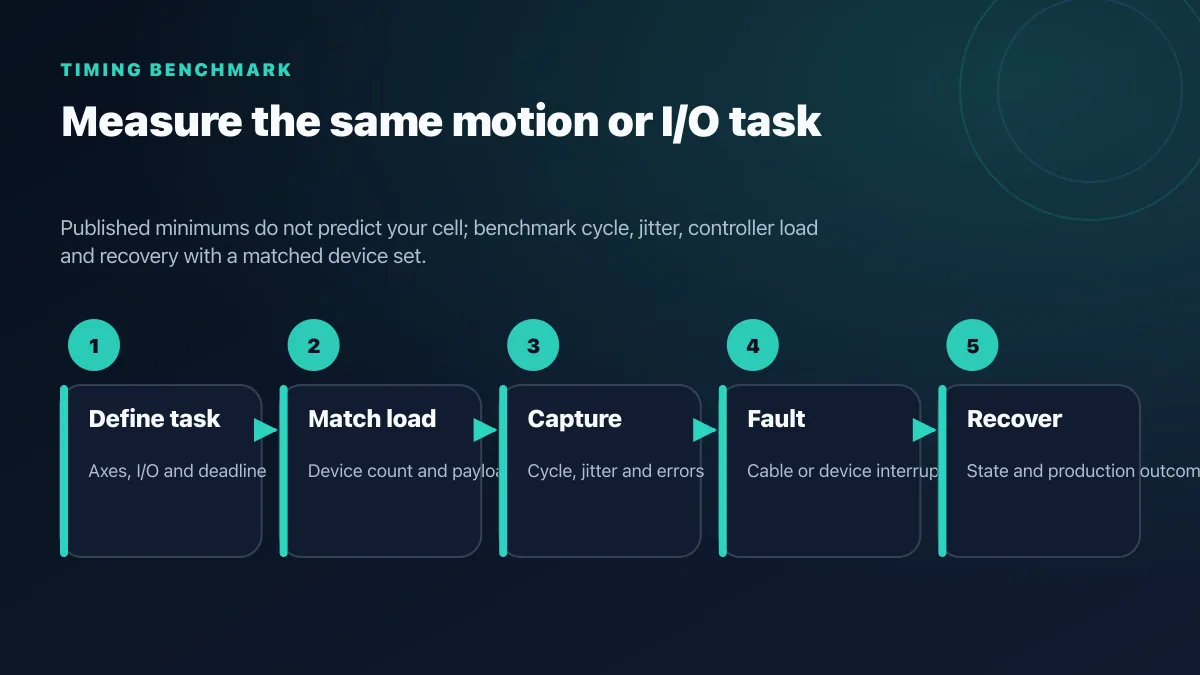
  5. Manually force outputs for testing

EtherCAT Monitor:

Detailed network analysis:

  • Frame statistics and timing
  • Working counter values
  • DC synchronization quality
  • Topology visualization
  • Communication errors and dropped frames

Common EtherCAT Issues:

| Issue | Symptoms | Solution | |-------|----------|----------| | Device not detected | Missing from scan results | Check physical connections, power | | State change errors | Won't reach OP state | Verify configuration matches device | | DC sync warnings | Jitter alarms | Check network timing, cable quality | | Working counter errors | Communication dropouts | Inspect cables, termination, shielding | | Slow cycle times | Performance issues | Reduce data volume, optimize topology |

Chapter 5: Motion Control Programming in TwinCAT

TwinCAT NC (Numeric Control) Overview

TwinCAT NC Architecture:

TwinCAT NC provides comprehensive motion control from simple point-to-point positioning through advanced CNC interpolation and robotic kinematics. NC functionality integrates seamlessly with PLC programming for complete machine control in unified environment.

Motion Control Licensing:

  • TwinCAT 3 NC I: Basic interpolation, electronic gearing, cam profiles (€900 + €150/axis)
  • TwinCAT 3 NC PTP: Point-to-point motion for pick-and-place (€600 + €90/axis)
  • TwinCAT 3 NC CNC: Full CNC with G-code interpreter (€3,000+)

PLCopen Motion Control:

TwinCAT implements PLCopen motion control function blocks providing standardized motion programming compatible across vendors. Key function blocks include:

  • MC_Power: Enable/disable axis power
  • MC_Home: Execute homing sequence
  • MC_MoveAbsolute: Move to absolute position
  • MC_MoveRelative: Move relative distance
  • MC_MoveVelocity: Continuous velocity mode
  • MC_Stop: Controlled axis stop
  • MC_Halt: Emergency stop with deceleration

Configuring Servo Axes in TwinCAT

Step 1: Add NC Configuration

  1. Right-click "Motion" in solution explorer
  2. Add New Item β†’ "NC-Configuration"
  3. Select standard NC configuration template
  4. Name configuration (e.g., "NC_Config_Main")

Step 2: Create Axis

  1. Expand NC-Configuration β†’ Axes
  2. Right-click Axes β†’ Add New Item
  3. Select axis type (Linear, Rotary, Virtual)
  4. Name axis (e.g., "Axis_X", "Axis_Spindle")
  5. Configure axis parameters

Step 3: Link Axis to Drive

Axis Parameters:
β”œβ”€β”€ General
β”‚   β”œβ”€β”€ Unit: mm (or degrees for rotary)
β”‚   β”œβ”€β”€ Axis type: Linear/Rotary
β”‚   └── Encoder scaling factor
β”œβ”€β”€ Drive
β”‚   β”œβ”€β”€ Linked EtherCAT drive: AX5206-0000-0200
β”‚   β”œβ”€β”€ Control mode: Position control
β”‚   └── Drive enable mapping
β”œβ”€β”€ Encoder
β”‚   β”œβ”€β”€ Encoder type: Incremental/Absolute
β”‚   β”œβ”€β”€ Scaling: mm per encoder count
β”‚   └── Reference mode: Homing configuration
β”œβ”€β”€ Parameters
β”‚   β”œβ”€β”€ Max velocity: 1000 mm/s
β”‚   β”œβ”€β”€ Max acceleration: 5000 mm/sΒ²
β”‚   β”œβ”€β”€ Max deceleration: 5000 mm/sΒ²
β”‚   └── Max jerk: 50000 mm/sΒ³
└── Controller
    β”œβ”€β”€ Position controller gains (Kp, Ki, Kd)
    β”œβ”€β”€ Velocity feedforward
    └── Following error limits

Step 4: Configure Encoder Scaling

Calculate encoder scaling for linear axis:

Encoder resolution: 2^20 counts/rev (1,048,576)
Ball screw pitch: 10 mm/rev
Gear ratio: 1:1

Scaling factor = 10 mm / 1,048,576 counts
               = 0.00000953674 mm/count
               = 104,857.6 counts/mm

Enter in TwinCAT:

  • Encoder increments: 1048576
  • Scaling factor numerator: 10
  • Scaling factor denominator: 1

Advanced Motion Control Examples

Example 1: Electronic Gearing

Synchronize slave axis to master axis with programmable ratio:

PROGRAM PRG_ElectronicGearing
VAR
    AxisMaster : AXIS_REF;       // Master axis (line speed)
    AxisSlave : AXIS_REF;        // Slave axis (cutter)

    MC_GearIn : MC_GearIn;       // Electronic gearing FB
    MC_GearOut : MC_GearOut;     // Disengage gearing

    bEnableGearing : BOOL;
    fGearRatio : LREAL := 2.0;   // Slave moves 2x master speed
    iGearRatioNum : DINT := 2;
    iGearRatioDenom : DINT := 1;

    bGearingActive : BOOL;
END_VAR

// Engage electronic gearing
MC_GearIn(
    Master := AxisMaster,
    Slave := AxisSlave,
    Execute := bEnableGearing,
    RatioNumerator := iGearRatioNum,
    RatioDenominator := iGearRatioDenom,
    Acceleration := 2000.0,
    Deceleration := 2000.0,
    Jerk := 10000.0,
    InGear => bGearingActive
);

// Disengage gearing
MC_GearOut(
    Slave := AxisSlave,
    Execute := NOT bEnableGearing,
    Done =>
);

Example 2: Electronic Camming

Position-dependent motion using cam table:

PROGRAM PRG_ElectronicCam
VAR
    AxisMaster : AXIS_REF;
    AxisSlave : AXIS_REF;

    MC_CamIn : MC_CamIn;
    MC_CamOut : MC_CamOut;

    CamTable : MC_CAM_REF;  // Cam profile table

    bStartCam : BOOL;
    fMasterOffset : LREAL := 0.0;
    fSlaveOffset : LREAL := 0.0;

    bCamActive : BOOL;
END_VAR

// Activate cam profile
MC_CamIn(
    Master := AxisMaster,
    Slave := AxisSlave,
    Execute := bStartCam,
    CamTable := CamTable,
    MasterOffset := fMasterOffset,
    SlaveOffset := fSlaveOffset,
    MasterScaling := 1.0,
    SlaveScaling := 1.0,
    InSync => bCamActive
);

Example 3: Flying Shear Application

Cut moving material without stopping:

PROGRAM PRG_FlyingShear
VAR
    AxisConveyor : AXIS_REF;     // Material transport
    AxisCutter : AXIS_REF;       // Cutting mechanism

    MC_GearIn : MC_GearIn;
    MC_MoveRelative : MC_MoveRelative;

    eState : E_ShearStates;

    fConveyorSpeed : LREAL;      // Material speed
    fCutLength : LREAL := 500.0; // Cut length in mm
    fCutterStroke : LREAL := 100.0;

    bTriggerCut : BOOL;
    bCutComplete : BOOL;
END_VAR

CASE eState OF
    E_ShearStates.IDLE:
        IF bTriggerCut THEN
            eState := E_ShearStates.SYNC_TO_MATERIAL;
        END_IF;

    E_ShearStates.SYNC_TO_MATERIAL:
        // Match cutter speed to material speed
        MC_GearIn(
            Master := AxisConveyor,
            Slave := AxisCutter,
            Execute := TRUE,
            RatioNumerator := 1,
            RatioDenominator := 1,
            Acceleration := 10000.0
        );

        IF MC_GearIn.InGear THEN
            MC_GearIn(Execute := FALSE);
            eState := E_ShearStates.EXECUTE_CUT;
        END_IF;

    E_ShearStates.EXECUTE_CUT:
        // Perform cutting motion while synchronized
        MC_MoveRelative(
            Axis := AxisCutter,
            Execute := TRUE,
            Distance := fCutterStroke,
            Velocity := fConveyorSpeed * 2.0,  // Faster than material
            Acceleration := 20000.0
        );

        IF MC_MoveRelative.Done THEN
            MC_MoveRelative(Execute := FALSE);
            eState := E_ShearStates.RETURN_CUTTER;
        END_IF;

    E_ShearStates.RETURN_CUTTER:
        // Return cutter to start position
        MC_MoveRelative(
            Axis := AxisCutter,
            Execute := TRUE,
            Distance := -fCutterStroke,
            Velocity := fConveyorSpeed * 3.0
        );

        IF MC_MoveRelative.Done THEN
            MC_MoveRelative(Execute := FALSE);
            bCutComplete := TRUE;
            eState := E_ShearStates.IDLE;
        END_IF;
END_CASE;

CNC Functionality

G-Code Programming:

TwinCAT CNC license enables direct G-code interpretation:

N10 G00 X0 Y0 Z50      ; Rapid to start position
N20 G01 Z-5 F100       ; Feed to cutting depth
N30 G01 X100 F500      ; Linear interpolation
N40 G03 X100 Y100 R50  ; Circular interpolation
N50 G01 Y200           ; Continue profile
N60 G00 Z50            ; Retract
N70 M30                ; Program end

Kinematics Support:

  • 3-axis milling (XYZ)
  • 5-axis simultaneous machining
  • Delta robot kinematics
  • SCARA robot kinematics
  • Custom transformation matrices

Chapter 6: Practical Application Example

High-Speed Packaging Machine with Vision

Application Requirements:

Automated packaging system with:

  • 120 products/minute throughput (2 Hz cycle)
  • 4-axis servo motion (infeed, pick, place, reject)
  • Vision inspection with pass/fail sorting
  • Recipe management for different products
  • HMI for operator control and monitoring

Hardware Configuration:

System Components:
β”œβ”€β”€ CX5140 Controller (Intel Core i7)
β”œβ”€β”€ EtherCAT Network
β”‚   β”œβ”€β”€ EK1100 EtherCAT Coupler
β”‚   β”œβ”€β”€ EL1008 Digital Input (8 channels)
β”‚   β”œβ”€β”€ EL2008 Digital Output (8 channels)
β”‚   β”œβ”€β”€ EL3064 Analog Input (4 channels)
β”‚   β”œβ”€β”€ EL4004 Analog Output (4 channels)
β”‚   β”œβ”€β”€ AX5206 Servo Drive (4 units)
β”‚   └── EtherCAT Vision Camera
β”œβ”€β”€ AM8042 Servomotors (4 units)
└── CP3919 Panel PC (19" HMI)

I/O Mapping:

VAR_GLOBAL
    // Digital Inputs
    DI_StartButton : BOOL;
    DI_StopButton : BOOL;
    DI_EStop : BOOL;
    DI_ProductPresent : BOOL;
    DI_RejectBinFull : BOOL;

    // Digital Outputs
    DO_InfeedConveyor : BOOL;
    DO_OutfeedConveyor : BOOL;
    DO_RejectConveyor : BOOL;
    DO_GreenLight : BOOL;
    DO_RedLight : BOOL;
    DO_VisionTrigger : BOOL;

    // Analog Inputs
    AI_ConveyorSpeed : INT;

    // Motion Axes
    AxisInfeed : AXIS_REF;
    AxisPickX : AXIS_REF;
    AxisPickZ : AXIS_REF;
    AxisReject : AXIS_REF;

    // Vision System
    VisionResult : BOOL;  // TRUE = Pass, FALSE = Fail
    VisionQuality : INT;  // Quality score 0-100
END_VAR

State Machine Implementation:

PROGRAM PRG_PackagingMachine
VAR
    eMainState : E_MachineStates := E_MachineStates.INIT;
    ePickPlaceState : E_PickStates;

    // Recipes
    stCurrentRecipe : ST_Recipe;
    aRecipes : ARRAY[1..10] OF ST_Recipe;
    iRecipeNumber : INT := 1;

    // Position targets
    stPickPositions : ST_Positions;
    stPlacePositions : ST_Positions;

    // Statistics
    uiGoodCount : UDINT := 0;
    uiRejectCount : UDINT := 0;
    uiTotalCount : UDINT := 0;
    fRejectRate : REAL;

    // Timers
    CycleTimer : TON;
    fCycleTime : REAL;
    fTargetCycleTime : REAL := 500.0;  // 500ms = 120/min
END_VAR

// Main state machine
CASE eMainState OF
    E_MachineStates.INIT:
        // Initialize system
        IF InitializeMachine() THEN
            eMainState := E_MachineStates.IDLE;
        END_IF;

    E_MachineStates.IDLE:
        DO_GreenLight := TRUE;
        DO_RedLight := FALSE;

        IF DI_StartButton THEN
            LoadRecipe(iRecipeNumber);
            eMainState := E_MachineStates.RUNNING;
        END_IF;

    E_MachineStates.RUNNING:
        // Run conveyors
        DO_InfeedConveyor := TRUE;
        DO_OutfeedConveyor := TRUE;

        // Product detected - start cycle
        IF DI_ProductPresent AND ePickPlaceState = E_PickStates.IDLE THEN
            CycleTimer(IN := FALSE);  // Reset timer
            CycleTimer(IN := TRUE, PT := T#1s);
            ePickPlaceState := E_PickStates.TRIGGER_VISION;
            uiTotalCount := uiTotalCount + 1;
        END_IF;

        // Execute pick and place sequence
        ExecutePickPlace();

        // Calculate cycle time
        IF CycleTimer.Q THEN
            fCycleTime := TIME_TO_REAL(CycleTimer.ET);
            CycleTimer(IN := FALSE);
        END_IF;

        // Calculate reject rate
        IF uiTotalCount > 0 THEN
            fRejectRate := UDINT_TO_REAL(uiRejectCount) / UDINT_TO_REAL(uiTotalCount) * 100.0;
        END_IF;

        // Stop conditions
        IF DI_StopButton OR DI_RejectBinFull THEN
            eMainState := E_MachineStates.STOPPING;
        END_IF;

        IF DI_EStop THEN
            eMainState := E_MachineStates.ESTOP;
        END_IF;

    E_MachineStates.STOPPING:
        // Controlled stop
        DO_InfeedConveyor := FALSE;

        IF AxisInfeed.Status.StandStill AND
           AxisPickX.Status.StandStill AND
           AxisPickZ.Status.StandStill THEN
            DO_OutfeedConveyor := FALSE;
            eMainState := E_MachineStates.IDLE;
        END_IF;

    E_MachineStates.ESTOP:
        // Emergency stop
        DO_RedLight := TRUE;
        DO_GreenLight := FALSE;
        DO_InfeedConveyor := FALSE;
        DO_OutfeedConveyor := FALSE;
        DO_RejectConveyor := FALSE;

        // Disable all axes immediately
        DisableAllAxes();

        IF NOT DI_EStop THEN
            eMainState := E_MachineStates.INIT;  // Re-initialize after E-stop
        END_IF;
END_CASE;


// Pick and place sub-state machine
PROCEDURE ExecutePickPlace
CASE ePickPlaceState OF
    E_PickStates.IDLE:
        // Waiting for product
        ;

    E_PickStates.TRIGGER_VISION:
        // Trigger vision inspection
        DO_VisionTrigger := TRUE;
        ePickPlaceState := E_PickStates.WAIT_VISION;

    E_PickStates.WAIT_VISION:
        DO_VisionTrigger := FALSE;

        IF VisionProcessingComplete() THEN
            IF VisionResult THEN
                // Good product - pick and place
                ePickPlaceState := E_PickStates.MOVE_TO_PICK;
            ELSE
                // Failed inspection - reject
                uiRejectCount := uiRejectCount + 1;
                ePickPlaceState := E_PickStates.ACTIVATE_REJECT;
            END_IF;
        END_IF;

    E_PickStates.MOVE_TO_PICK:
        // Move pick head to product location
        IF MoveToPosition(AxisPickX, AxisPickZ, stPickPositions) THEN
            ePickPlaceState := E_PickStates.PICK_PRODUCT;
        END_IF;

    E_PickStates.PICK_PRODUCT:
        // Activate vacuum gripper, verify pickup
        IF PickProduct() THEN
            uiGoodCount := uiGoodCount + 1;
            ePickPlaceState := E_PickStates.MOVE_TO_PLACE;
        END_IF;

    E_PickStates.MOVE_TO_PLACE:
        // Move to placement position
        IF MoveToPosition(AxisPickX, AxisPickZ, stPlacePositions) THEN
            ePickPlaceState := E_PickStates.PLACE_PRODUCT;
        END_IF;

    E_PickStates.PLACE_PRODUCT:
        // Release product
        IF PlaceProduct() THEN
            ePickPlaceState := E_PickStates.RETURN_HOME;
        END_IF;

    E_PickStates.RETURN_HOME:
        // Return to home position
        IF ReturnToHome() THEN
            ePickPlaceState := E_PickStates.IDLE;
        END_IF;

    E_PickStates.ACTIVATE_REJECT:
        // Divert rejected product
        DO_RejectConveyor := TRUE;
        // Wait for product to clear, then turn off
        ePickPlaceState := E_PickStates.IDLE;
END_CASE;

Recipe Management:

TYPE ST_Recipe :
STRUCT
    sName : STRING(50);
    fPickX : LREAL;
    fPickZ : LREAL;
    fPlaceX : LREAL;
    fPlaceZ : LREAL;
    fVelocity : LREAL;
    iVisionThreshold : INT;
END_STRUCT
END_TYPE

FUNCTION LoadRecipe : BOOL
VAR_INPUT
    RecipeNum : INT;
END_VAR

stCurrentRecipe := aRecipes[RecipeNum];
stPickPositions.fX := stCurrentRecipe.fPickX;
stPickPositions.fZ := stCurrentRecipe.fPickZ;
stPlacePositions.fX := stCurrentRecipe.fPlaceX;
stPlacePositions.fZ := stCurrentRecipe.fPlaceZ;

LoadRecipe := TRUE;

HMI Integration:

TwinCAT HMI provides web-based visualization:

  • Real-time production statistics
  • Recipe selection and management
  • Manual axis jogging for setup
  • Alarm history and diagnostics
  • Trend charts for cycle time and quality

Chapter 7: Best Practices for TwinCAT Programming

Structured Programming Approach

Project Organization:

Recommended folder structure:
β”œβ”€β”€ POUs
β”‚   β”œβ”€β”€ Programs
β”‚   β”‚   β”œβ”€β”€ MAIN (main program)
β”‚   β”‚   β”œβ”€β”€ PRG_Motion (motion control)
β”‚   β”‚   └── PRG_Process (process logic)
β”‚   β”œβ”€β”€ Function_Blocks
β”‚   β”‚   β”œβ”€β”€ FB_Conveyor
β”‚   β”‚   β”œβ”€β”€ FB_Station
β”‚   β”‚   └── FB_SafetyMonitor
β”‚   └── Functions
β”‚       β”œβ”€β”€ FC_Calculate
β”‚       └── FC_Utility
β”œβ”€β”€ DUTs (Data Types)
β”‚   β”œβ”€β”€ E_States (enumerations)
β”‚   β”œβ”€β”€ ST_Recipe (structures)
β”‚   └── ST_Axis (axis data)
β”œβ”€β”€ GVLs (Global Variables)
β”‚   β”œβ”€β”€ GVL_IO (I/O mapping)
β”‚   β”œβ”€β”€ GVL_Motion (axis references)
β”‚   └── GVL_HMI (HMI interface)
└── VISUs (Visualizations)
    └── HMI screens

Naming Conventions:

// Prefix system for clarity
VAR
    // Inputs: DI_, AI_
    DI_StartButton : BOOL;
    AI_Temperature : INT;

    // Outputs: DO_, AO_
    DO_MotorRun : BOOL;
    AO_ValvePosition : INT;

    // Internal: b=BOOL, i=INT, f=REAL, s=STRING
    bSystemRunning : BOOL;
    iCounter : INT;
    fVelocity : REAL;
    sStatusMessage : STRING;

    // Function blocks: FB_
    FB_Conveyor1 : FB_Conveyor;

    // Structures: st
    stRecipe : ST_Recipe;

    // Enumerations: e
    eCurrentState : E_MachineStates;

    // Arrays: a
    aiSensorArray : ARRAY[1..10] OF INT;
END_VAR

Object-Oriented Programming in TwinCAT

Interfaces for Polymorphism:

INTERFACE I_Station
METHOD Start : BOOL
METHOD Stop : BOOL
METHOD Reset : BOOL
PROPERTY State : E_StationStates

Inheritance Example:

FUNCTION_BLOCK FB_Station_Base IMPLEMENTS I_Station
VAR
    eState : E_StationStates;
    bStartCommand : BOOL;
    bStopCommand : BOOL;
END_VAR

METHOD Start : BOOL
IF eState = E_StationStates.IDLE THEN
    eState := E_StationStates.STARTING;
    Start := TRUE;
END_IF

FUNCTION_BLOCK FB_Station_Welding EXTENDS FB_Station_Base
VAR
    fWeldCurrent : REAL;
    fWeldTime : TIME;
END_VAR
// Additional welding-specific functionality

Version Control Integration

Git Integration in TwinCAT:

  1. Initialize Git repository in project folder
  2. Create .gitignore for generated files:
_Boot/
_CompileInfo/
_Libraries/
LineIDs.dbg
*.tpy
  1. Commit project files regularly:

    • *.tsproj (project file)
    • *.plcproj (PLC project)
    • *.TcPOU (program organization units)
    • *.TcGVL (global variable lists)
    • *.TcDUT (data types)
  2. Use branching strategy:

    • main: Production code
    • develop: Integration branch
    • feature/*: New features
    • hotfix/*: Urgent fixes

Collaboration Best Practices:

  • Document all functions and function blocks with header comments
  • Use meaningful commit messages describing changes
  • Perform code reviews before merging
  • Tag releases with version numbers
  • Maintain changelog documenting modifications

Unit Testing with TcUnit

TcUnit Framework Installation:

  1. Download TcUnit library from GitHub
  2. Add library reference to PLC project
  3. Create test programs inheriting from FB_TestSuite

Example Unit Test:

FUNCTION_BLOCK FB_ConveyorTest EXTENDS TcUnit.FB_TestSuite
VAR
    fbConveyor : FB_Conveyor;
END_VAR

METHOD Test_ConveyorStart
VAR
END_VAR

// Arrange
fbConveyor.Enable := TRUE;
fbConveyor.Speed := 50.0;

// Act
fbConveyor();

// Assert
AssertTrue(fbConveyor.Running, 'Conveyor should be running');
AssertEquals_REAL(50.0, fbConveyor.ActualSpeed, 0.1, 'Speed should match setpoint');

Automated Testing:

  • Run tests automatically during build process
  • Generate test reports for documentation
  • Achieve high code coverage (>80%)
  • Test edge cases and error conditions
  • Regression testing before releases

Real-Time Performance Optimization

Minimize Cycle Time:

// Poor practice - inefficient
FOR i := 1 TO 1000 DO
    SomeComplexCalculation(i);
END_FOR

// Better practice - spread over multiple cycles
IF Index <= 1000 THEN
    SomeComplexCalculation(Index);
    Index := Index + 1;
ELSE
    Index := 1;
END_IF

Monitor Task Execution:

  • Target: Execution time < 50% of cycle time
  • Warning: Execution time > 70% of cycle time
  • Critical: Execution time > 90% of cycle time

Optimization Techniques:

  1. Use appropriate data types (BOOL vs INT for flags)
  2. Avoid floating-point math in fast cycles when possible
  3. Pre-calculate constants outside loops
  4. Use CASE instead of multiple IF-ELSIF chains
  5. Profile code to identify bottlenecks
  6. Consider multi-core task distribution for heavy processing

Chapter 8: Troubleshooting Common TwinCAT Issues

TwinCAT License Activation Problems

Issue: Trial License Expired

Symptoms:

  • "License expired" error on activation
  • Runtime won't start

Solutions:

  1. Request new 7-day trial from Beckhoff website
  2. Generate new system ID
  3. Enter new license code
  4. Restart TwinCAT runtime

For permanent installation:

  • Purchase appropriate runtime licenses
  • Contact Beckhoff for license file
  • Import license through TwinCAT System Manager

Real-Time Kernel Installation Issues

Issue: TwinCAT Real-Time Not Installed

Symptoms:

  • Error: "TwinCAT Real-Time not found"
  • Cannot activate configuration

Solutions:

  1. Run TwinCAT XAE installer with administrator rights
  2. Select "Install TwinCAT 3 Real-Time" option
  3. Reboot PC after installation
  4. Verify real-time driver in Device Manager

Issue: Real-Time Violations

Symptoms:

  • System reports cycle time overruns
  • Jitter warnings
  • Motion control instability

Solutions:

  • Reduce PLC code complexity
  • Increase task cycle time
  • Disable unnecessary Windows services
  • Configure DPC latency optimization
  • Isolate real-time cores from Windows interrupts

EtherCAT Network Errors

Issue: Devices Not Detected

Troubleshooting steps:

  1. Verify physical connections and power
  2. Check network adapter selection in Device Manager
  3. Ensure no IP conflicts
  4. Try manual device entry if scan fails
  5. Update EtherCAT slave device firmware

Issue: Distributed Clocks Synchronization Failures

Solutions:

  • Verify DC-capable device selected as reference
  • Check cable quality and termination
  • Reduce network size if excessive
  • Monitor DC drift values
  • Ensure consistent cycle timing

Motion Control Tuning Issues

Issue: Servo Oscillation

Symptoms:

  • Axis oscillates around target position
  • Audible vibration from motor
  • Following error fluctuations

Solutions:

  • Reduce proportional gain (Kp)
  • Increase derivative gain (Kd) for damping
  • Check mechanical coupling stiffness
  • Verify encoder signals quality
  • Use auto-tuning function if available

Issue: Following Error Exceeded

Solutions:

  • Increase maximum acceleration values
  • Adjust velocity feedforward gain
  • Check for mechanical binding
  • Verify motor torque sufficient for load
  • Increase following error window if appropriate

Issue: Homing Sequence Fails

Troubleshooting:

  • Verify homing sensor connectivity
  • Check homing mode configuration
  • Adjust homing speeds
  • Confirm reference position settings
  • Test sensor activation manually

Visual Studio Compatibility

Compatible Visual Studio Versions:

  • TwinCAT 3.1.4024: VS 2019 (recommended)
  • TwinCAT 3.1.4026: VS 2022 (latest)
  • Standalone TwinCAT XAE Shell (no VS required)

Common VS Integration Issues:

  1. Extensions conflict: Disable non-essential VS extensions
  2. Project won't load: Repair TwinCAT installation
  3. IntelliSense not working: Delete .vs folder and rebuild
  4. Build errors: Clean solution and rebuild
  5. Licensing problems: Run VS as administrator

Chapter 9: Frequently Asked Questions

What is TwinCAT and how is it different from traditional PLCs?

TwinCAT (The Windows Control and Automation Technology) is Beckhoff's PC-based control platform that transforms Windows industrial PCs into real-time PLCs, motion controllers, and CNC systems. Unlike traditional hardware PLCs with proprietary processors, TwinCAT leverages standard PC hardware providing superior processing power, scalability, and flexibility. TwinCAT integrates with Visual Studio for professional development while achieving deterministic real-time performance through dedicated CPU cores and specialized kernel drivers.

Is TwinCAT 3 free to use?

TwinCAT 3 engineering tools (XAE) are completely free to download and use for development, testing, and simulation. Runtime licenses are required for deployed production systems. Beckhoff offers unlimited renewable 7-day trial runtime licenses enabling full functionality for learning and development. Production runtime costs range from €900 for basic PLC functionality to €6,500+ for advanced CNC systems, typically much less expensive than traditional hardware PLC equivalents.

What programming languages does TwinCAT support?

TwinCAT 3 supports all five IEC 61131-3 programming languages: Structured Text (ST), Ladder Diagram (LD), Function Block Diagram (FBD), Sequential Function Chart (SFC), and Instruction List (IL). Additionally, TwinCAT extends capabilities with object-oriented programming features, C++ module integration, MATLAB/Simulink model import, and full Visual Studio C#/C++ development for HMI and advanced algorithms. Structured Text is the primary language for modern TwinCAT development due to power and flexibility.

Do I need a Beckhoff PLC to use TwinCAT?

No, TwinCAT 3 runs on any Windows-based industrial PC or standard desktop PC meeting minimum requirements. While Beckhoff CX series embedded controllers offer optimized integration, TwinCAT successfully runs on industrial PCs from manufacturers including B&R, Siemens, Advantech, and custom builds. For learning and development, TwinCAT runs perfectly on standard desktop or laptop PCs running Windows 10/11. Hardware independence is a key advantage of PC-based control.

What is EtherCAT and why does Beckhoff use it?

EtherCAT (Ethernet for Control Automation Technology) is the world's fastest industrial Ethernet protocol, invented by Beckhoff in 2003 and now an open international standard. EtherCAT achieves cycle times below 100 microseconds with sub-microsecond jitter through unique "processing on the fly" architecture. Beckhoff uses EtherCAT as native communication because it perfectly matches PC-based control performance requirements, enabling hundreds of coordinated servo axes, synchronized distributed I/O, and deterministic real-time control impossible with other industrial networks.

Can TwinCAT run on any Windows PC?

TwinCAT 3 runs on Windows 7, 8, 10, 11, Windows Embedded, and Windows Server editions. Minimum requirements include dual-core processor, 4GB RAM, and available Ethernet port. For production systems, industrial PCs with Intel processors, passive cooling, and industrial-grade components ensure reliability. Development and learning can use standard desktop or laptop computers. TwinCAT achieves real-time determinism by reserving CPU cores exclusively for automation tasks while Windows operates normally on remaining cores.

Is TwinCAT good for motion control?

Yes, TwinCAT excels at motion control applications from simple point-to-point positioning through advanced CNC machining and coordinated robotics. TwinCAT NC (Numeric Control) supports 100+ coordinated servo axes with sub-millisecond cycle times, electronic gearing and camming, flying shear operations, and complex kinematics. Combined with EtherCAT communication and distributed clocks synchronization, TwinCAT delivers motion control performance exceeding traditional hardware PLCs at significantly lower cost. Industries including packaging, semiconductor, automotive assembly, and CNC machining rely on TwinCAT for demanding motion applications.

What industries use Beckhoff and TwinCAT?

TwinCAT serves diverse industries including packaging machinery (high-speed filling, wrapping, labeling), semiconductor manufacturing (wafer handling, lithography), automotive assembly (body shops, powertrain), material handling (conveyors, sortation systems), CNC machine tools (multi-axis machining centers), robotics (industrial and collaborative robots), building automation (HVAC, lighting control), and test and measurement (automated test equipment). Any application requiring real-time control, motion coordination, or data processing benefits from PC-based control advantages.

How do I learn TwinCAT programming?

Start by downloading free TwinCAT 3 XAE from Beckhoff website and installing on Windows PC. Beckhoff provides comprehensive documentation including "Getting Started" guides, programming manuals, and video tutorials. Complete online training courses available through Beckhoff Training Centers teach fundamentals through advanced topics. Join TwinCAT user forums and LinkedIn groups for community support. Work through practical examples starting with simple I/O control, progressing to state machines, then motion control. Expect 40-60 hours to gain basic proficiency, 100+ hours for advanced competency.

Can TwinCAT communicate with other PLC brands?

Yes, TwinCAT supports extensive industrial communication protocols enabling integration with Siemens, Allen-Bradley, Schneider Electric, Mitsubishi, and other PLC brands. Supported protocols include Modbus TCP/RTU (universal connectivity), PROFINET (Siemens integration), EtherNet/IP (Rockwell Automation compatibility), PROFIBUS (legacy Siemens), OPC UA (Industry 4.0 interoperability), and CANopen (distributed systems). TwinCAT also offers protocol conversion gateways enabling mixed-vendor systems. This interoperability enables TwinCAT integration into existing automation infrastructure without complete replacement.

Conclusion: Master TwinCAT for Next-Generation Automation

Beckhoff TwinCAT programming represents the future of industrial automation control, combining PC-based flexibility and processing power with deterministic real-time performance and comprehensive motion control capabilities. Understanding TwinCAT programming empowers automation engineers to implement applications impossible or impractical with traditional hardware PLCs while reducing system costs and improving scalability.

The integration of TwinCAT with Visual Studio transforms industrial programming into software engineering, providing professional development tools, version control, automated testing, and collaborative development workflows. Combined with EtherCAT communication delivering exceptional performance and Structured Text programming enabling complex algorithms, TwinCAT creates comprehensive automation platform capable of handling simple discrete control through advanced CNC machining and multi-axis robotics.

As Industry 4.0, smart manufacturing, and data-driven automation continue transforming industrial production, PC-based control platforms like TwinCAT become increasingly essential. The ability to combine PLC control, motion coordination, vision inspection, data analytics, and cloud connectivity on unified platform provides competitive advantages traditional automation systems cannot match. Mastering TwinCAT programming positions automation professionals at forefront of modern industrial control technology.

Continue developing TwinCAT expertise through hands-on practice with progressively complex applications, studying Beckhoff documentation and training materials, participating in user communities, and staying current with new features and capabilities introduced in TwinCAT updates. The investment in learning PC-based control with TwinCAT pays dividends throughout your automation engineering career.

Related PLC Programming and Industrial Communication Resources

Expand your industrial automation knowledge beyond TwinCAT programming:

Accelerate Your PLC Programming Career

Ready to become a PLC programming expert with advanced PC-based control and motion programming skills? Our comprehensive Master PLC Programming Guide covers everything from fundamental concepts through advanced techniques including TwinCAT, motion control, industrial communication protocols, and Industry 4.0 integration. Download your complete resource today and master the skills driving modern industrial automation in 2025 and beyond.

πŸ’‘ Pro Tip: Download Our Complete PLC Programming Resource

This comprehensive 7Β 809-word guide provides deep technical knowledge, but our complete 500+ page guide (coming December 2025) includes additional practical exercises, code templates, and industry-specific applications.Preorder the complete guide here (60% off) β†’

🚧 COMING DECEMBER 2025 - PREORDER NOW

πŸš€ Ready to Become a PLC Programming Expert?

You've just read 7Β 809 words of expert PLC programming content. Preorder our complete 500+ page guide with even more detailed examples, templates, and industry applications.

500+ Pages
Expert Content
50+ Examples
Real Applications
60% Off
Preorder Price
Preorder Complete Guide - $47

βœ“ December 2025 release βœ“ Full refund guarantee

#beckhoff#twincat3#pc-basedcontrol#ethercat#motioncontrol#structuredtext#industry4.0
Share this article:

Frequently Asked Questions

How long does it take to learn PLC programming?

With dedicated study and practice, most people can learn basic PLC programming in 3-6 months. However, becoming proficient in advanced techniques and industry-specific applications typically takes 1-2 years of hands-on experience.

What's the average salary for PLC programmers?

PLC programmers earn competitive salaries ranging from $55,000-$85,000 for entry-level positions to $90,000-$130,000+ for senior roles. Specialized expertise in specific industries or advanced automation systems can command even higher compensation.

Which PLC brands should I focus on learning?

Allen-Bradley (Rockwell) and Siemens dominate the market, making them excellent starting points. Schneider Electric, Mitsubishi, and Omron are also valuable to learn depending on your target industry and geographic region.

Related Articles

🚧 COMING DECEMBER 2025 - PREORDER NOW

Ready to Master PLC Programming?

Be among the first to get our comprehensive PLC programming guide. Preorder now and save 60% off the final price!

500+
Pages of Expert Content
50+
Real-World Examples
60% Off
Preorder Discount
Preorder PLC Programming Guide - $47

βœ“ December 2025 Release βœ“ Full Refund Guarantee βœ“ Exclusive Preorder Benefits